
Complete control over the input screen — A guide to using client scripts
This guide explains, with practical examples, how to implement form auto-filling, display control, and validation using ERPNext client scripts. Basic JavaScript knowledge is all you need to get started.

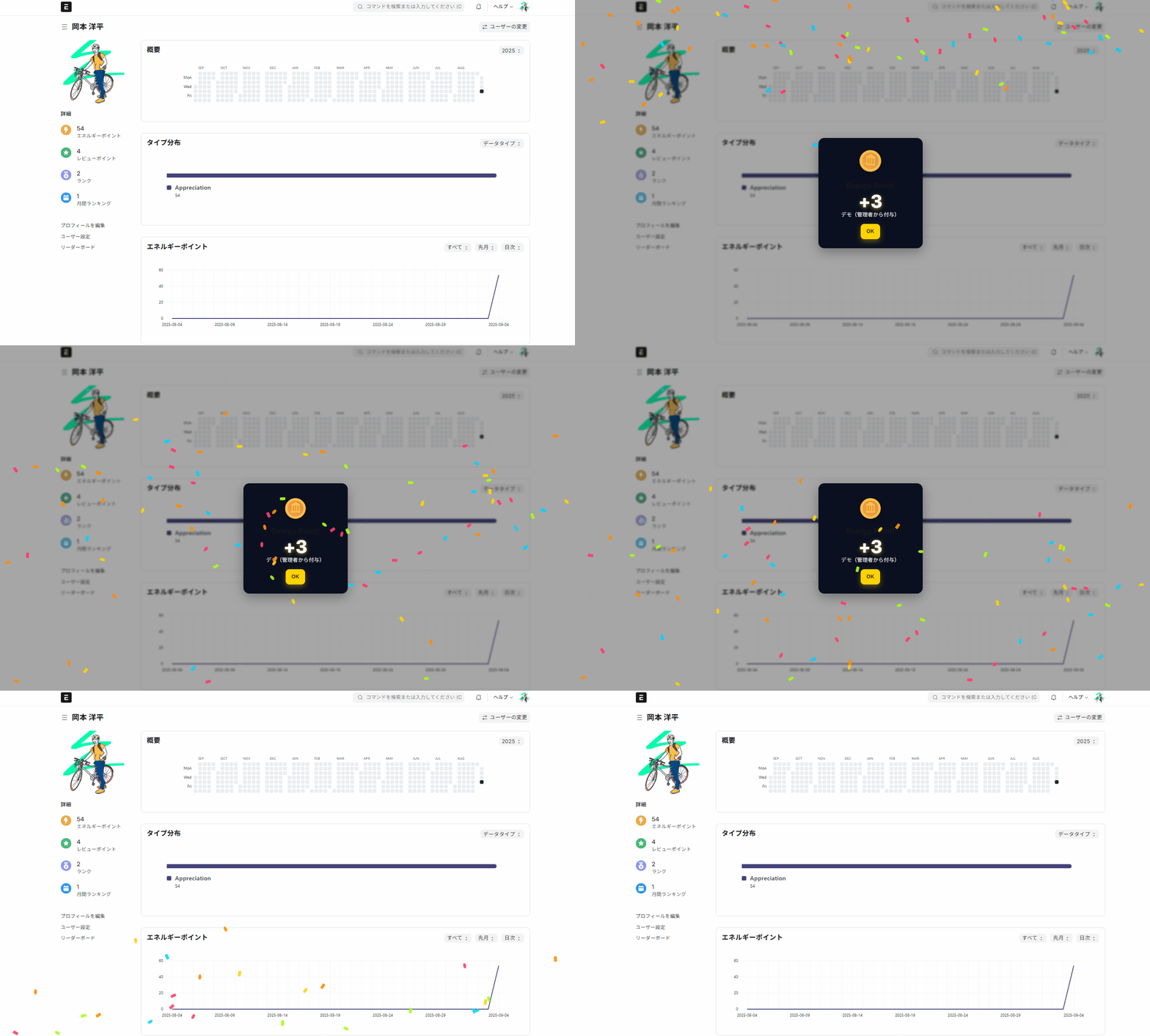
Here's how it actually works: ↓ ↓ ↓
クリック回数: 0
1. Introduction
ERPNext comes standard with the following 5 customization options:
- Custom fields
- Custom Form
- Client script
- Server script
- App
It can be expanded in stages according to the application, and adjustments can be made to suit the specific needs of the site.
This article focuses on client-side scripts that can transform the front-end experience into a lightweight and fast one.
This explains how to display the "Coin Acquisition Modal" (shown in the opening image) when energy points are acquired.
This is achieved using only ERPNext's standard modal functionality and a short JavaScript file, without the need for external libraries.
Furthermore, ERPNext achieves a robust and "unbreakable customization" that is resistant to updates thanks to its separation of core and custom parts and extension design using official hooks/APIs.
(Details of the mechanism that prevents it from breaking will be explained in a separate article) Unbreakable customization Please see below.
So, let's start by experiencing client-side scripting with a minimal configuration, and gradually expand our understanding.
2. What is client-side scripting?
Client-side scripting is a mechanism for embedding JavaScript that runs on the ERPNext screen (browser).
The concept is similar to kintone's JS customization or Salesforce's UI extensions (LWC/Aura, JS buttons): you can hook into form events to change the behavior and appearance.
Internally, it has access to the jQuery / Bootstrap / frappe.ui API, allowing for not only field manipulation but also direct DOM manipulation.
In addition to modifications using custom fields and custom forms, you can easily incorporate lightweight widgets and effects.
for example
-
For input assistance; Candidate suggestions based on input values, conditional mandatory requirements, activation/deactivation control, pre-save validation.
-
For advanced DOM manipulation; Insert custom HTML and embed external graphs such as Chart.js for real-time updates.
-
For UI effects; Dynamic updates of modal or toast notifications, confetti effects, and progress indicators upon successful saving. → We can even arrange a "Congratulations!" fireworks display when a business deal is completed.
3. Implementation Procedure (Minimum Viable Product)
Now, let me explain the actual registration procedure.
When a user acquires energy points,
I would like to display a coin acquisition modal, similar to the one I introduced at the beginning.
("Energy Points" is a standard feature of ERPNext's gamification.)
procedure
-
Go to Settings → Customize → Client Scripts
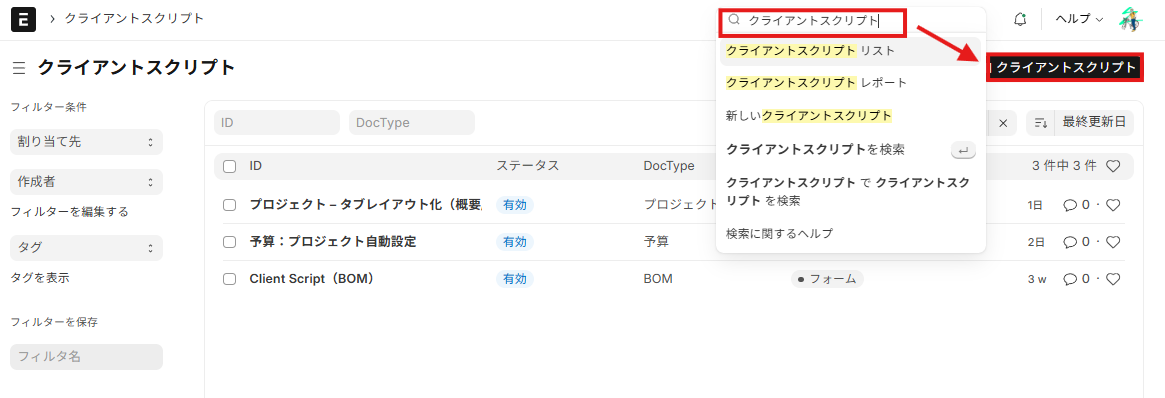
-
Create New → Doctype:
GlobalScript Type:Client ScriptSelect -
Paste the code below → Save → Reload the screen
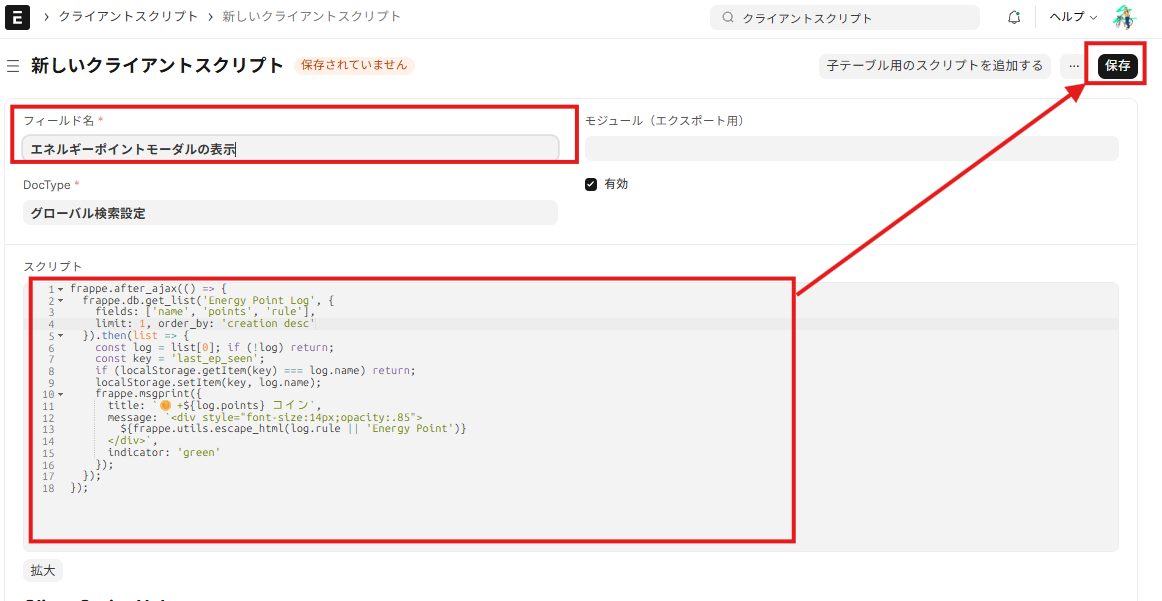
frappe.after_ajax(() => {
  frappe.db.get_list('Energy Point Log', {
    fields: ['name', 'points', 'rule'],
    limit: 1, order_by: 'creation desc'
  }).then(list => {
    const log = list[0]; if (!log) return;
    const key = 'last_ep_seen';
    if (localStorage.getItem(key) === log.name) return;
    localStorage.setItem(key, log.name);
    frappe.msgprint({
      title: `🪙 +${log.points} コイン`,
      message: `<div style="font-size:14px;opacity:.85">
        ${frappe.utils.escape_html(log.rule || 'Energy Point')}
      </div>`,
      indicator: 'green'
    });
  });
});
4. Code Explanation
frappe.after_ajax
This is executed only once after the initial load is complete, avoiding unnecessary polling.
frappe.db.get_list
Retrieves one Energy Point Log entry in descending order of creation date. This allows you to view the latest log with minimal load.
localStorage(key, log.name)
To prevent duplication, the last displayed log ID is saved, and if it has already been displayed, it is returned.
frappe.msgprint
Displayed concisely using ERPNext's standard modal. This avoids theme issues and z-index problems.
frappe.utils.escape_html
Sanitization is used to neutralize rule names and display them safely.
Now, a modal will appear when you receive energy points. ↓
5. Summary
Client scripts are A tool that allows you to quickly bring your "customized experience" to life. is.
- Can be used in the same way as kintone/Salesforce JS extensions.
- Designed to be separate from the ERPNext core, and can be securely extended based on official Hooks/APIs.
- Achieves a robust and durable customization that is resistant to updates
Furthermore, in this day and age, AI has made it easy for anyone to create these small additional features. And open-source ERPNext is the best "launching pad" for that.
Because it offers an environment where you can freely customize and quickly turn your ideas into reality.
Finally, if you are currently using multiple applications such as kintone, Salesforce, and Excel, and finding it cumbersome, we recommend centralizing everything with ERPNext. The cost is significantly cheaper!
ERPNext, which offers comprehensive functionality while keeping costs down, is highly recommended. To ensure a smooth implementation and operation, we encourage you to utilize MyHatch.
Related articles
 7 min
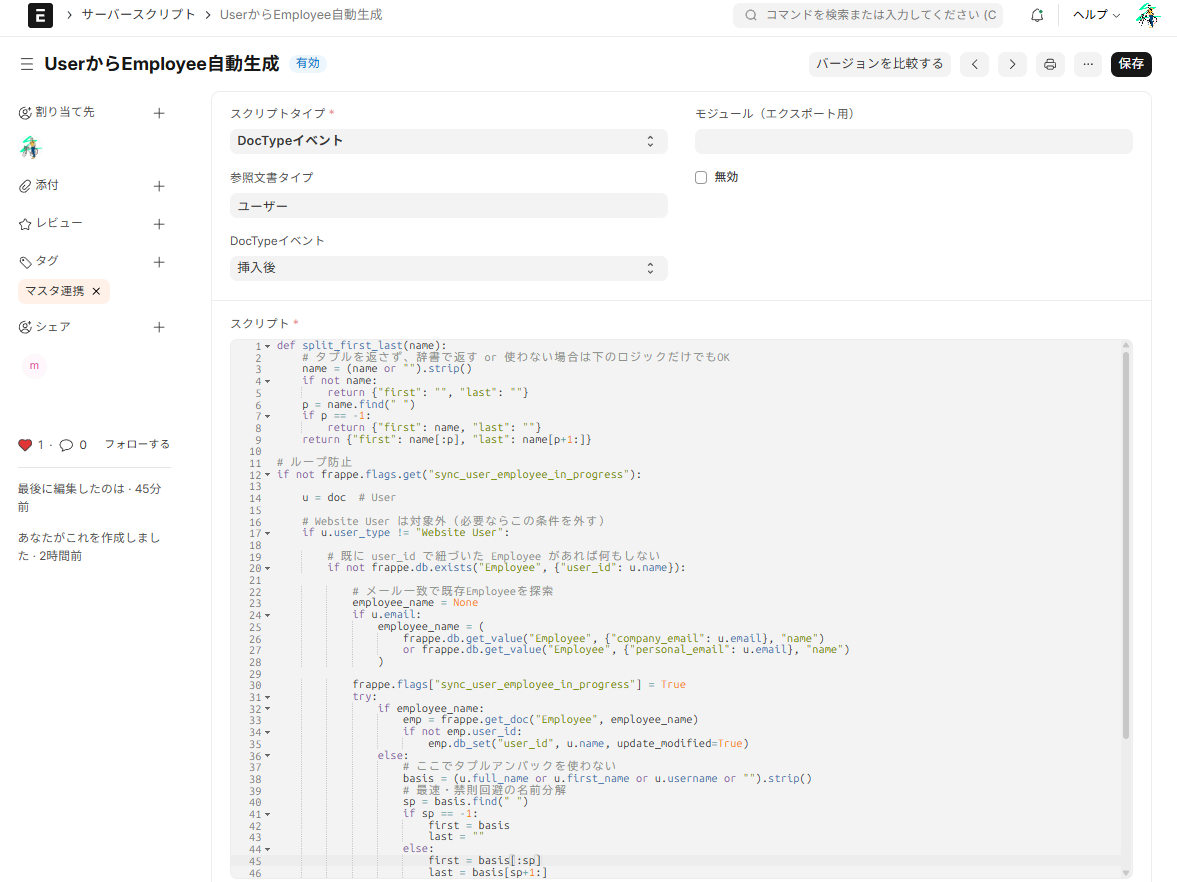
7 minAutomate your backend with no code — A guide to using server scripts
This article explains how to automatically generate an Employee when a User is created using an ERPNext server script, with implementation examples. It's a lightweight extension that can be used like a Salesforce Apex trigger.
 7 min
7 minAdd fields without coding — customize fields to fit your business.
This guide shows you how to add new input fields to the ERPNext screen without coding. You'll learn how to use various field types such as text, date, select, and link.
 8 min
8 minIt won't break even after updates — the strength of ERPNext's expandability design
ERPNext minimizes the risk of corruption during version upgrades through its "separation of core and custom parts" and "extension via official hooks/APIs." This article explains why you can customize it with peace of mind.