
Add fields without coding — customize fields to fit your business.
This guide shows you how to add new input fields to the ERPNext screen without coding. You'll learn how to use various field types such as text, date, select, and link.

1. Introduction
While ERPNext can cover a wide range of business processes with its standard features alone, there will inevitably be needs to "add a few more fields" or "make the input screen easier to use" to meet the specific requirements of the workplace.
To meet these needs, ERPNext comes standard with five customization options.
Among these options, the easiest to use and the most adaptable to your work with just mouse operations is "Custom Fields".
Furthermore, custom fields do not add columns directly to the core database, but rather are dedicatedtabCustom Field It is managed using tables. Therefore, a key feature is that customizations are less likely to break even when the ERPNext core is updated.
(Details of the mechanism will be explained in a separate article) Unbreakable customization Please see below.
In this article,
- A variety of data types to choose from in "Custom Fields"
Actual additional steps
Let me introduce you to you.
2. Representative Examples and Explanations of Data Types
The data types you can choose from in ERPNext's custom fields are extremely diverse. They can be broadly categorized into the following groups:
- ✍️Text-based ... Input of characters and sentences
- 🔢 Numerical and Calculation-Related ... Numbers, amounts, percentages, etc.
- 📅Date and Time Related ... Delivery date and time
- 📂Selection/Reference Systems ... Drop-down selection and linking to existing data
- 🖼️Files and Media ... Images and attachments
- ☑️Input assistance/control systems ... Checkboxes, buttons, etc.
- 📐Layout and Display ... Adjust the configuration of the input screen.
✍️ Text-based
| Type | Description | Usage Examples |
|---|---|---|
| Data | Single-line text | Model number / Phone number |
| Small Text / Long Text | Short/Long Text | Notes, Notes |
| Text Editor / Markdown / HTML Editor | Rich Text | Procedures, Manuals |
🔢 Numerical and Calculation Systems
| Type | Description | Usage Examples |
|---|---|---|
| Int / Float | Integer / Decimal Number | Quantity, Dimensions |
| Currency | Currency | Amount, Unit Price |
| Percent / Rating / Duration | Percentage, Rating, Duration | Progress Rate, Review, Process Time |
📅 Date and Time System
| Type | Description | Usage Examples |
|---|---|---|
| Date / Datetime / Time | Date and Time | Delivery Date, Inspection Time |
📂 Selection and Reference Systems
| Type | Description | Usage Examples |
|---|---|---|
| Select | Dropdown options | Status, Priority |
| MultiSelect | Multiple Choices | Labels, Attribute Tags |
| Link | Link registered data | Customers, products, projects |
| Table / Table MultiSelect | Child Table | Detail Rows, Association List |
🖼️ File and Media
| Type | Description | Usage Examples |
|---|---|---|
| Attach / Attach Image | File/Image Attachment | Design Drawings, Inspection Photos |
| Image | Thumbnail display | Product image |
| Signature | Enter Signature | Confirm Receipt |
☑️ Input assistance and control systems
| Type | Description | Usage Examples |
|---|---|---|
| Check | Checkbox | Completion flag, safety check |
| Button | Button | Call Automatic Processing |
| Color | Color Selection | Status Color Coding |
| Barcode / QR Code | Barcode display | Label printing |
| Geolocation | Location information | Site location |
| Read Only | For reference only | Automatic calculation result |
| Password / Email / URL / Phone | Verified Input | Accounts, Contacts |
📐 Layout and Display Systems
| Type | Description | Usage Examples |
|---|---|---|
| Section / Column / Tab Break / Heading | Layout Control | Organizing Input Screens |
| HTML / Icon | Static display | Warning, decoration |
*Names may vary depending on the version and environment.
3. Strengths of ERPNext
What's particularly convenient is that the following four data types can be easily added using only the GUI.
| Data Type | Description | Usage Examples |
|---|---|---|
| Select | Define dropdown options | Status, Priority, Process Category |
| Link | Link registered data | Customers, products, projects |
| Table | Child tables will hold details | Detail rows, subtasks, process steps |
| Attach / Attach Image | Attach files/images | Design drawings, inspection photos, drawings |
These can be added without any programming using the "Custom Forms" feature in ERPNext.
Furthermore, custom fields are stored in a dedicated tab called tabCustom Field and do not directly modify the core tables.
This allows you to achieve "unbreakable customization" without having to worry about updating the main unit's software.
In many conventional business systems, adding such items required modifying the database or changing the core code, which inevitably increased development effort and merge work.
ERPNext eliminates this burden, which is a great help to the IT department.
For example, even for something as simple as adding an input field, it was not uncommon in the past to require outsourcing costs of hundreds of thousands of yen and development time of several weeks.
With ERPNext, internal staff can configure it in just a few minutes, which significantly reduces development and operational costs.
4. Setting Custom Field Properties
After adding a custom field, you can fine-tune the input rules and behavior. In ERPNext, you can set the following properties from the GUI:
- ❕Required Field → Cannot save if left blank
- 🔓Read Only → Items that cannot be edited, such as automatically calculated results.
- 🔄Default Value → Set a value in advance to save time.
- 💎 Unique → Duplicates are prohibited, such as employee numbers and serial numbers.
- ⚠️Conditionally Required (Depends On) → Required depending on the value of other fields
- 👀Hide → Keep the input screen simple
By combining these settings, you can prevent input errors while achieving smooth operation tailored to your business needs.
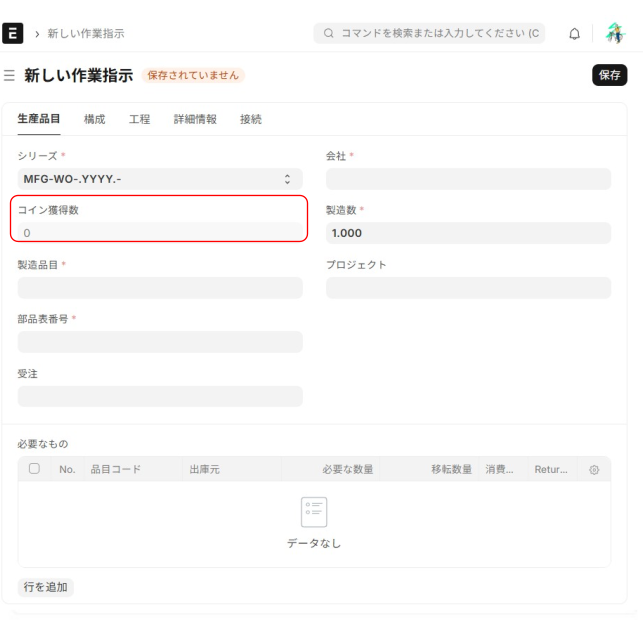
5. Steps to add a custom field (Example: Adding a coin element to Work Order)
Let's actually add the "Coins Earned" and "Level" fields to the Work Order.
- Open the target DocType
- Search for "work instructions" in the search bar and open it.
- Click "Edit Document Type" from the "Menu" in the upper right corner.
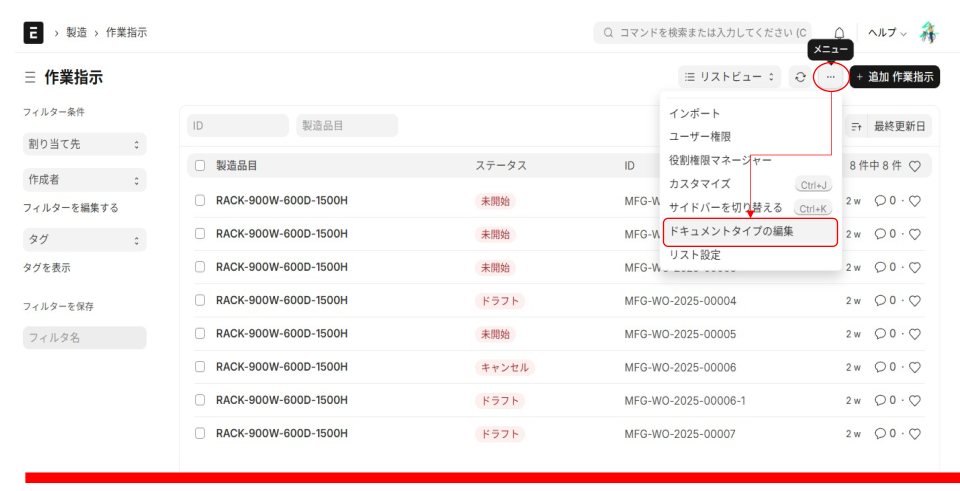
- A customizable form will be displayed.
- Existing fields are listed, and there is an "Add New Field" button at the bottom.
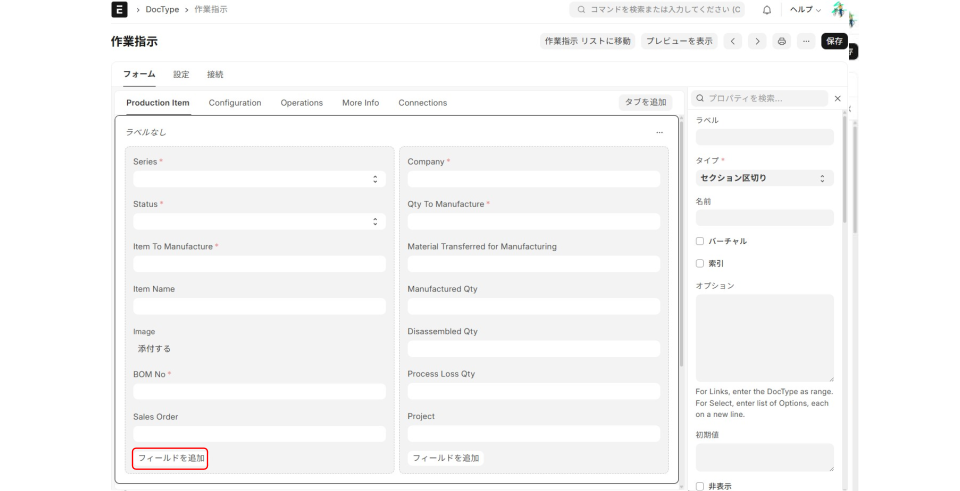
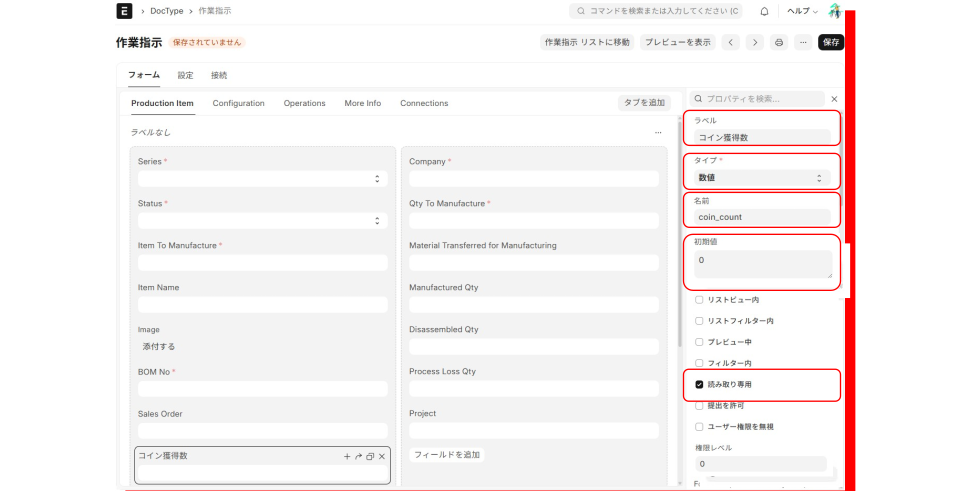
- Field 1: Number of Coins Acquired
- Display name: Coin acquisition count
- Field name: coin_count
- Data type: Int
- Initial value: 0
- Read-only: Yes
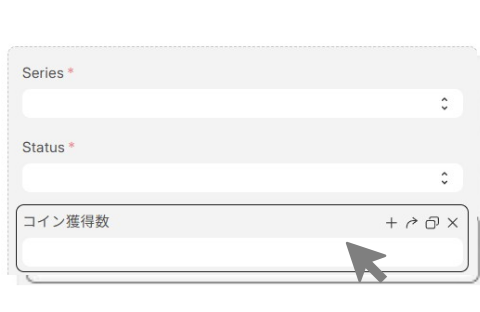
- Determine the placement location.
- Drag the item and place it under Status, etc.
- Save and "Update"
- Press the "Save" button in the upper right corner, then click "Update".
- The new fields will be reflected in the actual Work Order form.
6. Summary
ERP Next custom fields are
Easily expandable
Designed to withstand updates
That's its biggest appeal.
In this example, by adding "coin acquisition count" to the Work Order, we were able to add a playful element to the workplace while also visualizing the data.
Furthermore, by combining a wide range of data types and property settings, you can flexibly create input rules tailored to your specific business needs.
We encourage you to utilize ERPNext's custom fields to create a system tailored to your specific needs.
Related articles
 8 min
8 minEmbedding HTML components in forms — How to use custom HTML blocks
...
 6 min
6 minComplete control over the input screen — A guide to using client scripts
This guide explains, with practical examples, how to implement form auto-filling, display control, and validation using ERPNext client scripts. Basic JavaScript knowledge is all you need to get started.
 8 min
8 minIt won't break even after updates — the strength of ERPNext's expandability design
ERPNext minimizes the risk of corruption during version upgrades through its "separation of core and custom parts" and "extension via official hooks/APIs." This article explains why you can customize it with peace of mind.