
[Case Study 1] Workflow Approval Status Display
This example demonstrates how to extend workflow approval status into a custom application.

1. Introduction
In the previous article, we introduced the mechanism of "custom apps" that allow you to extend ERPNext to suit your own needs. This time, as an application of that, we will look at an example of how to make ERPNext's workflow function even easier to use.
ERPNext workflow ⤴ It is very flexible and has the following characteristics:
- Wide Coverage: Approval flows can be incorporated into most documents, including quotes, orders, and expense reports. (Example: "Orders exceeding 500,000 yen must be approved by the department head.")
- Flexibility of settings: It can handle everything from simple approval processes to complex proposal flows, thanks to its ability to configure conditional branching and multiple routes.
- Integration with various processes: Once approval is complete, accounting processes and subsequent steps can be linked to start automatically.
While this system is convenient, in actual practice, there have been complaints that it's difficult to know "who is approving it now?" and "whose turn is next?" Therefore, this time we will introduce an example of adding a display function that allows you to check the approval status at a glance as a Custom App.
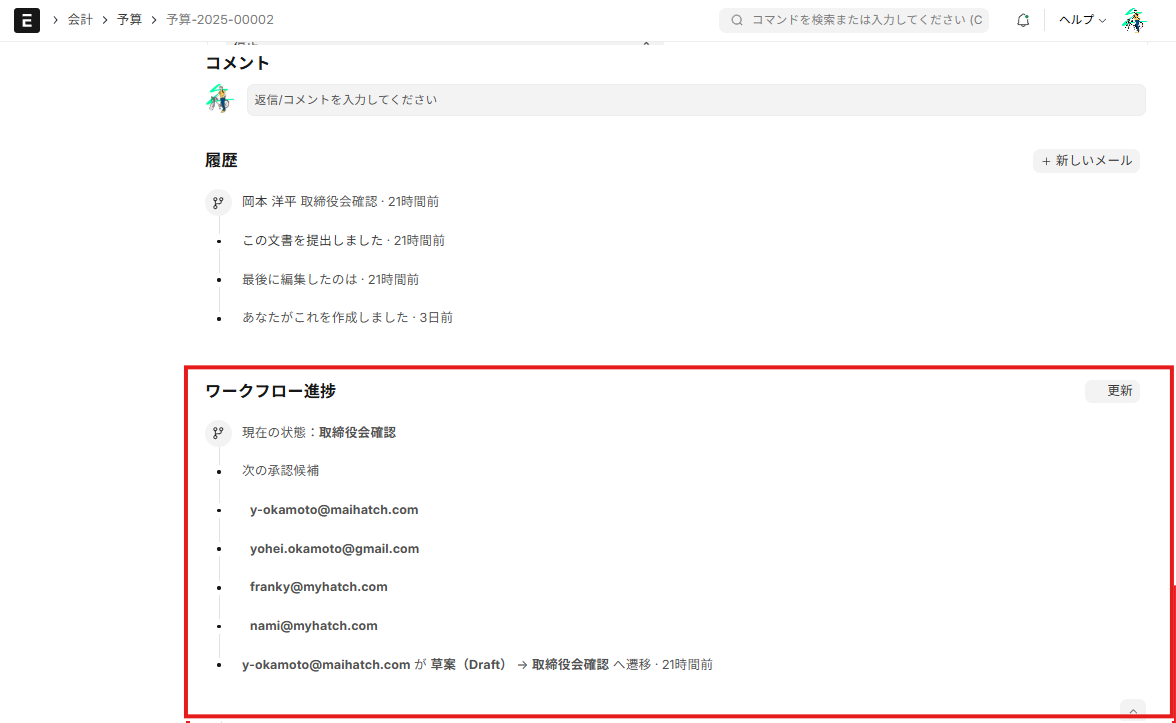 (Workflow approval status and prospective approvers are displayed at the bottom of the screen.)
2-1. Implementation Objectives
- Applicants can quickly see who has been approved and who has not.
- The approver can see at a glance whether it's their turn next.
- Design it so that comments and history can be viewed side-by-side.
2-2. Implementation Flow
This customization process can be broadly divided into the following three steps.
-
Prepare the environment with a custom app By consolidating functionality into a Custom App, you can make it more resilient to future updates and easier for teams to manage. (※How to create the app is explained in the previous article) Custom app ⤴ (See below)
-
Extending the frontend (JavaScript) Insert an "Approval Status Panel" at the bottom of the form. The key is to use hooks to safely add features rather than directly modifying the standard ERPNext screen.
-
Prepare data on the server side (Python API) The system retrieves information from the server, such as which approvers have completed the process and who still needs to approve. This will allow the latest approval status to always be displayed on the front end.
In the next chapter, we will explain each step with concrete code examples.
3. Detailed Procedure
Now, let's look at the implementation details.
The key point is
(1) Declare loading using hooks
(2) Distribute the target DocType using boot
(3) Return the status via API
(4) Drawing with JS ↓
That's the general flow.
3-1. Directory Structure (Excerpt)
my_custom_app/
├─ my_custom_app/
│ ├─ boot.py # Boot の拡張(対象DocTypeを配信)
│ ├─ api/
│ │ └─ workflow.py # ワークフロー状況API
│ ├─ public/
│ │ └─ js/
│ │ └─ workflow_panel.js # 承認状況パネルの描画
│ └─ report/
│ └─ workflow_overview/
│ ├─ workflow_overview.json # Script Report 定義
│ └─ workflow_overview.py # Script Report ロジック
└─ hooks.py
3-2. hooks.py — Asset loading & boot registration
The created JavaScript is loaded into Desk, and when the session starts...boot_session Call.
# hooks.py
app_include_js = [
    "my_custom_app/public/js/workflow_panel.js"
]

# Boot の拡張(セッション開始時に呼ばれる)
boot_session = "my_custom_app.boot.boot_session"
3-3. boot.py — Distributes a list of target DocTypes
This API provides the client with a list of DocTypes for which workflows are enabled.
The JavaScript code then looks at this list and draws the panel only on the target form.
# my_custom_app/boot.py
import frappe

def boot_session(bootinfo):
    """
    現在アクティブな Workflow が紐づく Document Type を配信。
    JS側で対象フォーム判定に使う。
    """
    doctypes = frappe.get_all(
        "Workflow",
        fields=["document_type"],
        filters={"is_active": 1},
        distinct=True,
        as_list=False,
    )
    docnames = sorted({d["document_type"] for d in doctypes if d.get("document_type")})

    bootinfo.my_custom_app = bootinfo.get("my_custom_app", {})
    bootinfo.my_custom_app["workflow_doctypes"] = docnames
3-4. API (Python) — Returning authorization status
This returns the current approval status, history, and pending actions for each form.
In v15, the Workflow Action now includes "Pending Approval Requests," so we will use that.
# my_custom_app/api/workflow.py
import frappe
from frappe.utils import format_datetime

@frappe.whitelist()
def get_status(doctype: str, name: str):
    """対象ドキュメントの承認状況を返す(閲覧可能なユーザーのみ)。"""
    doc = frappe.get_doc(doctype, name)
    doc.check_permission("read")

    # 現在のステート(ある場合)
    state = getattr(doc, "workflow_state", None)

    # 保留中の承認(Workflow Action)
    pending = frappe.get_all(
        "Workflow Action",
        filters={
            "reference_doctype": doctype,
            "reference_name": name,
            "status": "Pending",
        },
        fields=["user", "creation", "action"],
        order_by="creation asc",
    )
    for p in pending:
        p["creation_fmt"] = format_datetime(p["creation"])

    # 履歴(コメントの Workflow ログ)
    history = frappe.get_all(
        "Comment",
        filters={
            "reference_doctype": doctype,
            "reference_name": name,
            "comment_type": "Workflow",
        },
        fields=["content", "owner", "creation"],
        order_by="creation asc",
    )
    for h in history:
        h["creation_fmt"] = format_datetime(h["creation"])

    return {
        "state": state,
        "pending": pending,
        "history": history,
    }
3-5. Frontend (JS) — Draw panels on all target forms
Insert the panel only into the target DocType.
As described below Hamari Point To avoid this,
We will implement this using a "belt and suspenders" approach that ensures it survives even in SPA route transitions.
What is the Belt & Suspenders Policy?
In Desk (SPA), handlers for screen transitions, reconnections, and asynchronous processing can be lost "anywhere".
The implementation strategy involves calling the same redraw function from multiple events, preventing missed events while also avoiding duplicate drawing.
✅ Unifying the redundancy entry point: debounced_render is the common redraw entry point.
✅ Block duplicate bindings: window.__wf_belt_bound flag
✅ Event coverage: router change / socket (re)connect / visibilitychange / after_ajax
✅ Suppression of multiple executions: frappe.utils.debounce(…, 80) is adopted as standard.
// my_custom_app/public/js/workflow_panel.js

// 通信ゼロ版キャッシュ
const WF_CACHE = {
  loaded: true,
  doctypes: new Set((frappe.boot && frappe.boot.myhatch && frappe.boot.myhatch.wf_doctypes) || [])
};

function hasWorkflow(doctype) {
  return WF_CACHE.doctypes.has(doctype);
}

function unmount(frm) {
  const el = frm.__wf_panel;
  if (el && el.isConnected) el.remove();
  frm.__wf_panel = null;
}

(function () {
  const isCurrentForm = (frm) =>
    !!cur_frm && cur_frm.doctype === frm.doctype && cur_frm.docname === frm.docname;

  function waitForFooter(frm, tries = 15) {
    return new Promise((resolve) => {
      (function poll(n) {
        const el = $(frm.wrapper).find(".form-footer")[0];
        if (el) return resolve(el);
        if (n <= 0) return resolve(null);
        setTimeout(() => poll(n - 1), 100);
      })(tries);
    });
  }

  // ============== タイムライン用 行パーツ ==============
  // バッジ行(履歴の最上段にある「分岐」などのアイコン行と同じ構造)
  function badgeItem(iconId, innerHTML) {
    return `
      <div class="timeline-item">
        <div class="timeline-badge" title="">
          <svg class="icon icon-sm" aria-hidden="true">
            <use href="#${iconId}"></use>
          </svg>
        </div>
        <div class="timeline-content">
          ${innerHTML}
        </div>
      </div>
    `;
  }

  // ドット行(履歴の通常行と同じ構造)
  function dotItem(innerHTML, opts = {}) {
    const indent = opts.indent ? ' style="margin-left:24px;"' : "";
    return `
      <div class="timeline-item">
        <div class="timeline-dot"></div>
        <div class="timeline-content"${indent}>
          ${innerHTML}
        </div>
      </div>
    `;
  }

  // ============== マウント処理 ==============
  async function ensureMountedOnce(frm) {
    if (frm.is_new() || !isCurrentForm(frm)) return null;
    if (frm.__wf_panel?.isConnected) return frm.__wf_panel;

    const afterSave = $(frm.wrapper).find(".form-footer .after-save")[0];
    if (!afterSave) return null;

    const panel = document.createElement("div");
    panel.id = "workflow-progress-panel";
    panel.className = "mt-3 mb-4";
    panel.innerHTML = `
    <div class="new-timeline">
      <div class="timeline-item activity-title">
        <h4>ワークフロー進捗</h4>
        <div class="timeline-items timeline-actions">
          <div class="timeline-item">
            <div class="timeline-content action-buttons">
              <button class="btn btn-xs btn-secondary action-btn" id="wf-refresh-btn">
                <svg class="es-icon es-line icon-xs" aria-hidden="true">
                  <use href="#es-line-refresh"></use>
                </svg>
                更新
              </button>
            </div>
          </div>
        </div>
      </div>
      <div class="timeline-items" id="wf-block"><!-- JSで差し込み --></div>
    </div>
  `;

  afterSave.appendChild(panel); // ← これで new-timeline の直後(末尾)に来る

    panel.querySelector("#wf-refresh-btn").addEventListener("click", () => refreshPanel(frm));
    frm.__wf_panel = panel;
    return panel;
  }

  function render(panel, data) {
    const $block = panel.querySelector("#wf-block");
    const html = [];

    // 現在の状態(バッジ行:履歴の先頭風)
    html.push(
      badgeItem(
        "icon-branch", // 履歴で使われる分岐アイコン
        `現在の状態:<strong>${frappe.utils.escape_html(data.current_state || "-")}</strong>`
      )
    );

    // 次の承認候補(見出しドット行 + 子ドット行)
    const candidates = Array.from(
      new Set((data.next_candidates || []).flatMap((c) => c.users || []))
    );
    if (candidates.length) {
      html.push(dotItem(`<span class="text-muted">次の承認候補</span>`));
      candidates.forEach((u) =>
        html.push(dotItem(`<strong>${frappe.utils.escape_html(u)}</strong>`, { indent: true }))
      );
    }

    // 承認履歴(1行ずつ、履歴と同じドット行)
    const route = Array.isArray(data.route) ? data.route : [];
    if (route.length) {
      route.forEach((r) => {
        const actor = frappe.utils.escape_html(r.by || "-");
        const from = frappe.utils.escape_html(r.from || "-");
        const to = frappe.utils.escape_html(r.to || "-");
        const whenISO = r.when || "";
        const whenPretty = whenISO
          ? `<span class="frappe-timestamp" data-timestamp="${whenISO}" title="${whenISO}">${frappe.datetime.prettyDate(
              whenISO
            )}</span>`
          : "";

        html.push(
          dotItem(
            `<strong>${actor}</strong> が <strong>${from}</strong> → <strong>${to}</strong> へ遷移
             <span> · ${whenPretty}</span>`
          )
        );
      });
    } else {
      html.push(dotItem(`<span class="text-muted">進捗データはありません。</span>`));
    }

    $block.innerHTML = html.join("");
  }

  function refreshPanel(frm) {
    const panel = frm.__wf_panel;
    if (!panel || !isCurrentForm(frm)) return;

    const $block = panel.querySelector("#wf-block");
    $block.innerHTML = dotItem(`読み込み中…`);

    const token = `${frm.doctype}:${frm.docname}:${Date.now()}`;
    frm.__wf_req_token = token;

    frappe
      .call({
        method: "my_custom_app.api.workflow.get_workflow_overview",
        args: { doctype: frm.doctype, name: frm.docname, comments_limit: 0 },
        freeze: false,
      })
      .then((r) => {
        if (frm.__wf_req_token !== token || !isCurrentForm(frm)) return;
        render(panel, r.message || {});
      })
      .catch(() => {
        $block.innerHTML = dotItem(`読み込み失敗`);
      });
  }

  function bindHandlers() {
    if (window.__wf_panel_bootstrapped) return;
    window.__wf_panel_bootstrapped = true;

    frappe.ui.form.on("*", {
    onload_post_render(frm) {
      if (!hasWorkflow(frm.doctype)) return unmount(frm);
      ensureMountedOnce(frm).then(() => refreshPanel(frm));
    },
    refresh(frm) {
      if (!hasWorkflow(frm.doctype)) return unmount(frm);
      ensureMountedOnce(frm).then(() => refreshPanel(frm));
    },
    after_save(frm) { if (hasWorkflow(frm.doctype)) refreshPanel(frm); },
    on_submit(frm)  { if (hasWorkflow(frm.doctype)) refreshPanel(frm); },
    on_cancel(frm)  { if (hasWorkflow(frm.doctype)) refreshPanel(frm); },
  });

    // 念のため Budget を明示
    frappe.ui.form.on("Budget", {
      onload_post_render(frm) {
        ensureMountedOnce(frm).then(() => refreshPanel(frm));
      },
      refresh(frm) {
        ensureMountedOnce(frm).then(() => refreshPanel(frm));
      },
    });
  }

  if (window.frappe?.ui?.form?.on) bindHandlers();
  else {
    $(document).on("app_ready", bindHandlers);
    frappe.router && frappe.router.on("change", bindHandlers);
  }
})();
[Repost: Belt & Suspenders Policy]
✅ Duplicate display prevention: Use ensure_container() to empty the existing DOM before rendering.
✅ SPA countermeasures: In addition to refresh, redrawing also occurs with router change.
✅ Target Restriction: Limited to DocType files distributed via boot (to avoid side effects on unrelated forms)
4. Common Pitfalls
4.1 Continuously adding DOM elements with each refresh to display duplicate content
- Issue: Every time the form is reopened, saved, or the tab is switched, another approval panel is added.
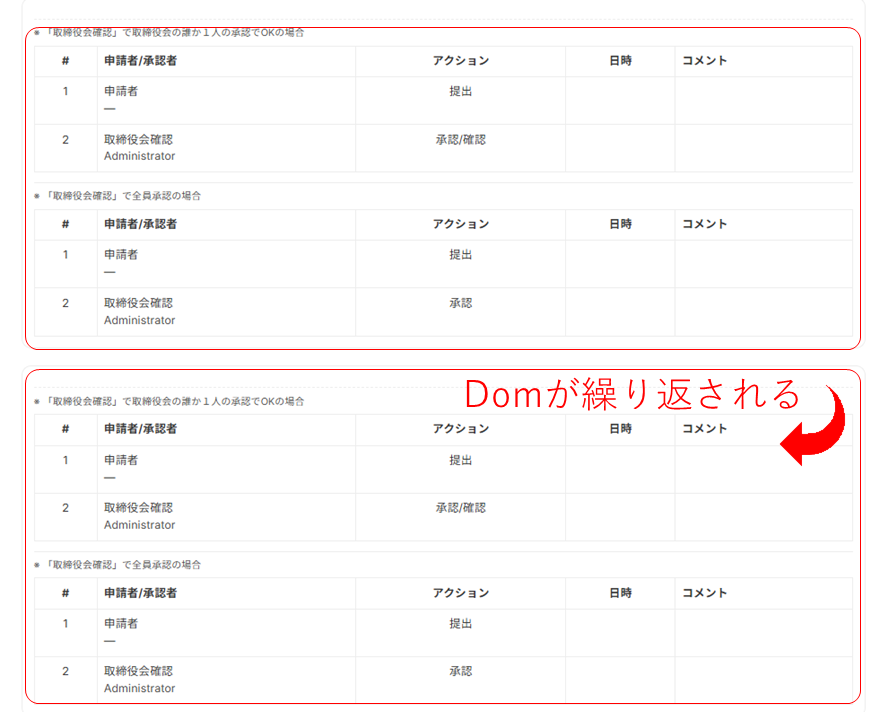
- Cause:
refreshThis is called every time the form is redrawn.appendIf you only use that method, you'll end up adding the same element multiple times. - countermeasure:
- Fixed to a single container (
#wf-approval-panel(Add an ID such as) - every time
empty()→ Redraw to eradicate proliferation
    const $panel = ensure_container(frm); // なければ作る、あれば empty()
$panel.empty().html(render(data));- As an extra precaution, use flags (to perform heavy processing and layout generation only once).
if (frm.__wf_layout_built) { /* 軽い更新だけ */ } else { /* 骨組み作成 */ frm.__wf_layout_built = true; }4.2 Events disappear when switching routes in SPA
- Issue: It works initially, but when moving to another document, the panel update stops/the handler stops working.
- Cause: ERPNext Desk is a SPA. Route transitions cause forms, sockets, and the DOM to be reinitialized, which can invalidate previously registered handlers. This is why registering to "the current socket/DOM" from the console works.
- countermeasure:
- Dual trigger:
refresh+frappe.router.on("change", ...)bothupdate_panel(frm)Call (belt & suspenders) - Rebinding policy: Rebind each time the route changes, in a way that does not depend on the old reference.
    frappe.ui.form.on("*", { refresh: update_panel });
frappe.router?.on?.("change", () => cur_frm && update_panel(cur_frm));- (If necessary) debounce to suppress unnecessary consecutive calls.
const update_panel = frappe.utils.debounce(_update_panel, 80);4.3 No destination for insertion immediately after screen generation; DOM cannot be found.
- Event: Immediately after loading
wrapperIt won't come off, and the panel will sometimes appear and sometimes not. - Cause: DOM construction of the form is asynchronous.
refreshEven at that timing, the destination.form-pageThere is a moment when it has not yet been generated. - countermeasure:
- **
ensure_container()Therefore, we thoroughly implement the principle of "if it doesn't exist, we'll make it" (always preparing the plug-in destination ourselves). - Wait for asynchronous completion: Slight delay immediately after drawing / Stabilization with subsequent execution
    frappe.after_ajax(() => update_panel(frm)); // Ajax完了後にもう一度
    // もしくは最小限の遅延
setTimeout(() => update_panel(frm), 0);- Exclude new documents:
if (frm.is_new()) return;Remove the "no reference name yet" status.
5. Summary
Did everyone manage to implement it successfully?
This example (approval status panel) is just a small part of the power that ERPNext Custom Apps offer.
To summarize the key points,
- 🔒 Strong against updates:
By separating the main unit (using hooks/fixtures), the core remains untouched, allowing for expansion from the "outside." This makes it less prone to breakage even with future version upgrades. - 🎁The entire set can be “boxed”:
Distribute and reuse UI (JS/HTML/CSS) + API (Python) + reporting + translation as a single application. - 🌎 Quickly adapts to on-site conditions:
Even small UI improvements directly lead to "shorter user journeys" and "reduced verification costs." Prototyping and deployment cycles are short. - 💡Easy to govern:
Permissions, logging, and auditing are integrated into standard features. Setting differences between clients and departments are also handled by the application. - 🔦Easy to use:
Git/CI makes migration, verification, and rollback easy. Horizontal deployment to multiple sites can also be standardized.
The pattern used in this article (Target delivery via Boot → Latest status via API → Rendering via JS) is,
It can be applied "as is" to many areas, not just workflows, but also budget, projects, inventory, and quality.
MyHatch is currently developing easy-to-use Custom App templates and operational recipes for Japanese companies. "Start by making the workplace visible," "Start small and make improvements that have a quick effect"—we'll support you throughout the implementation process.
Related articles
 5 min
5 minAutomate the approval flow — ERPNext Workflow Feature Guide
This guide explains how to build multi-stage approval flows, such as quotation approval and purchase approval, using ERPNext. It summarizes the operation procedures for the settings screen and points to note during operation.
 8 min
8 minEmbedding HTML components in forms — How to use custom HTML blocks
...
 6 min
6 minComplete control over the input screen — A guide to using client scripts
This guide explains, with practical examples, how to implement form auto-filling, display control, and validation using ERPNext client scripts. Basic JavaScript knowledge is all you need to get started.