
First Steps with ERPNext (Entry Guide)
This is a comprehensive guide for those using ERPNext for the first time. It's a common entry point for everyone, explaining everything from logging in and navigating to business-specific manuals, to common operations and help resources.
What you will learn from this article
This article is an introductory guide for those using ERPNext for the first time, so you don't get lost wondering "where to start reading."
- You can understand the screen layout and overall flow of ERPNext in a single diagram.
- You can find out which article you should read next for each task.
- You'll learn three common operations that are useful for all staff members to remember.
If you want to learn the basic operations, please follow this article in order. If you only want to learn about specific functions, please go directly to the relevant article from the table below.
Overview of ERPNext
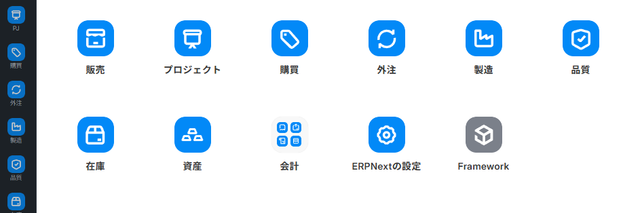
ERPNext follows this sequence: Login → Home screen → Business module → Individual screen.
flowchart LR
    A[ログイン<br/>/login] --> B[ホーム画面<br/>業務アイコン一覧<br/>/desk/desktop]
    B --> C1[業務モジュール<br/>販売/購買/製造/会計 など]
    B --> C2[左側メニュー<br/>11 カテゴリの階層メニュー]
    B --> C3[検索バー<br/>Ctrl+K]
    C1 --> D[個別画面<br/>伝票/一覧/専用画面]
    C2 --> D
    C3 --> D
D -.?マーク.-> H[操作マニュアル<br/>www.erpnext.jp/manual]- The home screen is a common entry point for everyone. Icons for each job are displayed there.
- The left-hand menu is a hierarchical menu organized into 11 categories, allowing access to all screens.
- Search bar (
Ctrl+K) allows you to search across screens using keywords (for details How to use search and filter (See reference) - The purchasing hub and various dedicated screens will open as individual screens under the business module.
- You can directly open the manual article corresponding to each screen by clicking the "?" button in the upper right corner of each screen (※ This feature is being rolled out gradually).
List of articles in the basics section (6 articles)
| Order | Article | Target | Read |
|---|---|---|---|
| 0 | First Steps with ERPNext (Entry Guide) | This article | 5 minutes |
| 5 | Home screen and business hub | How to view the home screen and navigate to the business hub | 5 minutes |
| 10 | Login and initial setup | How to log in and what to do after logging in | 4 minutes |
| 11 | How to view the screen and basic operations | Left-hand menu, top bar, work area | 7 minutes |
| 20 | How to use search and filter | Search bar, list screen filter, help button | 5 minutes |
| 30 | Keyboard Shortcuts | List of frequently used shortcuts | 5 minutes |
Reading order for each assigned task
Based on your specific work, we will guide you to the next manual you should open after reading the basic section.
Sales Representative
1. First Steps with ERPNext (Entry Guide) (This article) 2. Home screen and business hub 3. Sales Manual TOP
Purchasing
1. First Steps with ERPNext (Entry Guide) (This article) 2. Home screen and business hub 3. Purchasing workflow (entry guide)
Manufacturing
1. First Steps with ERPNext (Entry Guide) (This article) 2. Home screen and business hub 3. Manufacturing Manuals TOP
Accounting Staff
1. First Steps with ERPNext (Entry Guide) (This article) 2. Home screen and business hub 3. Accounting Manual TOP
System Administrator
1. First Steps with ERPNext (Entry Guide) (This article) 2. How to view the screen and basic operations 3. Administrator Manual TOP 4. Approval Workflow Settings
Three useful operations everyone should remember
1. Jump instantly using the search bar (Ctrl+K )
Entering keywords in the search bar at the top of the screen allows you to perform a cross-search by screen name, invoice number, customer name, etc. For details... How to use search and filter Please refer to the following.
Additional Information:
Ctrl+GBut the same search bar opens. On the current screen...Ctrl+KWe recommend this.
2. Click the "?" button to access the relevant manual.
The "?" button in the upper right corner of the screen opens the manual article corresponding to the currently open screen in a new tab. This is convenient for referencing related materials while operating the screen.
Note: This "?" button is being rolled out gradually. In environments where it is not displayed, please use the search bar (
Ctrl+KAlternatively, you can open the article using the search function in the upper right corner of the manual site.
3. Saving and submitting documents
- keep:
Ctrl+S - Submission (confirmed):
Ctrl+Enter - Close the screen:
Esc
Other shortcuts are Keyboard Shortcuts Please refer to the following.
Terminology used in the basics section
| Terminology | Explanation |
|---|---|
| Desk | The entire ERPNext administration screen./app/* All screens under this umbrella |
| Workspace | Work areas for each function (e.g., "Home," "Purchasing," "Manufacturing") |
| Documents | Individual data entries handled by ERPNext, such as orders, purchase orders, and item codes. |
| List Screen | A screen that displays all invoices in a list. Filtering and sorting are available. |
| Details Screen | Screen for editing a single invoice |
| Business Hub/Workbench | Dedicated screens that consolidate related operations into a single screen (e.g., Purchasing Hub, Ordering Workbench) |
FAQ
Q: Which screen should I touch first?
The home screen displayed after logging in./desk/desktop This is the starting point. From here, click on the business icons (sales, purchasing, manufacturing, accounting, etc.) to enter each module, and then proceed to the business hub or dedicated screens. For details... Home screen and business hub Please refer to the following.
Q: There are so many options in the left-hand menu, I get confused.
The left-hand menu is organized into 11 categories, but it's faster to open frequently used screens via the business module. Start with the home icon, and for less frequently used screens, use the search bar (Ctrl+K We recommend calling it from ).
Q: The layout was different when I opened it on my smartphone.
When you access it from your smartphone/mobile-home It will switch automatically. The screen layout differs from the PC version, so the images in this manual may not match. For details... How to view the screen and basic operations Please refer to "Using on a smartphone".
Q: The relevant article does not open when I press the "?" button.
This screen does not have a registered match table. In that case, use the search bar (Ctrl+G You can search for the screen by entering the screen name in the search bar, or by using the search function in the upper right corner of the site.
Next Steps
First Home screen and business hub First, familiarize yourself with the ERPNext entry screen. After that, proceed to the role-specific manual that suits your work.