
Approval Workflow Settings
This guide explains how to use the administrator screen, which allows you to manage approval routes for purchase requests, expense reports, and quotations, approvers by price range, escalation to higher levels, budget limits, and pre-testing all on one screen.
Related Articles Regarding the daily approval process Approval Hub See below. This article is intended for administrators and accounting managers who design and operate approval routes.
What you can do on this screen
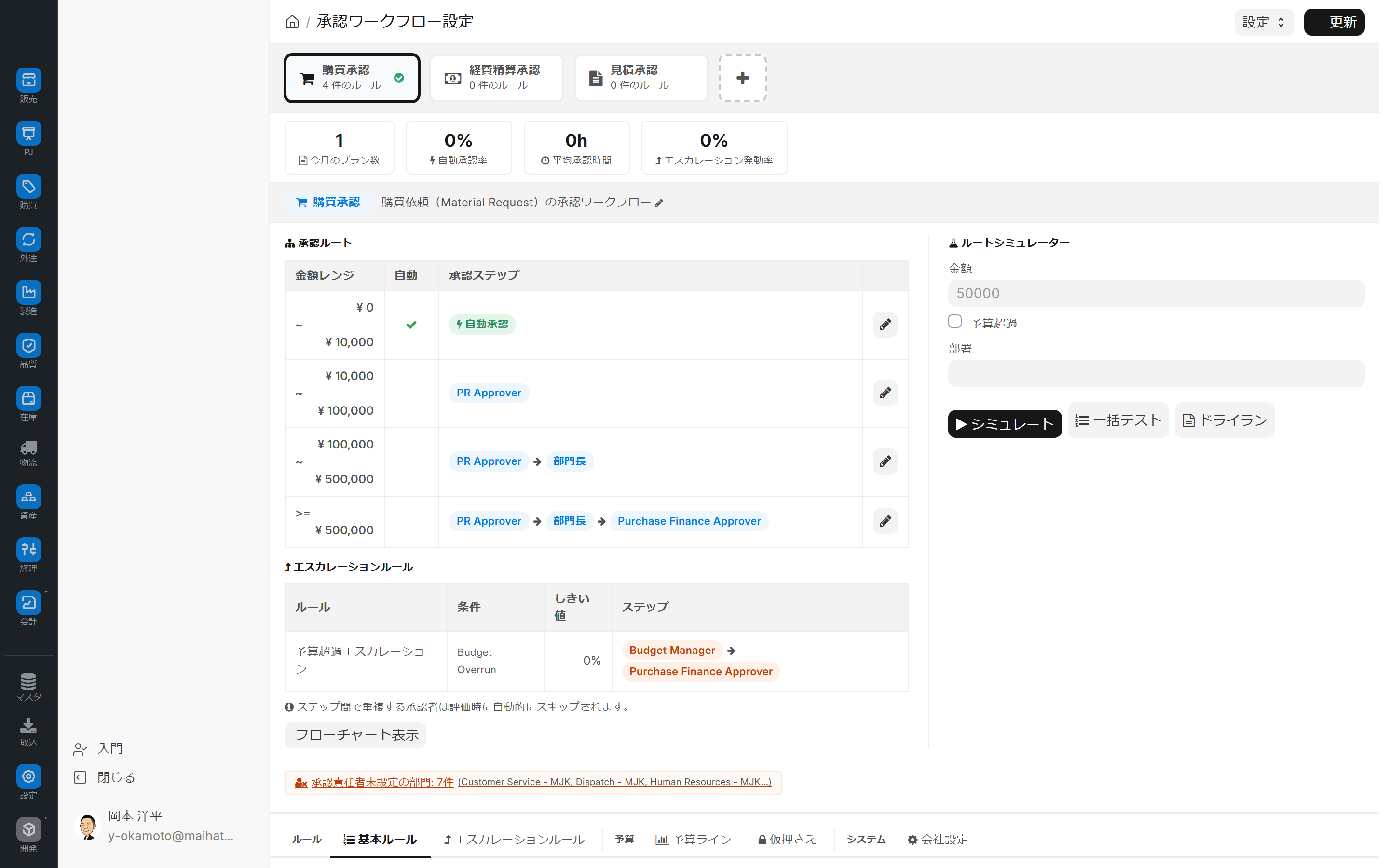
The approval workflow settings screen allows you to manage multiple approval routes, such as purchase approval, expense reimbursement approval, and quotation approval, all on a single screen.
- You can set up approval steps for each amount range (who approves and in what order).
- You can define rules for escalating issues to higher approvers in exceptional cases such as budget overruns or expired deadlines.
- You can set budget limits on a departmental or project basis.
- Pre-testing allows you to verify the behavior of the authorization route before actually using it.
- This helps prevent accidents when changing company regulations.
Screen URL:/app/approval-workflow-settings
Target Audience:
- System Administrator
- Accounting Manager
- Business Design Team
List of Main Features
| Features | Overview |
|---|---|
| Adding/Switching Approval Types | Routes for each type, such as Purchase Approval / Expense Reimbursement Approval / Quotation Approval |
| Approval Steps by Amount Range | Example: Orders under ¥10,000 are automatically approved; orders between ¥10,000 and ¥100,000 require only a primary approver; orders above that amount require multiple stages. |
| Escalation | Exceptions such as budget overruns and expired deadlines are automatically escalated to higher approvers. |
| Budget Management | Budget limits for departments and projects, and how to handle budget overruns |
| Pre-test | Calculate approval routes by entering amounts and departments (no actual data entered) |
| Detection of Unassigned Approval Officer | Warning issued for departments where an approver is not set in the department master |
Overall view of the screen
The screen is divided into three main areas.
| Area | Role |
|---|---|
| Top: Approval Type Card | Switch between approval types such as Purchase Approval, Expense Reimbursement Approval, and Quotation Approval |
| Center: Approval Route Chart | Approval steps for each price range of the selected type |
| Right side: Route simulator | Enter conditions to pre-test approved routes |
Approval Type Card (Top of Screen)
The corresponding approval types are displayed in card format.
| Card | Target |
|---|---|
| Purchase Approval | Approval of Purchase Request |
| Expense Reimbursement Approval | Approval of Expense Reimbursement |
| Quotation Approval | Approval of the quotation by the sales side |
| + (Addition) | Add a new approval type |
Note: The initially registered approval types vary depending on the environment. In some environments, only "Purchase Approval" is initially registered, while expense reimbursement and quotation approvals are added by the administrator. The image is an example from the demo environment of this project.
Valid cards will have a green checkmark. Each card will display the number of rules set, such as "X rules".
Summary section (below the card)
These figures represent the current operational status.
| Indicator | Meaning |
|---|---|
| Number of applications this month | Number of approvals applied this month |
| Automatic Approval Rate This Month | Percentage of applications automatically approved (%) |
| Approval Time This Month | Average time from application to final approval (hours) |
| Escalation Activation Rate | Percentage of cases that deviated from the expected route and were promoted to a higher level |
Approval Route Table (Center)
This table defines the approval route for the selected approval type.
| Column | Content |
|---|---|
| Amount Range | Applicable amount range (e.g., ¥0 to ¥10,000) |
| Automated | Automatic approval (✓) or human approval |
| Approval Steps | Order of Approver (e.g., Primary Approver → Department Head → Accounting Manager) |
You can edit each line using the pencil icon at the right end.
Example of initial route for purchase approval
| Price Range | Automatic | Steps |
|---|---|---|
| ¥0 to ¥10,000 | ✓ Automatic approval | (No human approval required) |
| ¥10,000 to ¥100,000 | — | Primary Approver |
| ¥100,000~¥500,000 | — | Primary approver → Department head |
| Over ¥500,000 | — | Primary Approver → Department Head → Accounting Manager |
Escalation Rules
This defines who will escalate the case to in the event of an exception.
| Rule Name | Condition | Threshold | Step |
|---|---|---|---|
| Budget Overrun Escalation | Budget Overrun | 0% | Budget Manager → Accounting Manager |
Approvers who appear multiple times within a step will be automatically skipped during the evaluation process.
Route simulator (right side)
This feature allows you to test the approval route before deployment.
| Input Fields | Content |
|---|---|
| Amount | Application amount to test |
| Budget Exceeded | Check this box if the budget has been exceeded |
| Department | Department that submitted the application |
button:
- Simulate: Display the approval route based on the specified conditions.
- Batch Testing: Validating multiple conditions simultaneously.
- Pre-test (dry run): Verification using real data (no writing)
Flowchart Display
The Flowchart Display button allows you to view the currently configured route as a diagram. This is useful for checking complex routes.
Detected departments where an approval officer has not been set.
An alert will appear at the bottom of the screen.
Departments without an approval manager: 7 [Customer Service, Dispatch, Human Resources, ...]
The department master automatically detects and warns of departments where the Department Head (Approval Officer) has not been set. If this remains unset, the department will not be automatically assigned during escalation, leading to application errors.
Bottom tab (Advanced settings)
Note: The tabs displayed will vary depending on the approval type. The following is an example of what happens when "Purchase Approval" is selected.
| Tabs | Contents |
|---|---|
| Rules | List View (Initial Display) |
| Basic Rules | Basic settings for price ranges and approval steps |
| Escalation Rules | Exception Flow Details |
| Budget | Department/Project Budget Limit |
| Budget Lines | Setting monthly and quarterly budget lines |
| Approval Test | Re-verification using historical data |
| System | System integration and notification settings |
| Company Settings | Basic parameters per company |
Basic Operations
1. Change the price range steps
For example, if you want to make it so that "approval from the department head is also required for amounts exceeding 100,000 yen."
- Select the Purchase Authorization card at the top of the screen (confirm if already valid).
- On the approval route table, click the pencil icon for the relevant amount range.
- Edit the order of approval steps by dragging and dropping, or add approver roles.
- Save to apply the settings.
- Verify using the route simulator (e.g., Amount: 150,000 yen, Department A → Check if it's as expected).
2. Add an escalation rule
We will add a rule that automatically promotes approval to a higher-level approver upon expiration.
- Open the Escalation Rules tab.
- Add using + New
- Specify the conditions (e.g., budget overrun / deadline overrun)
- Set the roles of the threshold and the target for raising it.
- Save
3. Verify with pre-tests
This must be done before any operational changes are made.
- Enter the amount and department in the Route Simulator on the right.
- Check this box if you want to test for budget overruns.
- Click Simulate → The approval route will be displayed.
- If it doesn't meet expectations, review the settings.
- Pre-test (dry run) for comprehensive verification against real data.
4. Fill in the missing information regarding the approval officer.
The information will be completed from the warning at the bottom of the screen.
- Click the link for an unconfigured department → Go to the department master screen.
- Set the person in charge in the Department Head field.
- Save
- Return to this screen and confirm that the alert has disappeared.
5. Add a new approval type
For example, if you want to add "Purchase Order Approval" as another approval type.
- Click the + (Add) card at the top of the screen.
- Enter the approval type name and the type of document in question.
- Set the initial route (duplicating an existing type is also possible).
- Save
List of Approver Roles
This is a standard role related to approval.
| Role | Purpose |
|---|---|
| First Approver | First approval of purchase request |
| Accounting Manager | Final approval for large-value purchases (Head of Accounting Department) |
| Department Head | Department-level approval (set in department master) |
| Budget Management Officer | Responsible for budget management (escalation point) |
| Purchasing Manager | Manager of all purchasing operations |
Assigning roles is/app/user Therefore, this is done on a per-user basis.
Utilizing Metrics
The four metrics in the summary section are displayed to provide a quantitative understanding of the approval route's performance.
| Indicators | Directions for Improvement |
|---|---|
| Number of applications this month | Check the trend in application volume |
| Automatic Approval Rate | Reduce workload by automatically approving small-amount transactions |
| Approval Time Required | If it's taking too long, review the escalation rules. |
| Escalation Activation Rate | If it's too high, review the basic route. |
Tips for Use
- Always pre-test before making changes: Complex route changes should be verified with pre-tests immediately before being applied to production.
- The amount range is determined based on past performance: Look at the distribution of application amounts over the past year and set a reasonable boundary.
- Utilize automated approval: Automating approval for small-value projects dramatically reduces the burden on approvers.
- Budget Overrun Escalation: When linked with budget management, it effectively strengthens control.
- Do not leave unconfigured departments unattended: Departments with warnings will fail to establish an approval route when a new application is submitted, resulting in an error.
- Approval types should be separated by business function: Mixing purchasing and expense reimbursement under one type complicates the design. It is recommended to separate them by business function.
Operational Precautions
- Changes will be reflected company-wide immediately, so please thoroughly test them in a test environment before applying them to production.
- Existing projects currently under approval will be completed to the end using the original route (please check if there are any operational changes).
- This screen is a proprietary feature. It operates within the limits of not conflicting with standard workflow functions.
Next Steps
- Operational check after setup → Approval Hub Let's actually try approving it.
- Adding an approval officer →
/app/userThen edit the user and assign roles. - Maintaining departmental master data →
/app/departmentAppoint a department head - The overall purchasing flow → Purchasing workflow