
Keyboard Shortcuts
A list of frequently used keyboard shortcuts for ERPNext. This list categorizes shortcuts by business scenario, including those for saving and submitting documents, the search bar, filtering list screens, and navigating screens.
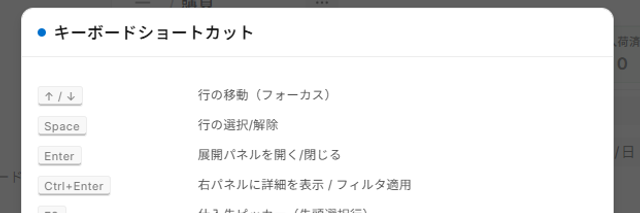
What you will learn from this article
This guide compiles frequently used keyboard shortcuts in ERPNext, categorized by work scenario. Learning just the first 5 shortcuts will significantly reduce the time spent switching between the mouse and keyboard.
5 things you should remember first
| Shortcuts | Operation | When to Use |
|---|---|---|
Ctrl + K | Open search bar | Navigate instantly from any screen |
Ctrl + S | Save | Save while editing the invoice |
Ctrl + Enter | Submit (Confirm) | Confirm Draft Invoice |
Esc | Close the screen | Cancel the dialog box |
Alt + ← | Return to previous page | Return to previous screen |
Tip:
Ctrl + KThis is the most frequently used shortcut in ERPNext. It accepts either the screen name or the invoice number.Ctrl + GBut the same search bar will launch. For details... How to use search and filter Please refer to the following.
Details screen (screen for editing one item)
| Shortcuts | Operations |
|---|---|
Ctrl + S Save (Confirm Changes) | |
Ctrl + Enter | Submission (confirmed) |
Ctrl + B | Create a new invoice of the same type |
Ctrl + D | Duplicate |
Ctrl + P | Print Preview |
Ctrl + J | Internal Data Display (for Administrators) |
↑ /↓ | Moving rows (within a table) |
Tab /Shift + Tab | Next/Previous Item |
Manipulating rows within a table
-Ctrl + ↓ Add a line below.
-Ctrl + ↑ Add a row above.
-Ctrl + Shift + K Delete the currently selected row.
List screen (screen for viewing slips in a list)
| Shortcuts | Operations |
|---|---|
/ Move the cursor to the filter input field. | |
Shift + Ctrl + R | Reload list |
Ctrl + A | Select all lines currently displayed |
Enter | Open the selected row |
Ctrl + ↑ /Ctrl + ↓ | Page Switch (Previous/Next) |
Filter Input
-= The condition for equality,含む Partial match,範囲 Specify a period
- After input
EnterConfirmed.EscCancel
Search Bar
| Input Example | Effect |
|---|---|
PO-00123 | Open the relevant screen directly using the invoice number |
新規 発注書 | Go to the new purchase order creation screen |
発注書リスト | Go to the order list screen |
todo | To-Do List |
設定 | Go to System Settings |
-Enter Confirm with the arrow keys, then select a candidate.
-Esc Close
Details How to use search and filter See the search bar section.
Screen transitions
| Shortcuts | Operations |
|---|---|
Alt + ← | Return to previous page |
Alt + → | Next Page (Proceed) |
Ctrl + / | Display shortcut list (built into ERPNext) |
F5 Reload the full screen in your browser |
Refer to the manual
- The "?" button in the upper right corner of the screen: Opens the manual article corresponding to the currently open screen in a new tab (being rolled out gradually).
- Details How to use search and filter See "Open the manual directly from the screen".
Shortcuts to the Business Hub and Workbench
In business hubs and dedicated screens, screen-specific function keys may be assigned. Typical examples are as follows:
| Screen | Keys | Operation |
|---|---|---|
| Purchase Request Hub | F2 | Add to Cart |
| Ordering Workbench | F11 | Create purchase orders in bulk |
| Purchase Order Creation Editor | F12 Send email | |
| Approval Hub | F9 | Approval / Rejection |
You can find shortcuts specific to each screen in the "Shortcuts" section of the respective manual article.
Dialog Box Operations
| Shortcuts | Operations |
|---|---|
Esc | Close the dialog (discard without saving) |
Enter | Execute the main buttons (OK/Save/Confirm) |
Tab | Next input field |
Shift + Tab | Previous input field |
How to use different browsers
Since ERPNext is a web application, browser shortcuts take precedence below.
| Combinations | Movements |
|---|---|
Ctrl + F | Browser page search (not ERPNext search) |
Ctrl + T /Ctrl + W | Create/Close browser tab |
Ctrl + R | Reload browser |
Tip: In the ERPNext list and search bar...
/orCtrl + KTo search for strings on the screen, useCtrl + FIf you assign roles to each person, you won't get confused.
FAQ
Q: There are some screens where shortcuts don't work.
You may fall into one of the following categories:
- The cursor is outside the browser (in a separate window)
- Another dialog box is holding the cursor.
- Entering edit mode within the table (
Esc(Exit and then try again)
Q: Can I register my own additional shortcuts?
ERPNext does not have a user-specific shortcut registration function as standard.Ctrl + / Please operate according to the list displayed. If you absolutely need to add something, please consult with the administrator (for details). Administrator Manual TOP (See reference).
Q: How does this work on a Mac?
On MacCtrl InsteadCmd It works the same way (for example:Cmd + S (Save as) HoweverAlt + ← Some aspects, such as those mentioned above, depend on the browser's specifications.
Next Steps
Once you've mastered the shortcuts, proceed to the role-specific manual that suits your work. The entry point is First Steps with ERPNext (Entry Guide) You can find it from there.