
Ordering Workbench
This guide explains how to use the workbench (sidebar name: Order Workbench), which allows you to complete all purchasing tasks on a single screen, from checking for missing items to creating purchase orders, sending emails, and following up on incoming goods.

Related Articles The overall picture of purchasing operations is Purchasing workflow See below. Request for raw material purchase Purchase request cart (pr-cart) Requests for purchasing equipment and outsourced items are Purchase Request Hub I will create the ticket from here. Approval is Approval Hub We will do it this way.
What you can do on this screen
The Purchasing Workbench is a dedicated page designed to complete the entire process of creating purchase orders from approved purchase requests on a single screen. You can view a list of missing items detected from material requirements planning (MRP) and production orders, and proceed with bulk purchase order creation, emailing to suppliers, and receiving follow-up without switching screens.
Screen URL:/app/purchase-workbench

What you can do on this screen
| To do | Overview |
|---|---|
| Check for missing items | View a list of approved purchase requests |
| Creating a Purchase Order | Select multiple items and create a purchase order with one click (F11) |
| Transition to individual editing | Purchase Order Creation Editor Fine-tuning for each supplier |
| Sending Order Email | Automatically create an email draft for the purchase order (F12) |
| Checking Stock Status | Track the progress after ordering using the "Includes Ordered Items" filter |
| Detecting Duplicate Orders | Use the "Duplicate" filter to narrow down potential duplicate orders |
Screen Configuration
Left sidebar (purchase menu)
Frequently used screens for purchasing operations are grouped together in the sidebar. You can navigate to related screens with a single click from the workbench.
| Menu | Destination |
|---|---|
| Purchase Request (General) | Purchase Request Hub — Equipment and outsourcing |
| Purchase Request (Raw Materials) | Purchase Request Cart — Ingredients |
| List of Purchase Requests | Purchase Request Details (Company-wide) |
| Purchase Request - Approval | Approval Hub |
| Ordering Workbench | This Screen |
| Create Purchase Order | Purchase Order Creation Editor |
| MRP Shortage List | List of MRP Shortage Information |
| Supplier Management | Supplier Hub |
Summary (fixed bar at the top of the screen)
A summary card of the entire purchasing process is always displayed at the top of the screen.
| Card | Meaning |
|---|---|
| Pending Approval | Number of purchase requests that have not yet been approved |
| Under Consideration for Purchase | Number of approved items for which purchase orders should be created |
| Orders Placed | Number of purchase orders sent |
| In Stock | Number of items received |
| Dashboard | Aggregated view of purchase KPIs |
Filter Tips (Filter Bars)
Below the "Advanced Filter" panel, you'll find a series of one-touch filters in chip format. Turning on multiple filters will apply an AND condition to narrow down the results.
| Tips | Effects |
|---|---|
| Urgent | Only items for which the desired delivery date has passed |
| Duplicate | Only items suspected of being duplicate orders |
| Supplier not yet set | Items for which the supplier has not yet been decided |
| Unit price not set | Items without a unit price |
| Repeat Order | Items that have been ordered before |
| Code Unconfirmed | Item with an undetermined item code |
| Includes items already ordered | Include items already ordered and in stock in the list |
| Items requiring action only | Only items with any kind of alert |
Advanced Filter (Expand Panel)
Opening "Advanced Filter" in the upper right corner of the screen allows you to narrow down your search using more specific criteria.
- Item Code/Item Name Search
- Supplier Selection
- Desired date From~To
- Purchase Request No. / Order Form No.
- Item group / Client
- Presets (recall saved conditions)
Summarizer (directly below the filter)
A summary of the results after applying the filter will be displayed in a banner.
| Display item | Meaning |
|---|---|
| Number of items | Number of items displayed in the list |
| Total Quantity | Total Quantity of All Items |
| Supplier not yet set | Number of items for which a supplier has not yet been decided |
| Suspected Duplicates | Number of suspected duplicate orders |
| In Stock | Number of items in stock |
| Delays | Number of items with delayed delivery dates |
| Deadline exceeded | Number of items past the desired date |
| Within 3 days | Number of cases where the desired date is within 3 days |
Data Table (Center)
Information for each item is displayed in two rows. Selecting a row using the checkbox in the first column will cause an action bar to appear at the bottom of the screen.
1st row (main information):
| Column | Content |
|---|---|
| Item Code | Item Identification Code |
| Order Quantity | Required Quantity |
| Desired date | By when do you need it? |
| Unit Price | Unit Price of Item |
| Total Amount | Quantity × Unit Price |
| Alerts | Warning badges for delays, unsent messages, etc. |
| Status | Current processing status |
| Purchase Request No. | Original Purchase Request Number |
Second row (supplementary information): Product name, unit, request date, approval date, reference source, price source, payment terms, expected delivery date, remarks, etc.
Rows are grouped by headings such as "Uncategorized," and can be controlled all at once with the "Collapse All / Expand All" toggle. You can switch grouping criteria such as "By Supplier," "By Warehouse," and "By Desired Date" in the "Splitting Rules" at the bottom.
Right-hand panel (details panel)
Clicking on a row will expand the detailed information on the right side of the screen.
| Section | Content |
|---|---|
| Price Comparison & Past Performance | Base price, most recent purchase price, difference/fluctuation rate |
| Inventory Information/MRP Shortage | Current Inventory, Reserved, Ordering, Estimated Inventory, Safety Stock, Cause of Shortage |
| Potential Suppliers | Automatically recommends suppliers based on past transaction history |
| Receipt Status/History | If an order has been placed, check the arrival status and past receipt history. |
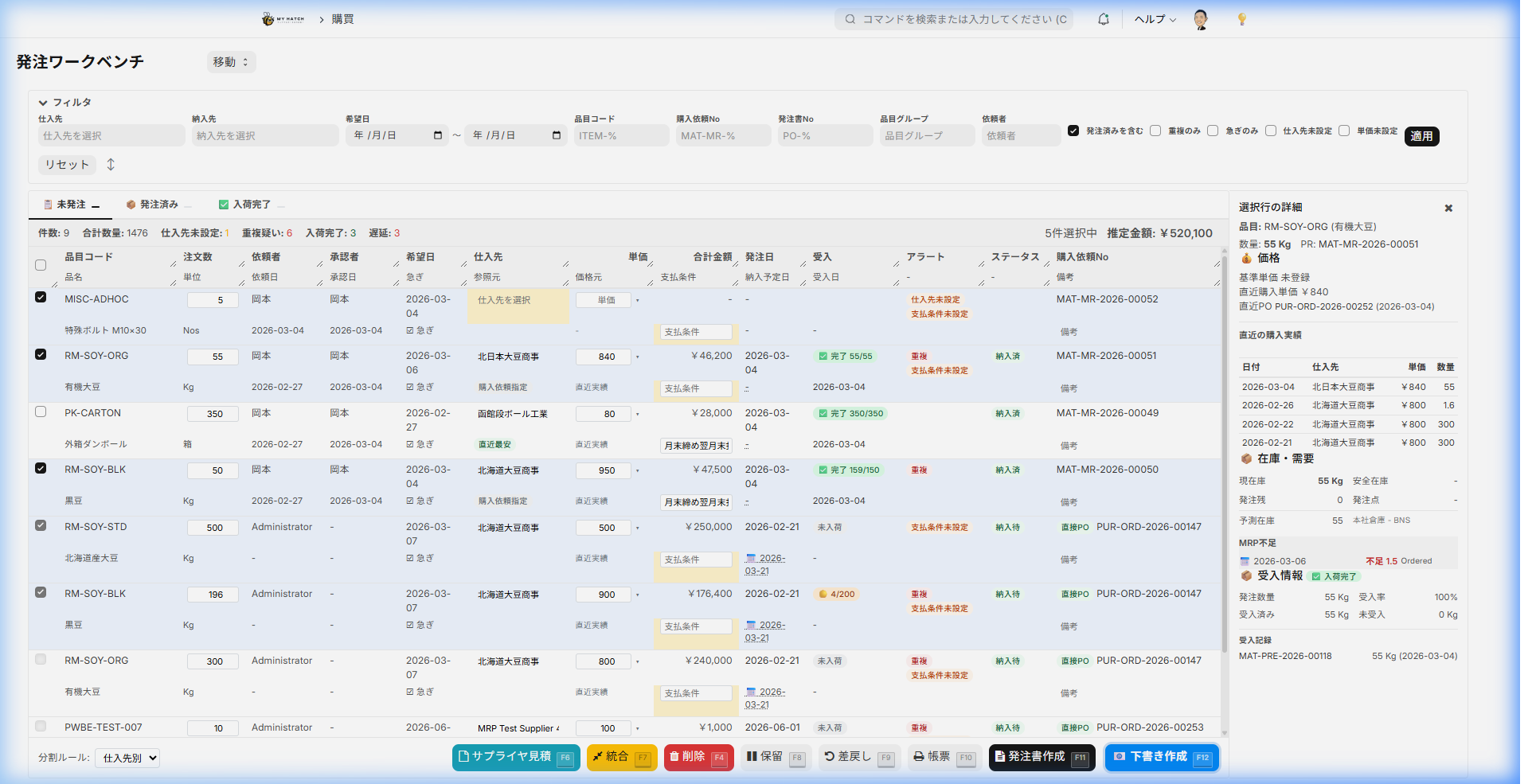
The right-hand panel always displays keyboard operation tips.TAB Row transition /Enter Open /Space choice).
Main Operations
The shopping cart operation is on a separate screen. How to use the shopping cart to request the purchase of raw materials Purchase request cart (pr-cart) Please refer to the article linked above. This page focuses specifically on the process of creating purchase orders from approved requests.
1. Create a purchase order (F11)
We will create purchase orders in bulk from approved purchase requests.
Operating Instructions:
- Narrow down your search using filters (e.g., if you want to create a list by supplier, specify the supplier using "Advanced Filter").
- Check the items you wish to select (multiple selections are possible).
- Click "Create Purchase Order" from the action bar at the bottom of the screen, or press the F11 key. 4. Purchase Order Creation Editor Navigate to the next page to check the supplier, item, unit price, and total.
- If there are no problems, click "Create" in the editor.

Convenient Features:
- Splitting Rules: Automatically splits purchase orders by supplier, warehouse, and desired date (see the "Splitting Rules" dropdown at the bottom).
- Displaying suggested unit prices: For each item, suggested unit prices are displayed based on recent purchase history and price master data. Simply select to set the unit price.
- Automatic adjustment of past dates: If the desired date is earlier than today, the delivery date on the purchase order will be automatically moved up to today.
- Duplicate Order Check: A warning will be displayed if a purchase order has already been created for the same item.
2. Send order email (F12)
The created purchase order will be sent to the supplier via email. Instead of sending it immediately, a draft will be automatically created first, allowing you to review the content before sending.
Operating Instructions:
- Turn on the "Include Orders" option to display the order forms in the list.
- Check the purchase orders you want to send.
- Click "Draft" on the action bar, or press the F12 key.
- The subject, recipient, body, and attached PDF are automatically generated.
- Check the content in the drafts list.
- If everything looks correct, click "Submit".
Content of the automatically generated email:
- Recipient: Automatically obtained from the supplier's contact information.
- subject:
発注書送付: PO-XXXX-XXXXX - Main text: Greeting message, order number, order date, item list table, total amount
- Attachment: Purchase Order PDF
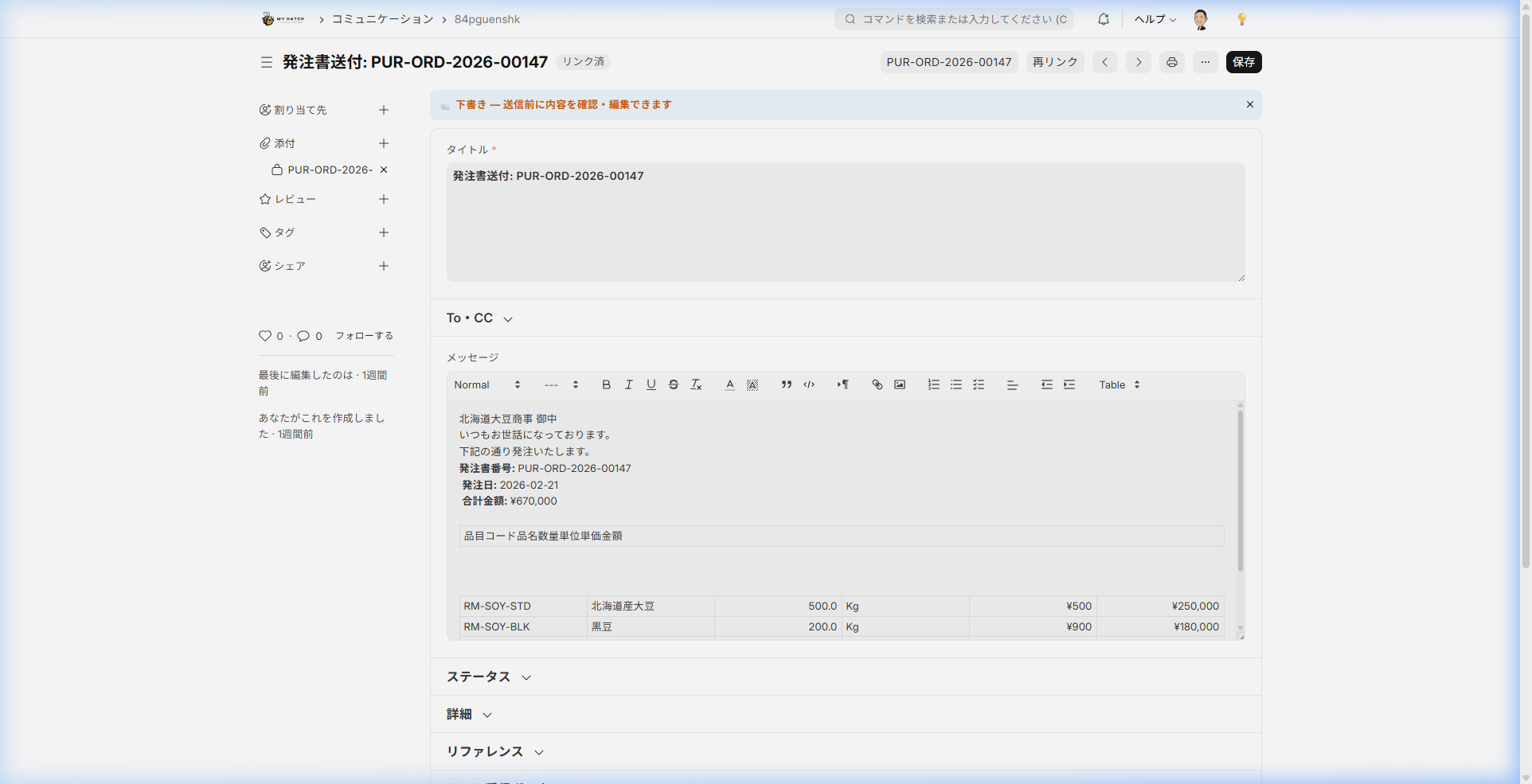
Once sent, the purchase order will be marked as "sent," preventing it from being missed.
3. Record the date of the supplier's response.
After placing an order, we record the date of the response received from the supplier to manage any delays.
Operating Instructions:
- Turn on "Include orders already placed" to display the relevant purchase orders.
- Enter the scheduled delivery date in the "Receipt Status/History" section on the right panel.
- If you have any notes, enter them in the "Remarks" field.
- Save (automatic saving may occur).
If the response date is later than the requested date, a "Delayed" badge will automatically be displayed. Clicking "Delayed" in the summary bar will filter the results to show only delayed purchase orders.
4. Check the stock status
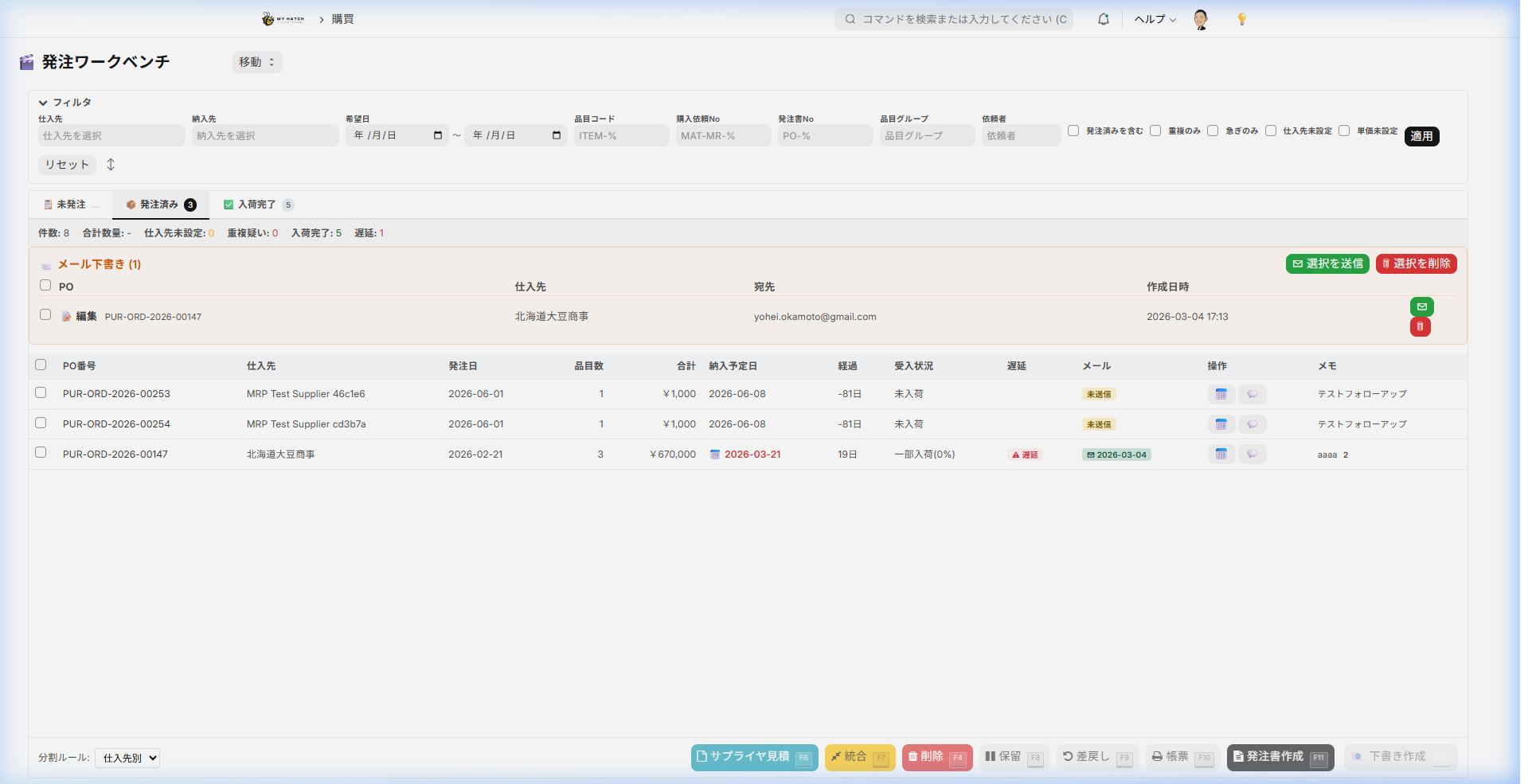
Turning on "Include orders already placed" allows you to check the arrival progress for each purchase order.
| Display | Meaning |
|---|---|
| Not yet in stock | Not yet available |
| Partial stock received (60%) | Some stock has been received (percentage in parentheses) |
| In stock | All quantities have arrived |
5. Transition to the individual editing editor
If you want to make detailed adjustments for each purchase order, select the row and click "Edit Individually" in the action bar. Purchase Order Creation Editor This will take you to the next page. The workbench is for bulk creation, and the editor is for individual adjustment, so their roles are separated.
6. Modify the information on the workbench
You can modify the details of your purchase request directly from the workbench without having to return to the previous screen.
| Items that can be edited | How to operate |
|---|---|
| Suppliers | Click the supplier cell in the row directly to change it, or use Bulk Suppliers (F5) |
| Desired date | Change from the "Acceptance Status/History" panel on the right |
| Unit Price | Display a list of options by clicking the icon next to the unit price cell and select one. |
7. Merge duplicate rows (F7)
If the same item is listed on multiple lines, you can check the box and press F7 / Combine to merge them into a single line and sum the quantities.
8. Create a request for quotation (F6)
For items with unknown unit prices, you can create a request for a quote from the supplier.
- Check the items you wish to purchase.
- Click "Request a Quote" on the action bar, or press the F6 key.
- A quote request is automatically created.
9. Delete selected row (F4)
Candidates that no longer require ordering can be removed from the list by pressing F4 / Delete Selected Rows (the purchase request itself will remain; it will simply be removed from the workbench list).
10. Set to hold (F8)
For items you want to temporarily suspend ordering for, such as while waiting for a supplier quote, select them and switch their status to "Hold" using the "Hold" button or F8. Items on hold will display "Hold" in their status badge and will be removed from the "Action Required Only" filter.
11. Perform a rollback (F9)
If you find any items with problems, select them and return them to the original document creator using the "Return" button or F9. You will need to enter a reason for the return, and the original document creator will be notified.
12. Output the report (print) (F10)
Select the items you have already ordered and open the corresponding purchase order PDF using the "Documents" button or F10. Use this for final confirmation before sending to the supplier or for printing a copy.
List of Keyboard Shortcuts
The workbench can also be used efficiently with keyboard controls. The implementation labels are listed as they are.
| Key | Operation (Implementation Label) |
|---|---|
| F4 | Delete selected row |
| F5 | Bulk Supplier Settings |
| F6 | Create supplier quote |
| F7 | Merge duplicate rows |
| F8 | Set to hold |
| F9 | Revert |
| F10 | Forms (Print) |
| F11 | Create Purchase Order (Transition to Editor) |
| F12 | Create email draft |
| Tab | Move to the next line |
| Enter | Open row (show details pane) |
| Space | Select row |
Cause of shortage
Each item will have a label explaining why it is in short supply.
| Label | Meaning |
|---|---|
| Insufficient Orders | Inventory is insufficient to meet confirmed orders |
| Insufficient Indicative Orders | Inventory is insufficient to meet the indicative orders (prospective orders) |
| Manufacturing and Consumption Shortage | There is insufficient inventory of materials used in manufacturing. |
| Parts Demand Shortage | Parts shortage caused by BOM deployment |
| Below Safety Stock | Below the safety stock standard |
| Material Shortage | A shortage has occurred in the material allocation for the manufacturing order. |
How duplicate checking works
To prevent ordering the same item multiple times, a two-stage duplicate check is performed automatically.
Check 1 (High Accuracy): If there are multiple items linked to the same MRP shortage information, they will be detected as duplicates.
Check 2 (Broad): If no matches were found in Check 1, this checks for potential duplicates of the same company and item code combination.
Items with detected duplicates are displayed with a red badge. Clicking the "Duplicates" filter tip will narrow the results down to only potential duplicates. If two or more identical items are selected, the Consolidation Guide (F7) will appear at the top of the screen.

Procurement Status List
The processing status of items is immediately visible with color-coded badges. The table below shows the statuses that can appear throughout the entire process. In the workbench screen, only some of the relevant statuses at that time (approved/ordered/received/on hold/suspected duplicate, etc.) are displayed.
| Status | Display | Meaning |
|---|---|---|
| ⚪ Not started | None | Not yet arranged |
| 🟡 In Cart | Added to Cart | |
| 🟠 Application in progress | Requested | Application submitted as a purchase request |
| 🔵 Approved | Approval workflow passed | |
| 🟣 Order placed | Order form created | |
| ✅ In Stock | Received | Inventory Completed |
| ⏸️ Hold | Temporarily on hold (set with F8) | |
| ↩️ Returned | Returned to the client (executed with F9) | |
| ❌ Cancelled | Cancelled | Canceled |
Tips
- Speed up with keyboard shortcuts: By memorizing the frequently used F11 (create purchase order) and F12 (draft email), you can proceed with ordering tasks without using the mouse.
- Filter results quickly with the tip filter: You can filter by status that matters to you immediately, such as "Urgent," "Duplicate," or "Supplier not set," with a single touch.
- Automatically prevents duplicate orders: A warning badge will appear for items for which another user has already created a purchase order.
- Automatically split purchase orders using splitting rules: Purchase orders can be automatically split by supplier, warehouse, and desired delivery date, eliminating the need for manual splitting.
- Email sending includes draft confirmation: Order emails are not sent immediately; a draft is created first. You can review the content before sending, so you can rest assured.
- Automatic supplier recommendations: For items where a supplier has not been set, suppliers will be automatically recommended based on past purchase history in the "Supplier Candidates" section of the right-hand panel.
- Delays are immediately noticeable: If the supplier's response date is later than the requested date, a red "delayed" badge will appear.
- Summary bar provides navigation: The "Pending Approval/Purchase Request/Ordered/Received" cards at the top of the screen always show how many items are in each phase of the overall purchase.
Next Steps
- If there are requests awaiting approval → Approval Hub Processed
- If you want to make detailed adjustments to the purchase order → Purchase Order Creation Editor
- Once the shipment is complete → Material acceptance / Inventory Record
- Billing process → Purchase invoice