
Purchase request (raw materials)
This explains how to use the screen for creating bulk purchase requests for raw materials used in manufacturing, in a shopping cart format. It can be linked to MRP (Material Requirements Planning) shortage lists and production orders, allowing you to add all missing items to the cart at once.
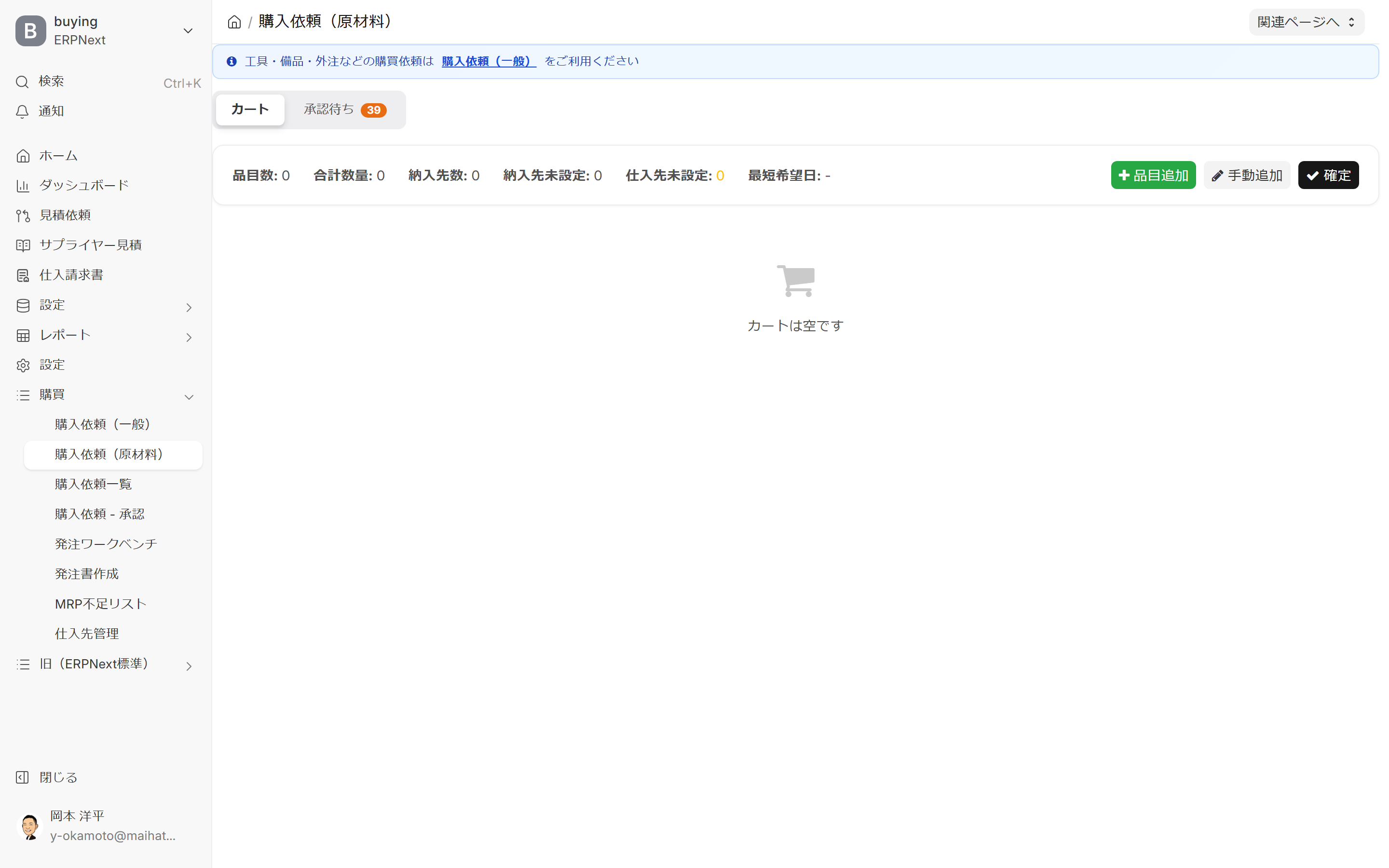
Related Articles This screen is for creating purchase requests for manufacturing raw materials. Purchase requests for tools, equipment, and outsourcing are for [other items]. Purchase Request Hub (General) Please use this. Approval after the vote is submitted Approval Hub Orders are Ordering Workbench → Purchase Order Creation Editor It will flow in that order. The overall picture of purchasing operations is Purchasing workflow Please refer to the following.
What you can do on this screen
The purchase request cart is a screen where you can create purchase requests for raw material shortages used in manufacturing, just like a shopping cart on an online store. You can add shortage information detected from MRP (Material Requirements Planning) or production orders to the cart while confirming the quantity for each item, and convert them into a single purchase request.
Screen URL:/app/pr-cart
Why a shopping cart format?
Raw material shortages occur frequently, from weekly to daily, in our MRP system. Since manually opening and creating purchase request forms for each item is time-consuming, we've significantly streamlined the process by using a cart-style system that allows us to handle multiple items at once.
List of things you can do
| To do | Overview |
|---|---|
| Add item to cart | Add items using multiple methods including MRP shortage, production order, and manual addition. |
| Edit Quantity and Supplier | Adjust the quantity and supplier for each item in the shopping cart |
| Duplicate Consolidation | When the same item appears on multiple lines, it is combined into a single line and the quantities are added together. |
| Verification of Origin Information | Track which missing information the items in your cart came from |
| Convert to Purchase Request | Confirm button to generate purchase requests in bulk |
| Checking Approval Status | Track the approval status of submitted purchase requests on the same screen. |
Overall view of the screen
Two tabs
There are two tabs at the top of the screen.
| Tabs | Contents |
|---|---|
| Cart | Uncreated items currently in the cart |
| Awaiting Approval | List of purchase requests that have been created and are currently going through the approval workflow |
Summary bar (cart tab)
A summary bar will appear at the top of the shopping cart.
| Item | Meaning |
|---|---|
| Number of items | Number of items in cart |
| Total Quantity | Total quantity of all items |
| Number of Delivery Destinations | Number of different delivery warehouse types specified in the shopping cart |
| Delivery destination not set | Number of items with no specified delivery destination |
| Supplier not set | Number of items with unspecified suppliers (yellow warning) |
| Earliest Desired Date | The earliest desired date in your cart |
Action button (top right)
| Button | Action |
|---|---|
| **+ Add Item ** | Manually add an empty row |
| Manual Addition | Add by selecting multiple items from the item master |
| Confirm | Create a bulk purchase request for the contents of the cart |
Main Operations
1. Add to cart due to MRP shortage (recommended)
Add any missing raw materials from your MRP shortage list or production order to your cart.
Operating Instructions:
- Select the item in the MRP Shortage List or on the production order screen.
- Click the "Add to Cart" button.
- Confirm quantity, warehouse, and desired date.
- This screen (
/app/pr-cartWhen you open it, the added items will appear in your cart.
Your shopping cart is stored on the server, not in temporary memory, so its contents are retained even when you close your browser.
2. Review and edit your cart contents
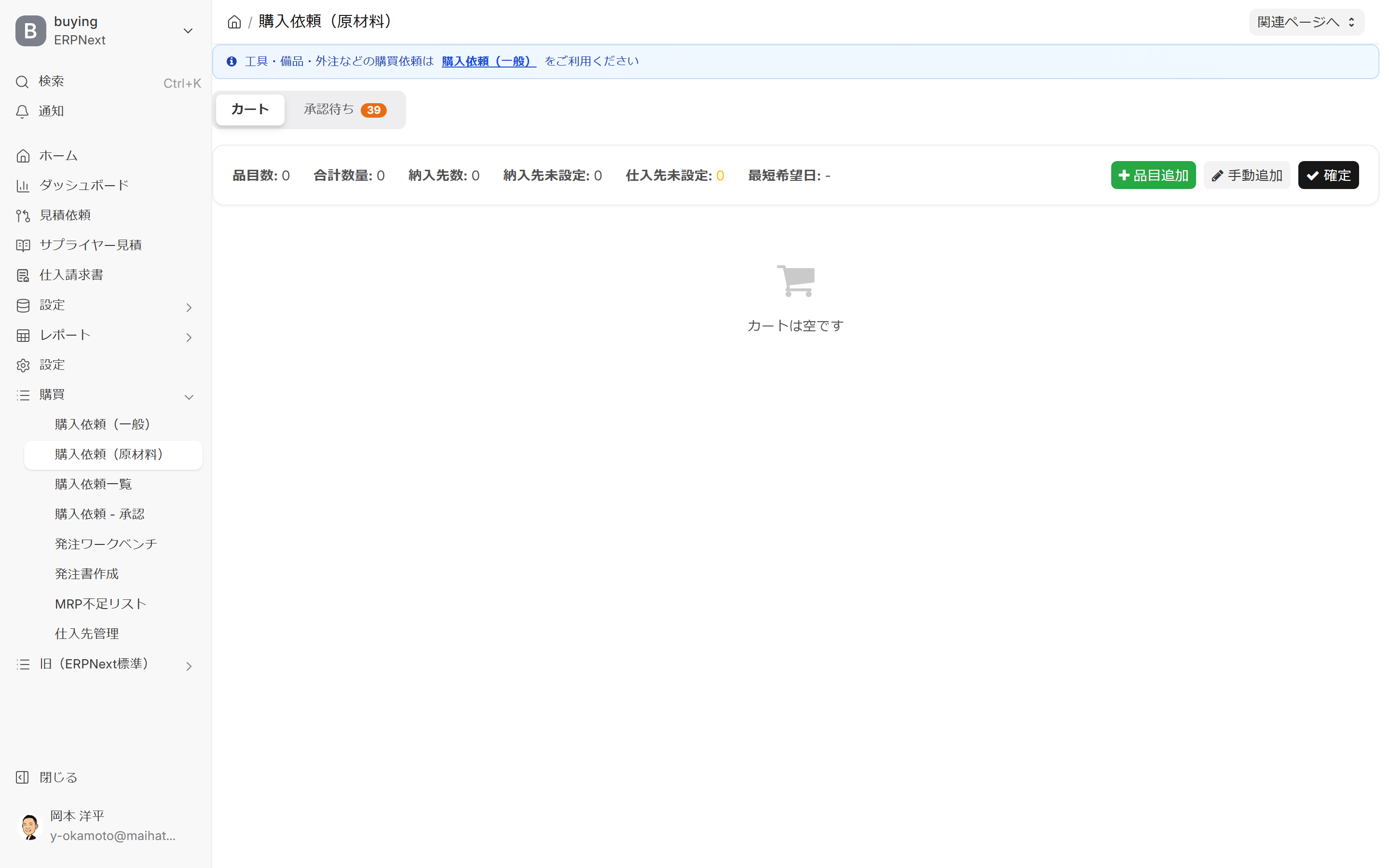
You can edit the items in your shopping cart.
| Operation | Explanation |
|---|---|
| Change Quantity | Directly edit the quantity cell within the row |
| Specify Supplier | Set a supplier for items that have not yet been set. |
| Delivery Destination Warehouse | Set a warehouse for items that have not yet been assigned. |
| Change of Desired Delivery Date | Adjust the desired delivery date for each item |
| Remarks Input | Free Text |
| Delete row | Remove from cart (MRP shortage remains) |
3. Merging duplicates
If there are multiple items in your cart with the same item code, you can combine them into a single row and sum up the quantities.
procedure:
- Select (check) the row containing the items you want to merge.
- Perform "Integrate" from the actions on the screen.
- The quantities are added together and combined into one line.
The merged rows also retain all origin information, allowing you to later track "which shortage this item came from."
4. Verification of origin information
The items in your cart are recorded as being derived from which missing information (orders, preliminary orders, production orders, etc.).
- Expanding the item row will display a link to the missing record from which it originated.
- Items integrated from multiple missing pieces of information retain all of their multiple origins.
This allows you to track later why you ordered this particular item.
5. Confirm as purchase request
Once you have made a final check of the contents of your cart, create a purchase request.
procedure:
- Verify that the summary bar at the top of the cart shows 0 entries for Supplier not set / Delivery destination not set.
- Click "Confirm" in the upper right corner.
- The contents of the cart will be generated as a single purchase request according to the splitting rules.
- If an approval workflow is set up, approvers will be automatically notified.
Once confirmed, you can track the approval status of your request in the Pending Approval tab.
6. Tracking pending approvals
The Pending Approval tab allows you to check the approval status of purchase requests you have submitted (or that are company-wide).
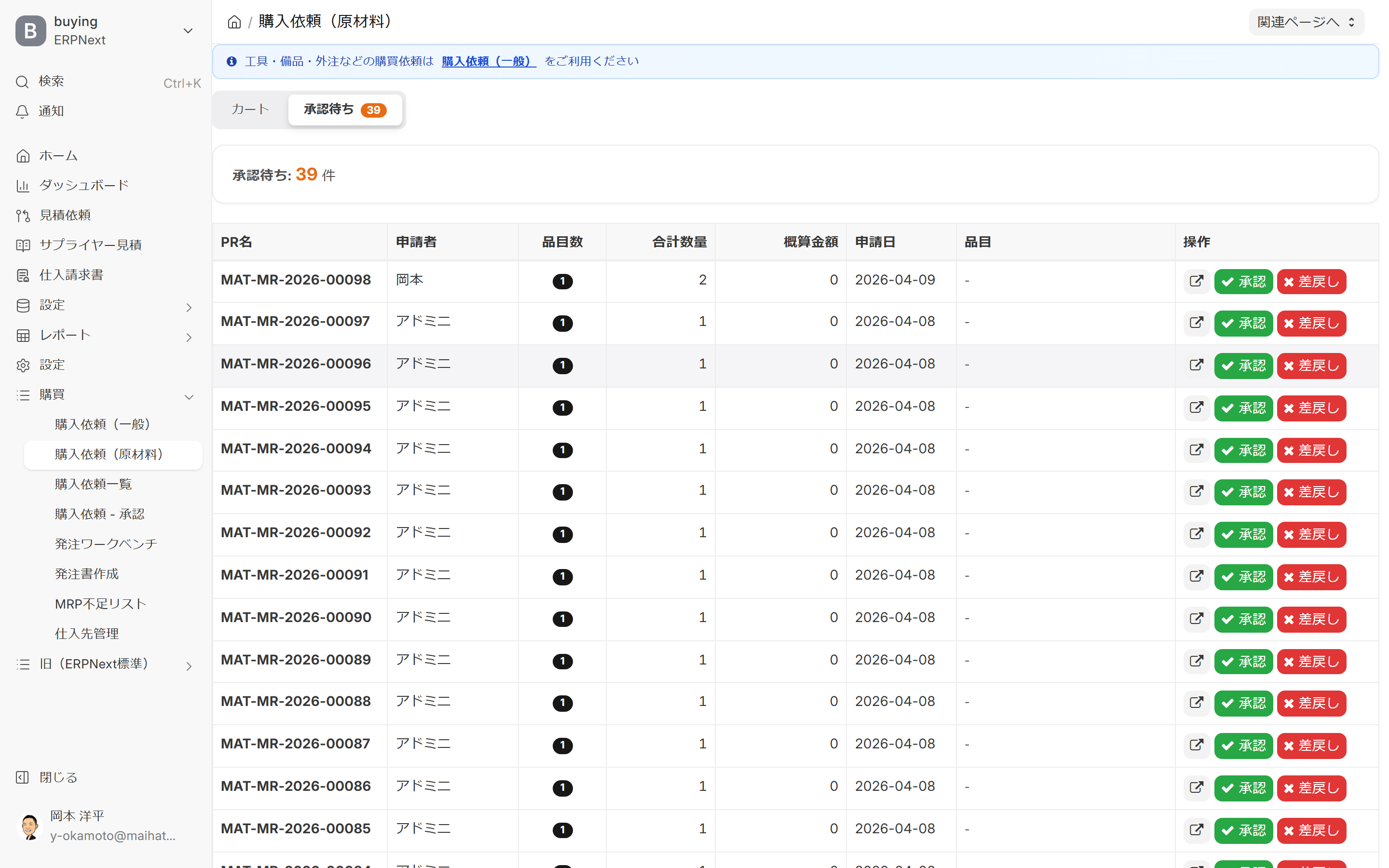
| Column | Content |
|---|---|
| Request Number | Purchase Request Management Number (MAT-MR-YYYY-XXXXX) |
| Applicant | Requester |
| Number of items | Number of details in the request |
| Total Quantity | Total Quantity of Items |
| Estimated amount | Total of units with entered unit prices |
| Application date | Issuing date |
| Item | Item List (Partial Excerpt) |
| Operation | Approve / Return button (if you have approval privileges) |
Approvers can approve/reject directly from this tab. If you are going to perform a full approval process... Approval Hub That is more efficient.
How to differentiate between using equipment and outsourcing
There is a notice at the top of the screen.
Purchase requests for tools, equipment, and outsourcing are Purchase request (general) Please use
| Target | Screen to be used |
|---|---|
| Raw Materials for Manufacturing (MRP Integration) | This Screen |
| Tools, Equipment, Outsourcing, and Consumables | Purchase Request Hub (General) |
Both will be saved as the same purchase request, but the ease of use is different for each screen, so please choose the one that suits your work.
Cart row status
Items in your cart will be displayed in the following statuses:
| Status | Meaning |
|---|---|
| Not Set | Supplier, warehouse, desired date, etc. are not entered |
| OK | All required fields have been filled in |
| Error | Validation error during ticket creation (e.g., duplicate, invalid item) |
Ideally, you should select OK for everything before pressing the confirm button.
Extensions used in shopping cart operations
The shopping cart not only converts raw material shortages into bulk purchase requests, but also handles splitting, merging, returning/restoring, and approval processes all on the same screen. In addition to basic operations, checking in the following order will reduce the chances of missing any processes.
1. Add to cart
Items not listed in the item master can be added as free-text items. Manually enter the product name, model number, quantity, unit price, and remarks, and add it to the cart as an unregistered item. The subsequent order flow will prompt you to register the item in the item master, allowing you to proceed without interrupting operations even for first-time purchases or special-specification items.
Rows added to the cart from a production order are linked to the original production order. If the corresponding production order is deleted or the shortage is resolved in the MRP shortage list, you can remove it from the cart as well. The cart badge in the sidebar displays the number of pending cart entries, allowing you to notice any missed entries from other screens.
2. Edit the line
Each row displays a badge indicating where the supplier and price were recommended from. Suppliers are categorized as "History," "Master," "Manual," or "Not Set," while prices are categorized as "Actual," "Price List," "Supplier Quote," "Manual," or "Not Set." For rows marked as "Not Set" or "Manually Changed," please verify the rationale before confirming.
Warehouses and suppliers can be edited on the spot by clicking on the cells. Warehouses are displayed in a searchable dropdown menu, with suggestions from the item master and history. Suppliers can display the lowest historical price as a suggestion, and the badge changes to "Manual" when changed.
3. Standardize order units through division and consolidation
If you want to split a single row into different delivery dates, warehouses, and suppliers, use the row splitting function. You can then distribute quantities to the original row and the new row, and edit the delivery date, warehouse, and supplier for each row individually.
When combining rows with the same item code, do not merge them immediately. Instead, preview the merge using F3 or the merge button. The preview shows how the original multiple rows will be combined into one row, the total quantity, the supplier, warehouse, desired date, and origin information. The origin information is retained after merging, allowing you to track the source of any shortages later.
4. Confirm the origin and progress
The cart row displays origin labels such as under-ordered items, under-consumed products, under-required parts, below-safety stock, and material shortages. Clicking on an item opens details, showing which production order or shortage record it originated from, a quantity breakdown, and a link to the original record.
Confirmed rows display a progress badge, and clicking it will show a pop-up displaying approval steps, latest comments, ordered purchase order numbers, and receiving progress.
5. Restore from rollback
A banner will appear at the top of the screen if there are any recently returned purchase requests. You can check the reason for the return, the person who returned it, and the date and time, and restore the items from the request to your cart. When restoring, origin information, entered suppliers, and warehouses will be retained as much as possible, so you do not need to re-enter everything from scratch.
6. Process in the Approval tab
Users with approval authority can directly approve or reject requests from the "Pending Approval" tab. Opening a row displays the request details, budget status, applicant information, and approval plan. This screen is ideal for quick, easy approvals, while the Approval Hub is better for checking complex conditions and timelines.
7. Operate using shortcuts
The same F key has different functions in the Cart tab and the Approval tab.
| Tab | Key | Operation |
|---|---|---|
| Cart | F1 | Shortcut Help |
| Cart | F2 | Add Item Dialog |
| Cart | F3 | Integrated Preview |
| Cart | F5 | Reload Cart |
| Cart | F7 | Select All / Deselect All |
| Cart | F8 | Delete selected row |
| Cart | F10 | Confirm Cart |
| Pending Approval | F1 | Shortcut Help |
| Pending Approval | F5 | Reload Approval List |
| Pending Approval | F9 | Approve Open Requests |
| Awaiting Approval | F10 | Return Open Request |
Pressing F10 means "Confirm" in the Cart tab and "Reject" in the Pending Approval tab. Please check the current tab before performing this action.
Tips for Use
- Your shopping cart contents will not disappear: Because they are saved on the server, the contents will remain even if you close your browser and reopen it the next day.
- Convenient batch operation: You can select multiple items and change, delete, or merge suppliers all at once.
- Linking of origin information: Ordering Workbench Displaying the "cause of shortage" is possible because the shopping cart stores origin information.
- Automatic Supplier Recommendation: For items where a supplier has not been set, the system will automatically display the cheapest supplier based on past purchase history.
- Don't worry if you make a mistake: You can freely edit and delete items in your cart before confirmation. Even after confirmation, you can correct it by sending it back before approval.
Next Steps
- After the cart is confirmed, it proceeds to the approval flow → Approval Hub The approver then processes it.
- Convert approved raw material requests into purchase orders → Ordering Workbench
- I want to create a request for supplies/outsourcing → Purchase Request Hub (General)
- I want to get an overview of the company's overall request situation. Purchase Request Details (Company-wide List)