
Supplier registration and management
This guide explains how to register a new supplier and manage their basic information in ERPNext.
Related Articles This article covers the operations for registering and editing individual supplier master data. If you want to compare and evaluate multiple suppliers side-by-side, Supplier management We will use this.
What you can do on this screen
In ERPNext, information about suppliers from whom you purchase raw materials and goods is managed in the "Supplier" master. All purchasing documents, such as purchase orders, receiving records, and purchase invoices, are linked to this supplier master.
Register a new supplier
Step 1: Open the supplier list
Click Suppliers from the Purchase workspace in the sidebar, or enter in the search bar.仕入先 Enter the following:
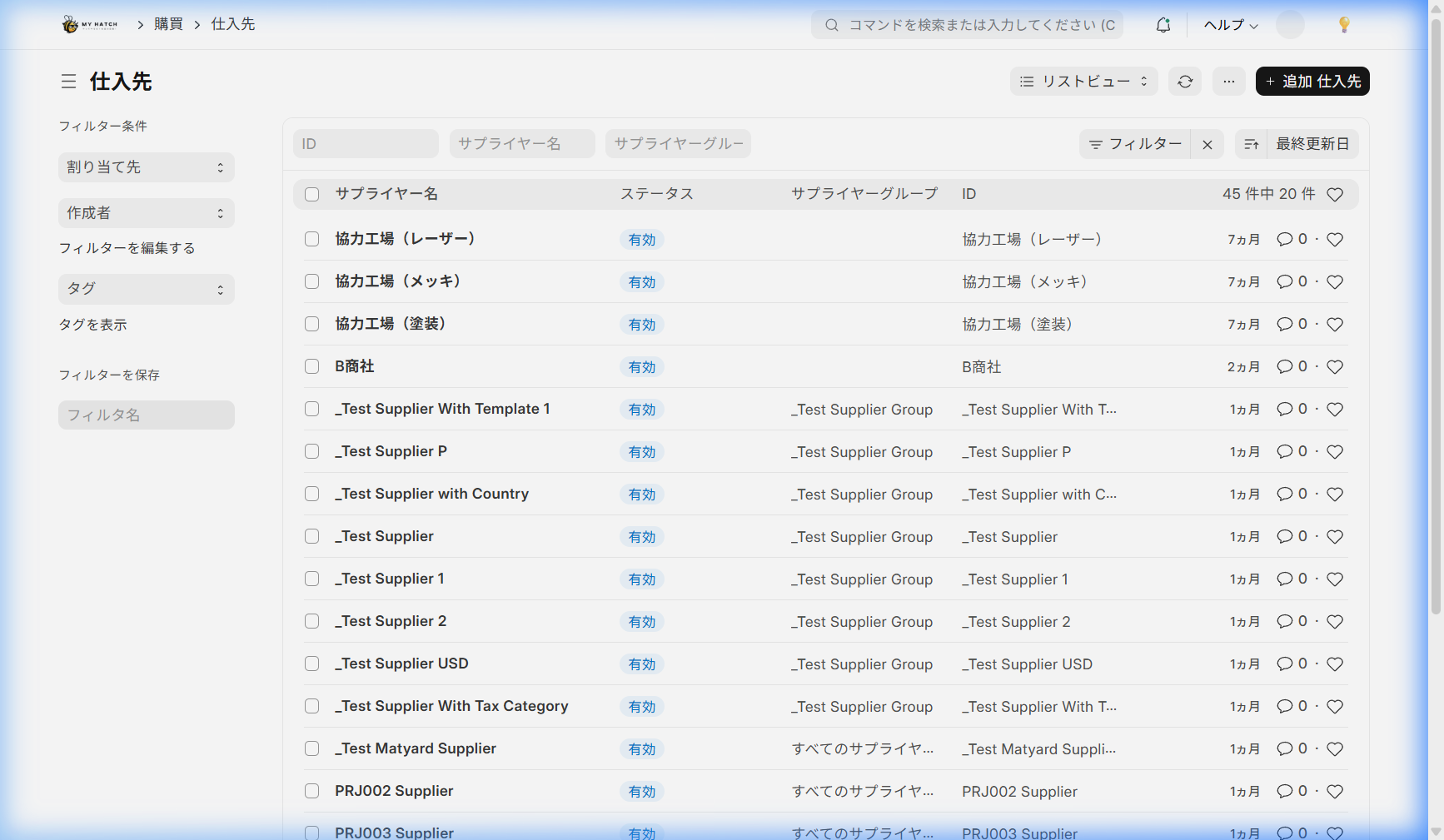
Step 2: Create New
Click the "+ Add" button in the upper right corner.
Step 3: Enter basic information
| Item Name | Description | Required |
|---|---|---|
| Supplier Name | Official Name of Business Partner | ✅ |
| Supplier Type | "Company" or "Individual" | ✅ |
| Supplier Group | Classification (e.g., raw materials, machinery & equipment, packaging materials) | ✅ |
| Country | Country of supplier | - |
Step 4: Add Address and Contact Information
- Register your address using "+ Add Address".
- Register contact information using "+ Add Contact".
Step 5: Save
"keep"(Ctrl + S Click ) to complete registration.

Setting up tax settings for suppliers
You can set up tax templates specific to each supplier.
- Open the "Taxes" section of the supplier form.
- Select "Default Tax Template"
- Save
Once configured, the tax template will be automatically applied when placing orders with this supplier.
FAQ
Q: How do I stop doing business with a supplier?
On the supplier form, check the "Invalid" box and save. Disabling this supplier will prevent you from selecting it for new purchase orders.
Q: What if we purchase multiple items from the same supplier?
Multiple items can be linked to a single supplier master. This can be configured in the "Supplier Items" section of the item master.
Next Steps
- Evaluate and review multiple suppliers → Supplier management
- Place an order with the supplier → Purchase Request Hub (Equipment/Outsourcing) Purchase Request Cart (raw materials)
- Creating a one-off purchase order → Creating a purchase order