
Material acceptance
This document explains the procedures for receiving raw materials and supplies, including barcode reception of ordered items, lot numbering, container creation, and supplier lot management.
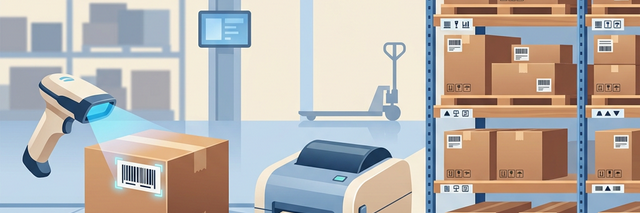
Related Articles The orderer's actions Ordering Workbench / Purchase Order Creation Editor . Invoice processing after acceptance is Purchase invoice . Acceptance of items other than raw materials (such as equipment and final deliveries from subcontractors) Inventory Record We will use this.
What you can do on this screen
This screen is used to record the actual quantity received and add it to inventory when ordered raw materials and supplies arrive at the warehouse.
You can perform tasks such as recording the received quantity, issuing lot numbers, and printing barcode labels all on a single screen, while cross-referencing with the purchase order.
Screen URL:/app/material-receipt-entry

Overall view of the screen
The screen is composed of three main elements.
- Select Purchase Order: Choose the relevant purchase order (barcode scanning is also possible).
- Item List: Displays the unreceived items included in the purchase order.
- Receiving Form: When you select an item, a form will appear where you can enter the quantity, shelf location, etc.

Four Modes of Acceptance
The receiving process automatically switches according to the item settings. Users do not need to consciously switch settings.
| Mode | Applicable Item | Processing Details |
|---|---|---|
| Simplified Mode | Items not subject to inventory management | Quantity recording only (no inventory counting) |
| Normal Mode | Items to manage inventory (no lot management) | Create receiving records |
| Container Mode | Lot-managed items | Create receiving record + receiving container |
| Splitting Mode | Items to be physically separated into multiple containers | Accepted in multiple containers |
Operating Procedure
Step 1: Select the purchase order and items
1./app/material-receipt-entry Open
2. Select the relevant purchase order (or scan the barcode).
3. A list of unreceived items included in the purchase order is displayed.
Items displayed in the item list:
| Item | Contents |
|---|---|
| Item Code | Code of the Ordered Item |
| Item Name | Item Name |
| Unreceived Quantity | Ordered Quantity - Received Quantity |
| Units | Basic unit of each item |
Step 2: Enter acceptance information
Once you select an item, the acceptance form will be displayed.
| Input Field | Content | Required |
|---|---|---|
| Quantity to be received | Actual quantity to be received | ✅ |
| Receiving Location/Facilities | Place and facilities where receiving will take place | - |
| Shelf Location | Shelf number of the storage location (3 levels: column → tier → position) | - |
| Lot Number | Enter if specifying manually | - |
| Supplier Lot Number | Supplier's Shipment Lot Number | - |
| Memo | Notes upon acceptance | - |
Step 3: Confirm acceptance
When you press the "Confirm Acceptance" button, the following processes will be performed automatically.
- Creation of Incoming Delivery Records: Incoming delivery records are automatically created and confirmed.
- Issuance of Lot Numbers: Items subject to lot management are:
R{YYMMDD}-{連番}Automatic numbering in the format (Example:R260421-01) - Creation of receiving containers: For items subject to container management, receiving containers are created in a "available" state.
- Supplier Lot Record: If you enter a supplier lot number, it will be saved as supplier lot information.
- Issuance of URL for label printing: The URL for printing the barcode label on the receiving container will be displayed.
Step 4: Print the labels
You can print a label with a barcode from the URL displayed after acceptance is confirmed.
Information included on the label:
- Lot number (barcode/Code39 format)
- Item name
- Quantity received
- Date of acceptance
- Supplier name
Acceptance via barcode scanning
/app/receipt-scan-entryTherefore, you can efficiently process items using a barcode reader.
- Scan the barcode on the purchase order → The corresponding purchased items will be automatically retrieved.
- Scan the barcode on the delivery slip → Quantity is automatically retrieved.
- Confirm the quantity to be received → "Confirm"
How to choose the receiving location and shelf position
Acceptance location (equipment)
The receiving locations are categorized into two groups.
| Group | Content |
|---|---|
| For Receiving | A dedicated receiving location automatically generated when the warehouse was created |
| Equipment | Manufacturing lines and other equipment |
Shelf position
Warehouse shelf locations are managed using a 3-tier structure.
列
  └─ 段
       └─ 位置

例:A-1-3 = A列 1段 3番
Relationship between Receipt and Cost Accounting
The receipt records created when materials are received serve as the starting point for monthly cost accounting.
| Influencing Factors | Content |
|---|---|
| Direct Material Costs | The unit price at the time of receipt is used to calculate material costs. |
| Receiving Containers | Raw materials managed by containers are tracked for usage on a per-container basis. |
| Lot Number | Received lots are cost-calculated using the first-in, first-out (consumption starts from the oldest lot) method. |
Tips for Use
- Partial acceptance is possible: We can accept quantities less than the ordered quantity. The remainder can be processed in a future acceptance.
- Supplier Lot Record: Keeping a record of the supplier's shipping lot number allows for tracking in the event of any quality issues.
- Record shelf locations: Entering shelf locations makes it easier to count items by area during inventory.
- Lot numbers are automatically assigned: Usually the system
R{YYMMDD}-{連番}Numbering is done automatically in this format (manual specification is also possible).
Next Steps
- Invoice processing after acceptance is complete → Purchase invoice
- I want to get an overall overview of the acceptance situation. Ordering Workbench Filter for "including orders placed"
- Acceptance of equipment and outsourced goods (excluding raw materials) → Inventory Record