
List of purchase requests
This guide explains how to use the screen that allows you to view the details of purchase requests submitted company-wide and filter them by request creator, supplier, and item.
Related Articles This screen provides an overview of the company's request status. If you wish to submit your own request... Purchase request hub (equipment/outsourcing) / Purchase Request Cart (Raw Materials) If you approve Approval Hub Please refer to the following.
What you can do on this screen
The Purchase Request List is a viewing screen that allows you to get an overview of all purchase requests created company-wide on a single screen. Use it to understand the status of each request across departments, including its current status, who created it, and which supplier it is being ordered from.
Screen URL:/desk/purchase-request-items
Use it in these situations
- I want to check the progress of requests within the department (regular checks by section managers and site supervisors).
- "What happened to that request?" I want to track it down.
- I want to check if there are any orders that are concentrated on specific suppliers.
- I want to understand the trends in requests by item.
Note: This screen is for viewing only. If you wish to create a new request, Purchase Request Hub / Purchase Request Cart If you wish to grant approval, Approval Hub Please use this.
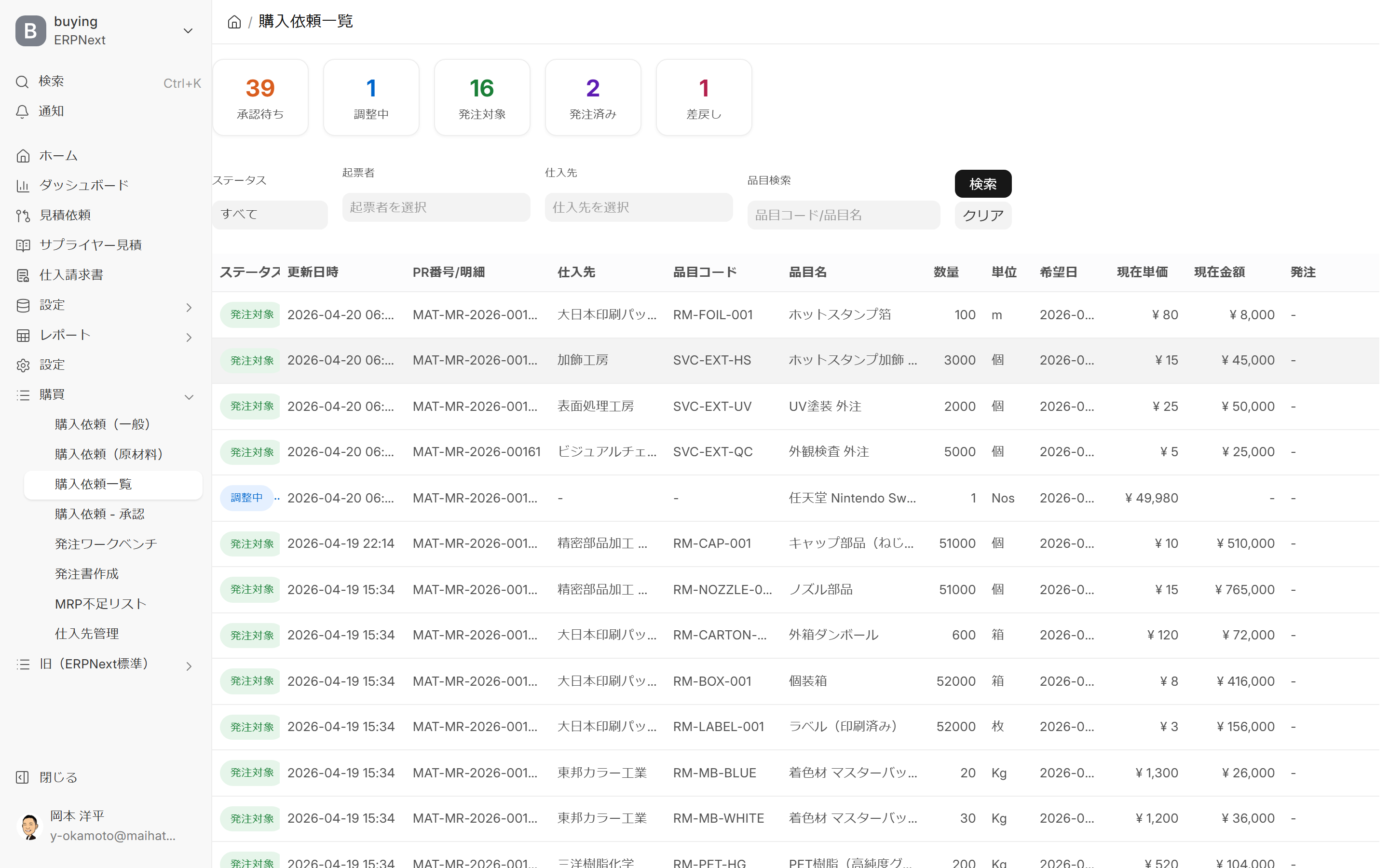
Overall view of the screen
Summary Card (Top of Screen)
The current status of requests across the entire company can be seen at a glance with these five cards.
| Card | Meaning | Color |
|---|---|---|
| Pending Approval | Number of requests not yet approved | Orange |
| Under Review | Request whose content is being reviewed by the approver | Blue |
| Item to be ordered | Approved request for which a purchase order should be created | Green |
| Order Placed | A purchase order has already been created for this request | Purple |
| Returned | Request returned to the voter | Red |
Each card is a number. Filtering by clicking will take you to a separate screen. Approval Hub / Ordering Workbench It will be provided as follows.
Filter (directly below the summary card)
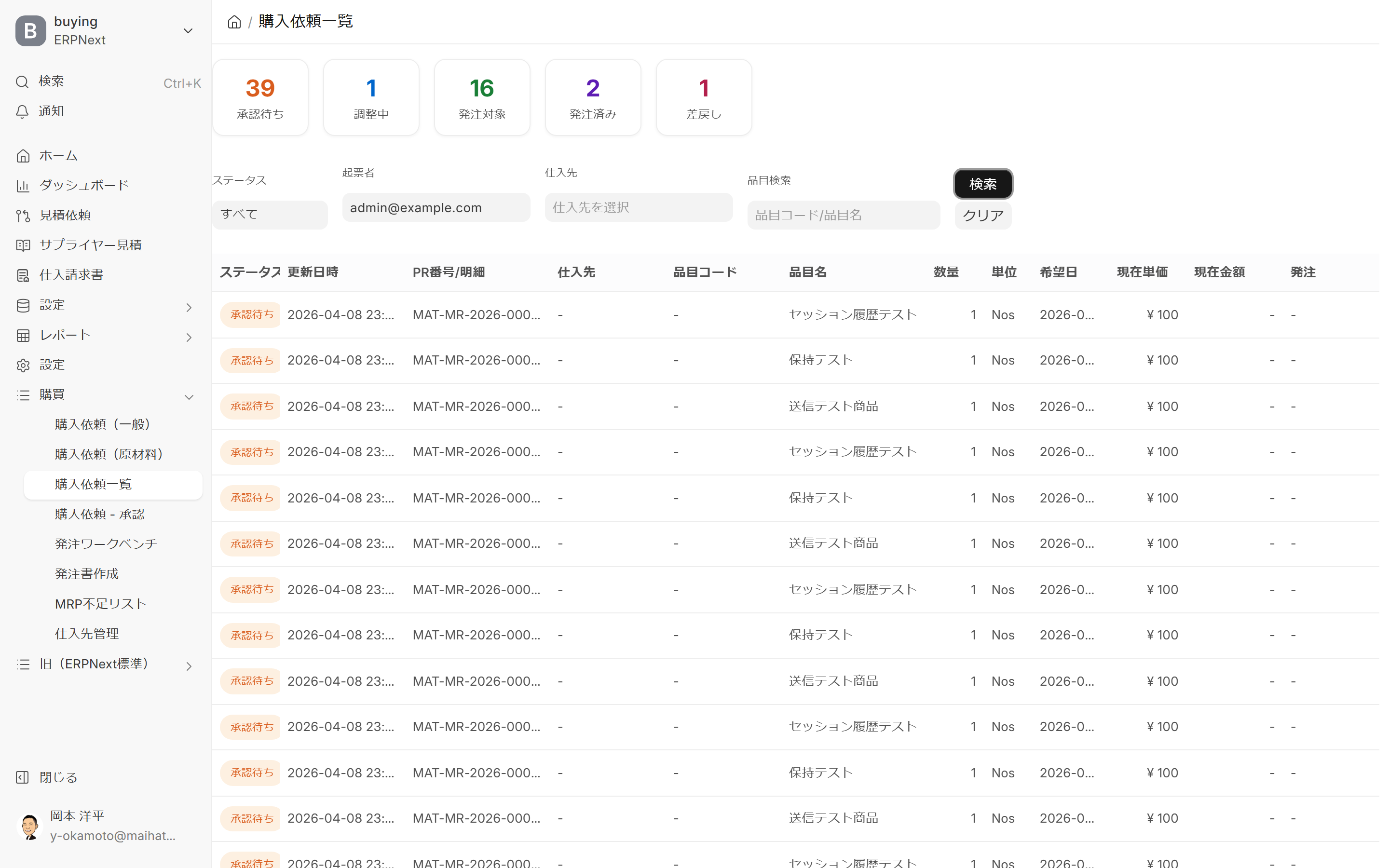
You can narrow down the list using four filters. Specifying multiple filters will create an AND condition.
| Filter | How to Use | Example |
|---|---|---|
| Status | Select from the dropdown (All / Pending Approval / Under Review / Ordered / Ordered / Returned) | Show only "Ordered" |
| Request Creator | User Selection Dropdown | Show only my requests |
| Suppliers | Supplier selection dropdown | Show only requests to specific suppliers |
| Item Search | Partial match of item code or item name | Filter by "RM-FOIL" |
After entering your criteria, click "Search" to apply them, and "Clear" to reset them.
Data Table
Each line represents one item (one item within a purchase request). If there are multiple items in the same purchase request, they will be displayed on multiple lines.
| Column | Content |
|---|---|
| Status | Processing status of the item (pending approval/approved/under review, etc., color-coded badges) |
| Update Date | Last Updated Date |
| Request Number / Details | Purchase Request Management Number (MAT-MR-YYYY-XXXXX) |
| Suppliers | Expected supplier (use "-" if not set) |
| Item Code | Identification Code in Item Master |
| Product Name | Item Display Name |
| Quantity | Requested Quantity |
| Units | Units of quantity (pieces / m / kg, etc.) |
| Desired Date | Desired Arrival Date |
| Current Unit Price | Estimate or Reference Unit Price |
| Total Amount | Quantity × Unit Price |
| Order | Progress status (Not set/In progress/Completed) |
- The number of items displayed on the screen can be checked in the count indicator at the bottom. You can scroll down to view all items.
Main Operations
1. Narrow down your request
By selecting yourself in the "Request Creator" filter and pressing "Search", only requests you have created will be displayed. This is recommended for regularly checking the progress of your own requests.
2. Aggregate by supplier
By specifying a particular supplier in the "Supplier" filter, you can display only requests addressed to that supplier. This is useful for checking whether requests are concentrated on the same supplier or if there are opportunities for diversifying orders.
3. View progress by status
By selecting "Pending Approval" in the "Status" filter, you can see only requests that haven't been processed yet. This can be used to detect requests that have been stuck in the "Pending Approval" status for a long time and follow up with the approver.
4. Track the history by item
By entering an item code or substring in the "Item Search" field, you can search across requests related to that item. This can be used for analysis such as "How many times was this item requested this month?"
Meaning of Status
| Status | Color | Meaning |
|---|---|---|
| Awaiting Approval | Orange | Waiting for approver's decision in the approval workflow |
| Under Adjustment | Blue | The approver is adjusting the details (quantity, supplier, unit price, etc.) |
| Approved | Green | Approved through the approval workflow and is now available for order |
| Item to be ordered | Green | Approved and ready to create a purchase order |
| Order placed | Purple | A purchase order has been created and the order has been placed with the supplier. |
| Returned | Red | Returned from approver to creator (requires correction) |
The order in which the status changes varies slightly depending on the type of request (equipment/raw materials) and the settings of the approval workflow.
Tips for Use
- Ideal for regular rounds: Department leaders can use it to check "pending approval" first thing in the morning and find any stalled projects.
- View-only, so you can relax: You cannot create or approve new requests on this screen. You can easily view the status of the entire company.
- Filtering by request creator is convenient: You can use it to check the progress of your own requests or to keep track of the activities of specific members.
- Return to original screen from request number: Clicking the request number will take you to the original screen (hub or cart) where the request was created.
- Detection of requests with unset suppliers: By leaving the supplier filter empty and filtering by status "Pending Approval", you can detect requests that are pending approval but do not have a supplier set.
Next Steps
- To create your own request → Purchase Request Hub (Equipment/Outsourcing) Purchase Request Cart (raw materials)
- Approval process → Approval Hub
- To create a purchase order from an approved request → Ordering Workbench / Purchase Order Creation Editor