
Incoming shipment processing
This guide explains how to create an incoming goods record in ERPNext and reflect it in inventory.

Related Articles If lot management and container management are required when receiving raw materials, please use the dedicated screen. Material acceptance We will use this. This article focuses on general receiving processes (for equipment, outsourced goods, etc.) using the standard receiving record form in ERPNext.
What you can do on this screen

Incoming inventory records are documents used to receive goods and raw materials from suppliers and to reflect them in inventory. Once confirmed, the inventory in the designated warehouse will automatically increase.
How to create an arrival record
Recommended: Create from purchase order
- Confirmed Purchase Order ,or Ordering Workbench Open the ordered row
- Click "Create ▾" → "In Stock"
- Order details will be automatically transferred.
When creating a new entry
- In the search bar
入荷type - Click "+ Add"
Input Items
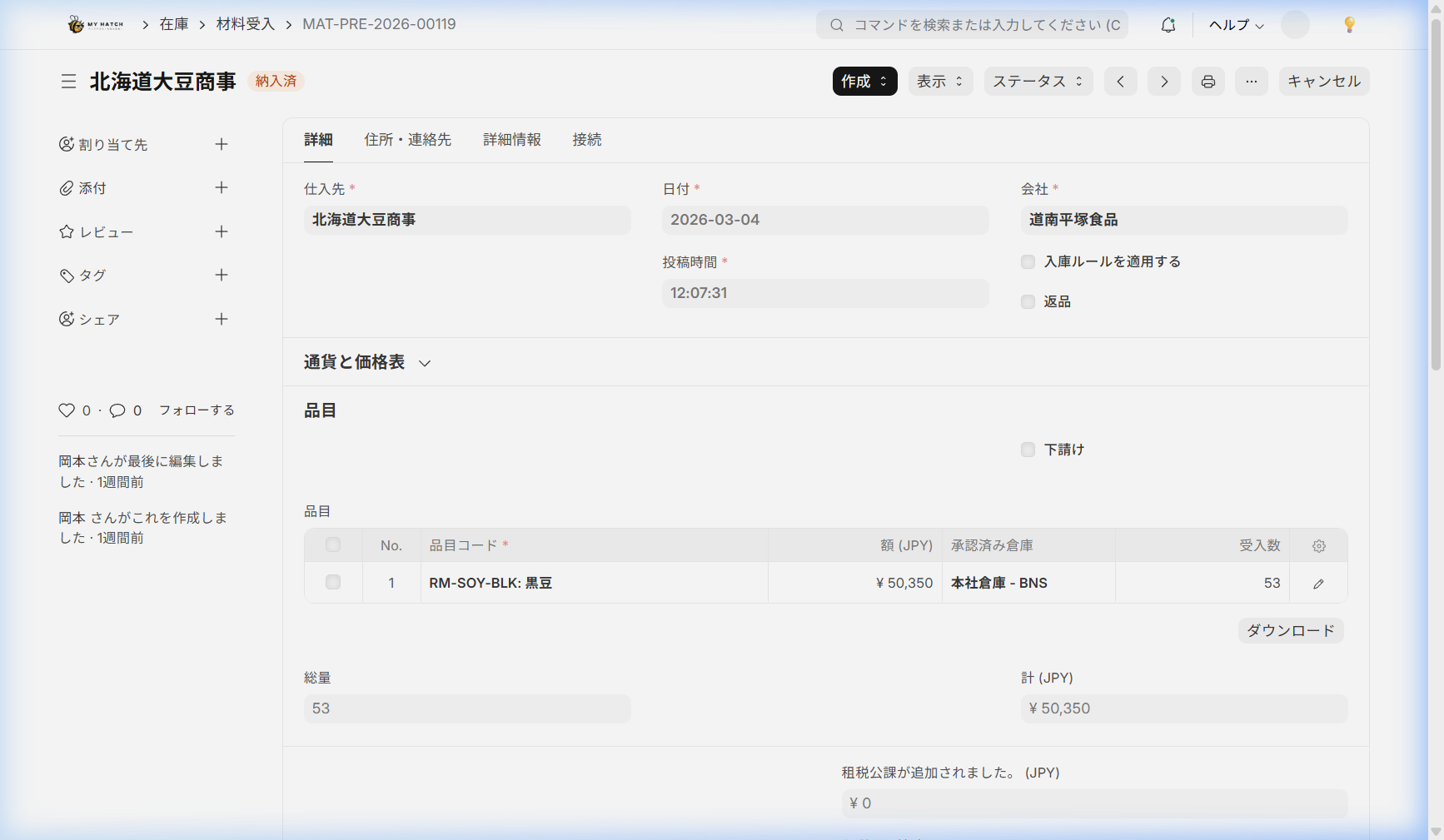
Header Information
| Item Name | Description | Required |
|---|---|---|
| Supplier | Supplier of incoming goods | ✅ |
| Transfer Date | Arrival Date (Date of Inventory Increase) | ✅ |
Item Table
| Item Name | Description |
|---|---|
| Item Code | Items to be received |
| Quantity Received | Actual Quantity Received |
| Supplying Warehouse | Warehouse for Increasing Inventory |
| Lot Number | For items subject to lot management (new lot creation is also possible) |
| Quantity of items that failed inspection | Quantity of items that failed inspection (when quality control is used) |
Inspection and Quality Check
If you are using quality control, you can record inspections upon arrival.
- If there are items in the item table with "Quality Inspection Required" turned on, create a quality inspection record first.
- Perform the inspection from "Create ▾" → "Quality Inspection".
- Confirmation of delivery after passing the test.
Confirmation and Inventory Update
Clicking "Confirm" will take the following action:
- Inventory Increase: The quantity received will be added to the specified warehouse.
- Recorded in the inventory ledger: This will be recorded as a record of incoming goods.
- Purchase Order Status Updated: Changes to "Partially Arrived" or "Arrived".
Delivered in installments
This is the procedure for receiving an ordered quantity in multiple installments.
- Open the purchase order.
- "Create ▾" → "Arrived"
- Enter only the quantity received this time.
- Confirmed
The remaining quantity can be managed using the "Quantity Received" field on the purchase order.
Next Steps
- Invoice processing → Purchase invoice
- If lot and container management is required for raw materials → Material acceptance
- I want to get an overview of the order status. Ordering Workbench