
Purchase Request - Approval
This approval hub screen allows for quick and high-quality approval of submitted purchase requests. We'll explain how to use it, including the approval plan timeline, budget cards, cancellation, delegation, on-the-fly item editing, and continuous approval mode.
Related Articles The request is Purchase Request Hub (General) / Purchase Request Cart (Raw Materials) We will start from here. Orders placed after approval are Ordering Workbench / Purchase Order Creation Editor . Approval routes and role settings are for administrators. Approval Workflow Settings Please refer to the following.
What you can do on this screen
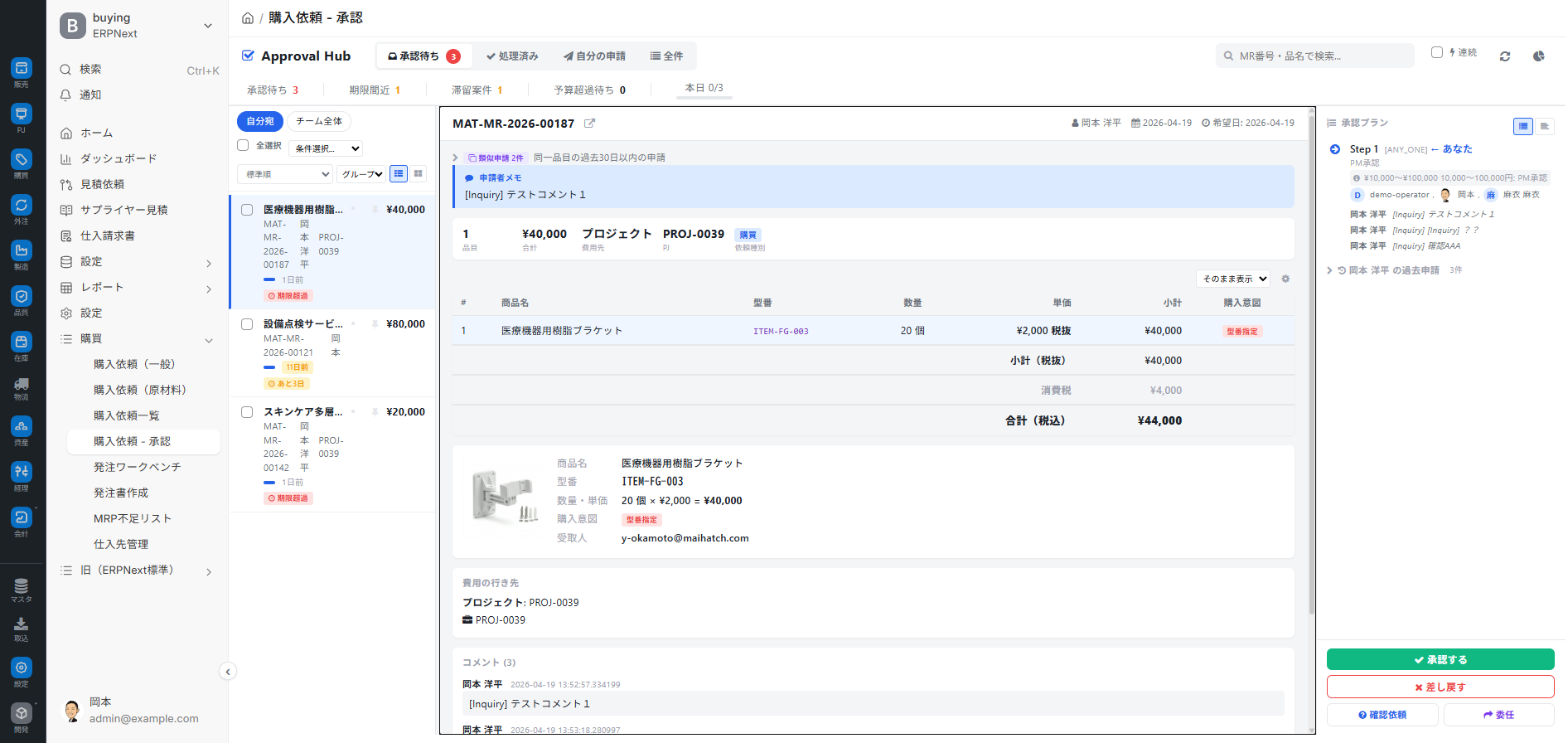
The Approval Hub is a dedicated screen for approving and rejecting submitted purchase requests. It brings together features to streamline and accurately manage approval processes, including approval plan timeline display, budget status checks, cancellation, delegation, confirmation requests, and on-the-spot editing of itemized items, all on a single screen.
Screen URL:/app/approval-hub
| To do | Overview |
|---|---|
| View a list of pending approvals addressed to you | Filter to show only cases where you are the next approver |
| Approval Plan Timeline | Display the status of multi-stage approvals step by step (list / Gantt chart switch) |
| Budget Status Card | Estimate the remaining balance after approval. Check the trend with a mini-graph. |
| Approve / Return / Request Confirmation / Delegate | 4 buttons on the action bar |
| On-the-spot editing of details | The approver can modify the details on the spot without sending it back for revision. |
| Cancel Toast | Reversal is possible for a few seconds immediately after approval |
| Continuous Approval Mode | Fast approval using only the keyboard (Enter / Shift+Enter / j,k) |
| Bulk Approval | Approve standardized cases in bulk |
| Pinned / Prioritized / Read | Improve workflow with your own markers |
| Approval simultaneously with budget increase | Final approval of budget-over-budget projects while increasing the budget |
| Processed History | Review past approval records |
Overall view of the screen
4 tabs
Four tabs are displayed at the top of the screen.
| Tabs | Contents |
|---|---|
| Pending Approval | Unprocessed items (addressed to me or the entire team) |
| Processed | My past approval history |
| My Application | Approval progress of requests I initiated |
| All Items | View all company-wide approval-required projects (for administrators) |
Summary bar (top of screen)
A summary of the number of items currently displayed in that tab is displayed directly below the tab (in the case of the "Pending Approval" tab).
| Card | Meaning |
|---|---|
| Pending Approval | Number of items to display |
| Deadline Approaching | Number of applications with approval deadlines within 3 days |
| Stalled Cases | Number of cases with no activity for 2 days or more |
| Waiting for budget overrun | Number of items waiting to be approved because approval would exceed the budget |
Clicking on each card will narrow down the list (see below).
Display Switch (Top left)
| Item | Options |
|---|---|
| Switch Range | To Me / Entire Team |
| Sort Order | Standard / Due Date / Amount / Priority |
| Display Mode | Standard (List) / Group |
| Grouping | By project / By applicant, etc. (in group mode) |
| Grid / List | Switch display density |
Left side (List of projects)
A list of purchase requests that are eligible for approval will be displayed.
- Scroll if there are many items.
- Each card displays Applicant / Amount / Number of Items / Application Date / Deadline / Pin/Priority Marker / New Arrival Marker
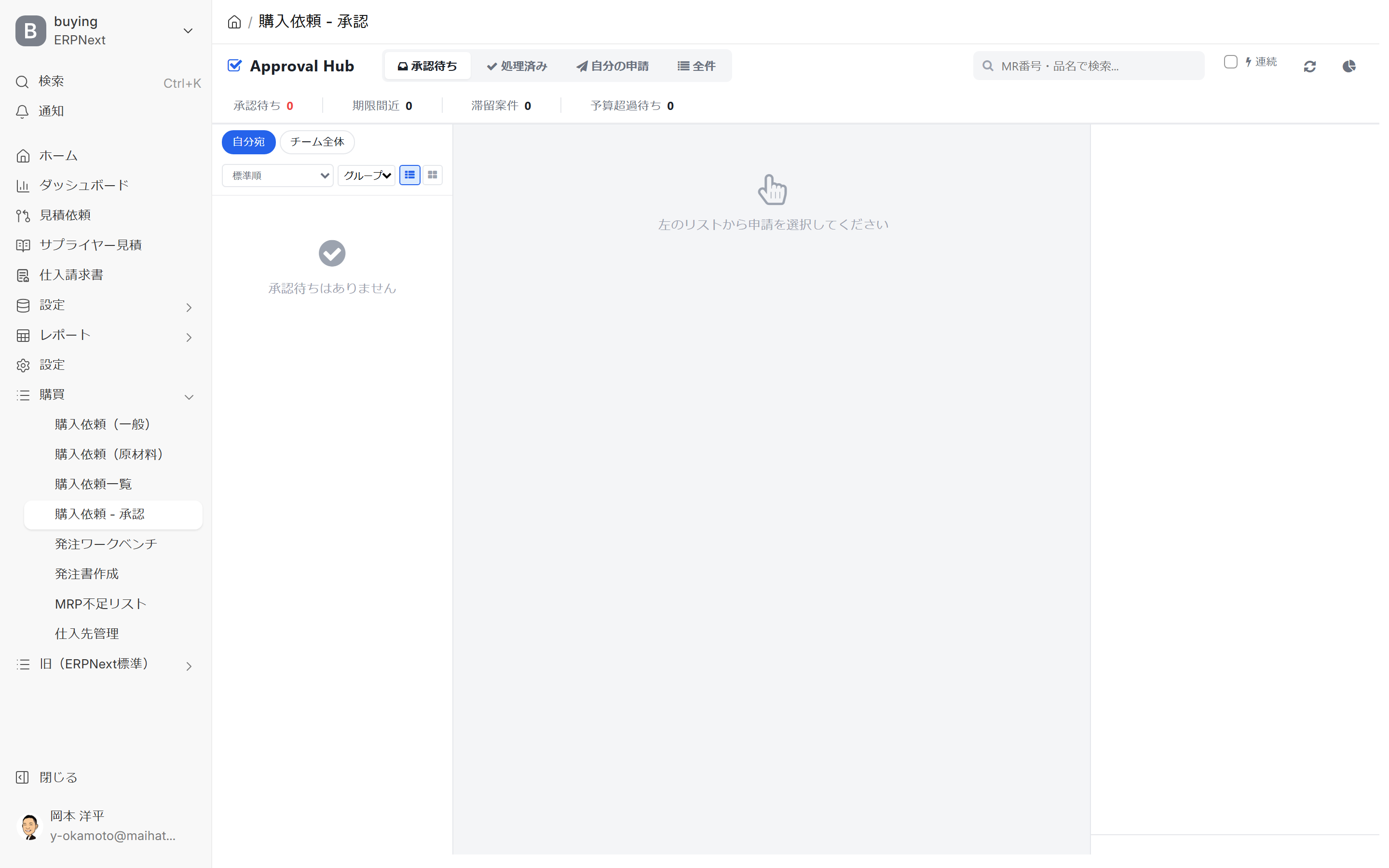
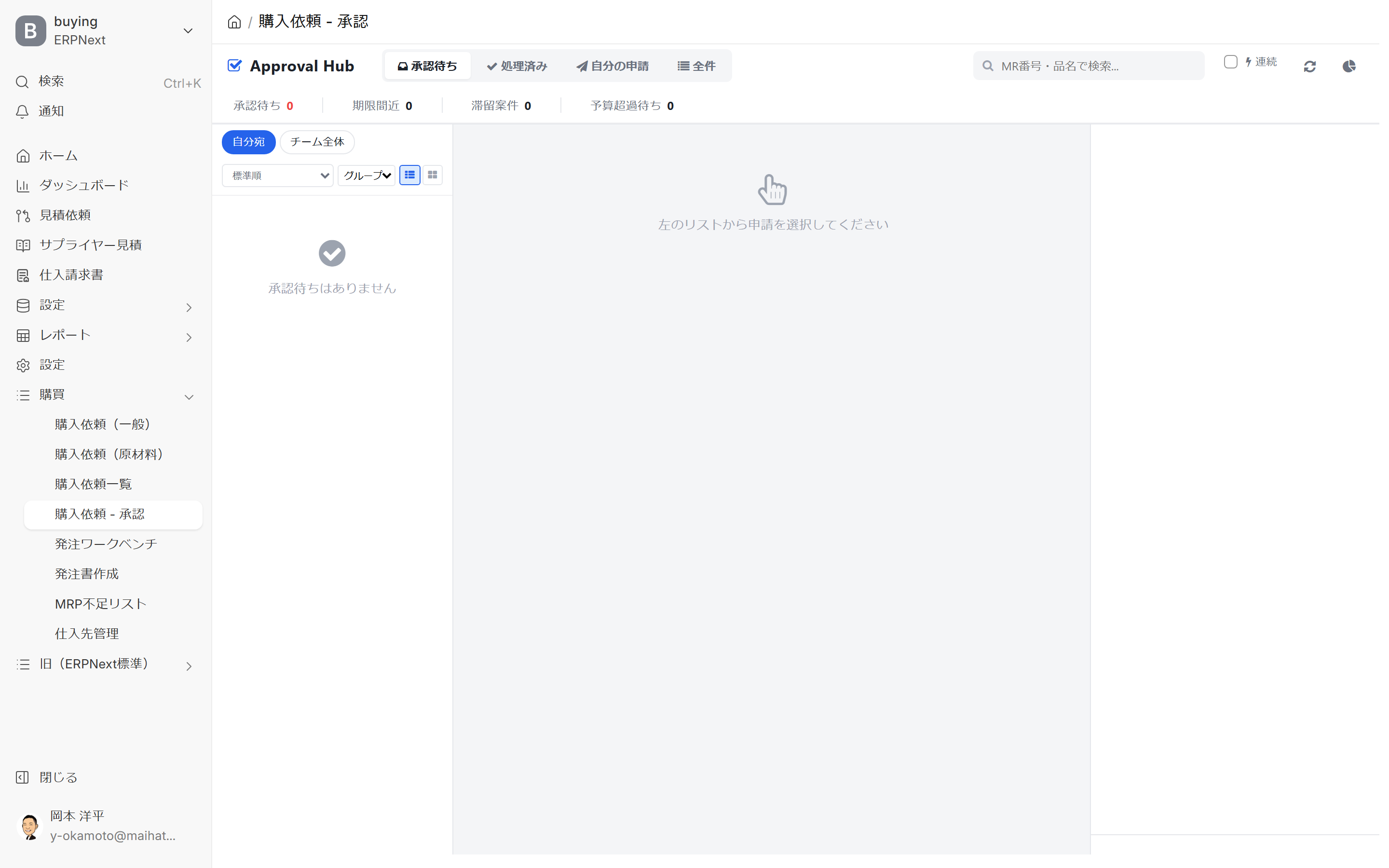
- If the number of items is 0, it will display "No items awaiting approval".
- You can customize the display/hide settings for each column in the list, and these settings are saved in your browser.
Central (Details and Approval Actions)
Selecting a project from the list on the left will open its details in the center.
- Detailed List: Item, Quantity, Unit Price, Total (Some cells can be edited on the spot by double-clicking)
- Applicant's Comment: Message from the person who submitted the application
- Attached files: Quotation, specifications, etc.
- Past Approval History: Past cases from the same applicant and item.
- Action Bar (fixed to the bottom right): 4 buttons for Approve / Return / Request Confirmation / Delegate
If no selection is made, the message "Please select an application from the list on the left" will be displayed.
Right side (Approval plan timeline / Budget card / Past applications)
Once you select a project, the following three sections will appear on the right side of the screen.
Approval Plan Timeline
This displays the multi-stage approval flow step by step.
- List View (default): Each step is displayed vertically, along with the approver's avatar and comments.
- Gantt chart view: Displays the approval flow as a time-series bar.
You can switch between modes using the toggle button in the upper right corner.
Step status icon:
| Status | Icon | Color |
|---|---|---|
| Approved | Checked Circle | Green |
| Processing | Arrow Circle | Blue |
| Waiting | Soramaru | Ash |
| Revert | X mark | Red |
| Auto-skip | Minus circle | Gray |
If the step being processed is addressed to you, it will be tagged with "← You".
Parallel Approval (All Approval): In steps where "all approvals are required," the status (completed/not yet completed) of each approver will be displayed with an avatar.
Step Branching: Branching labels such as "Escalation due to budget overrun" and "Apply automatic approval rule" will be displayed.
Comment Display: Comments made during each step will appear on the timeline below that step (truncated to 80 characters).
Budget Status Card and Trend Graph
If a budget line is associated with the project, a card will appear that allows you to check for budget overruns before approval (it will automatically expand if there is an overrun, and collapse otherwise).
| Line | Meaning |
|---|---|
| Total Budget | Total amount allocated to the budget line |
| Amount Spent | Total amount spent and consumption rate (%) to date |
| Balance | Current balance |
| Other pending approvals | Actual balance including other pending approvals |
| This request | Amount this application will consume |
| Balance after approval | The balance after approving this request (negative numbers are highlighted in red) |
The bar color indicates the digestion rate: Less than 70% Green / 70-89% Yellow / 90% or more Red. If the rate is exceeded, a "XX% Excess" badge will appear in the upper right corner.
The trend mini-graph within the card allows you to see past consumption trends at a glance.
Past application history of the person who submitted the application
This is the "Past Applications by XX" section, which is displayed in a collapsible format at the bottom right. It shows a list of purchase requests previously submitted by the same submitter.
- Request Number (Click to go to form)
- Submission date / Status (Pending approval / Approved / Returned) / Amount
Approval decisions can be made based on the applicant's application trends and quality.
Switch between search and operation modes (top right)
| Item | Meaning |
|---|---|
| Search by order number/product name | Filter in the left list |
| Continuous | Turn continuous approval mode ON/OFF |
| Batch | Show multiple selection checkboxes |
Basic Operations
1. Process pending approvals addressed to yourself.
This is the most frequently used routine in everyday life.
1./app/approval-hub Open it (or click "Purchase Request - Approval" in the sidebar)
2. The Pending Approval tab (default) will open.
3. Switch to addressed to myself (default)
4. Click on the relevant item from the list on the left.
5. Check the details, comments, and attachments in the center. Check the timeline and budget card on the right.
6. If there are no problems, click "Approve" from the action bar in the bottom right corner.
7. If you need to return the document, select "Return" and enter the reason (required). The original author will be notified.
2. The four buttons on the action bar
The fixed action bar in the lower right corner contains the following four buttons:
| Buttons | Operation |
|---|---|
| Approve | Open approval dialog and proceed |
| Return | Enter the reason for return and send it back to the original poster |
| Confirmation Request | Ask the person who created the request a question in the comments and wait for a response (the request will remain as is) |
| Delegation | Transfer approval to another person in charge |
Confirmation Request
This feature allows you to ask questions and wait for answers from the request creator, rather than approving or rejecting the request. The request remains unchanged, and the questions are recorded as comments. The request creator responds from the request screen. Use this for confirmations that don't warrant rejecting the request, such as "Could you please explain the basis for the quantity?" or "What were the reasons for selecting the supplier?"
Delegation
This is used when you should be the one to approve something, but you are unavailable or wish to delegate the authority.
- Specify the person in charge of the delegated task.
- After the transfer, the original approver loses the authority to approve that matter.
- It will be recorded as "delegation" in the audit log.
3. Approval Dialog — Recent Comments and Related Links
The approval dialog box that opens when you press the approval button is equipped with features to speed up the approval process.
- Related Links: Direct links to the Project / Budget Line associated with the request and its details will be automatically displayed at the beginning of the dialog box.
- Recent Comments (One-Touch Insertion): The 3 most recent approval comments you've used in the past are displayed as buttons. You can insert comments like "OK" or "Confirmed, Approved" with a single touch.
- Comment Input Field: Optional, will be recorded in the audit log.
4. Edit details on the spot
You can directly edit the request details from the approval screen. Double-click a cell to enter input mode, press Enter to save, and Esc to cancel.
Examples of editable fields: Quantity / Unit Price / Desired Delivery Date / Remarks.
Minor corrections that don't warrant sending the document back to the original author can be corrected on the spot by the approver and the document can proceed. The changes are recorded in the audit log upon saving.
5. Viewing cases not addressed to you
In team-wide mode, when you select a project for which you do not have approval authority, it will be displayed as follows:
○○・△△ の承認を待っています
Step 2 / 4
3日 滞留中
It clearly shows who you are waiting for and how many days they have been waiting. Cases with a long waiting period are highlighted with an orange clock icon.
Batch and High-Speed Processing
1. Continuous Approval Mode
This is useful when you want to process multiple items quickly. You can approve each item in 2-3 seconds using only the keyboard.
Operating Instructions:
- Turn on the "Continuous" checkbox in the upper right corner of the screen.
- Select the first item and either Approve or Return it.
- You will automatically proceed to the next item.
Shortcuts (in continuous mode):
| Keys | Operation |
|---|---|
↓ /j /ArrowDown | Next project |
↑ /k /ArrowUp | Previous project |
Enter | Approval |
Shift + Enter | Return |
Esc | Deselect / Exit mode |
? | Show keyboard help |
2. Batch Approval
This process involves approving a batch of standardized tasks that do not require individual review.
- Turn ON the "Batch" mode in the upper right corner of the screen.
- Checkboxes will appear in the list on the left.
- Select the cases you wish to approve in bulk.
- Click "Approve all selected items"
- Click OK in the final confirmation dialog.
Note: Bulk approval will leave a "bulk" flag in the audit log. This operation should only be used exceptionally.
3. Pinning / Priority / Read — Personal Marker
These are three types of markers to organize your approval process for your own use. Your settings are saved in your browser and will persist even when you close the browser.
| Marker | Uses |
|---|---|
| Pin | Always keep important items at the top of the list |
| Priority | Three levels: High / Medium / None. Used for sorting by "Priority". |
| Read Receipt Management | Items that have been opened are recorded as read. |
| Last Visit Date and Time | Criteria for Determining New Arrivals Since the Last Visit |
Making it a habit to pin tasks to "definitely address this week" and assigning high priority to urgent tasks is effective in preventing delays.
4. Revert approval with a retract toast.
Immediately after pressing the approve button, a cancel toast will appear at the bottom of the screen.
承認しました [ 取り消す ]
Clicking "Cancel" will undo that approval step. This is a remedy for erroneous approval (with a time limit of a few seconds to a dozen seconds).
Budget Overrun - Final Approval
Check for budget overruns in advance using the budget status card
When you select a project, a budget card will automatically appear if there is a possibility of exceeding the budget. Please be sure to check the following:
- Post-approval balance is negative (red) → Approving this will result in budget overrun.
- Completion rate of 90% or higher (bar is red) → Requires attention in conjunction with other projects.
- The "Excess XX%" badge in the upper right corner → Indicates the magnitude of the excess percentage.
Check the digestion trend with the trend mini-graph
You can check past spending history in the mini graph (line graph) within the card. For budgets that are being spent at a steep rate, we recommend temporarily suspending approval and asking the person who created the budget for the reason (using the confirmation request function).
Dialogue for Budget Officers (Simultaneous Approval of Budget Increase)
The budgeting role is responsible for final approval of budget overruns. When this role clicks the approval button, a budgeting dialog opens, separate from the normal approval dialog.
| Input field | Meaning |
|---|---|
| Budget Increase | The amount to increase the budget upon approval |
| Approval Comment | Required |
You can complete the process of increasing the budget while approving in a single dialog box.
Tab-specific operations
Approval Pending Tab
This is the default tab. The "Basic Operations" and "Batch/High-Speed Processing" options above are the main areas of operation.
Filters linked to summary cards
The four cards in the summary section will automatically apply filters to the list when clicked.
| Cards | Filtering on click |
|---|---|
| Pending Approval | Show All (Remove Filter) |
| Deadline approaching | Projects with a deadline within 3 days |
| Stalled Cases | Cases with no activity for 2 days or more |
| Waiting for budget overruns | Only projects that have exceeded budget |
At the bottom of the screen, you'll find tip-style filters (such as "over budget" and "booking expired"), which you can use to narrow down your search with AND conditions.
Team-wide mode
Switching to Entire Team will display a list of projects that other members are working on. If there are any pending projects, you can follow up with the person in charge.
Processed tab
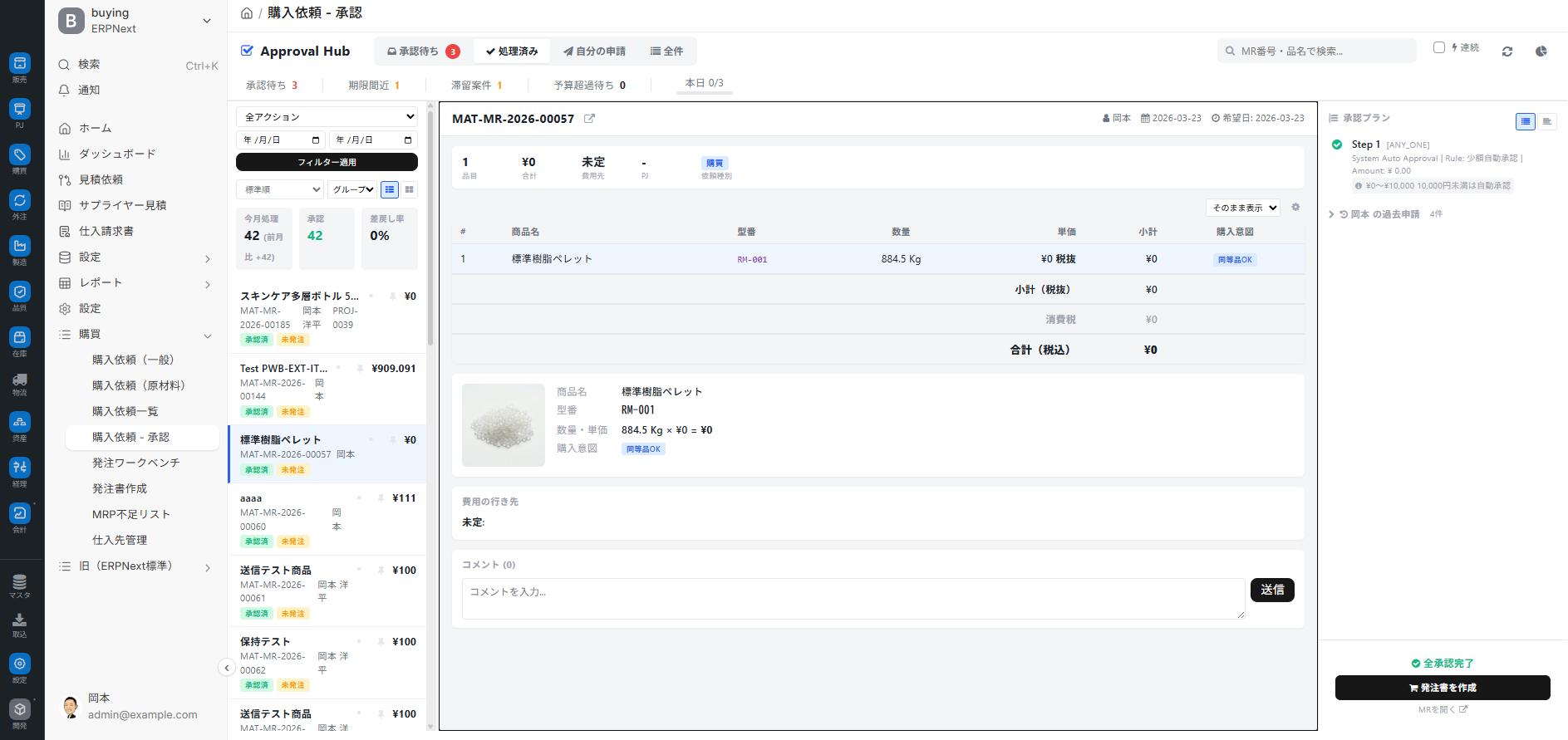
We will review the past approval history.
- Click the Processed tab.
- Filter by action (approval/rejection) or date range.
- Summary Card: Processing/Approval/Rejection Rate for this Month
- Clicking on a past case will allow you to view the details and reasons for the decision at that time.
My application tab
This tab allows you to check the progress of purchase requests you have created.
- Click the My Application tab.
- Check the current status
- If your submission is returned for revision, read the reason, make corrections, and resubmit.
All items tab
This is for administrators. You can view all company-wide approval-required projects. It is used for auditing and statistical purposes.
Display after approval flow is complete
Once a case has been fully approved, the action bar will change to the following display.
全承認完了
[ 発注書を作成 ] ← 次のアクションへ
依頼を開く →
From the "Create Purchase Order" button Purchase Order Creation Editor You can then proceed to create a purchase order.
If the item has been returned for repair, the following will be displayed.
差戻し済み
依頼を開いて修正 →
Tips for Use
- The fastest is "Continuous Mode + Keyboard": For those with many approvals every day, use Continuous Mode.
Enter/Shift+Enter/j``kIt can process one item in 2-3 seconds. - First thing in the morning, prioritize "Approaching Deadline" → "Waiting for Budget Overrun": Click the summary card and filter to ensure you don't miss anything.
- If you accidentally approve it, cancel it immediately: Click "Cancel" before the toast disappears. After the time limit, the original approver will need to return it and reapprove it.
- Distinguishing between confirmation requests and returns: "I just want to ask a question" is a confirmation request, "I want it redone" is a return.
- Budget overruns are judged by the post-approval balance: Check not only the utilization rate but also whether the "post-approval balance" is negative. You can also see the unapproved amounts of other projects in the mini-graph.
- Real-time updates: When other approvers approve or reject the same item, it will be immediately reflected on your screen.
- Browser Notifications: You will be notified of new approval requests even when the tab is inactive (provided browser notifications are enabled).
- Customize your view with column customization: Hide columns you don't use and leave only important columns like project and budget for easier viewing.
- Register recent comments as short messages: Simply use "OK" or "Confirmed, Approved" once, and it will remain in the top 3 comments, allowing you to insert it with one click thereafter.
- Please be specific about the reason for the return: Writing a clear explanation of how to make the corrections, such as "the quantity is too high" or "we would like to change the supplier," will make the resubmission process smoother.
- Prevent missed corrections in your own application tab: Check your own applications once a week to avoid leaving rejected requests unattended.
Regarding Approval Authority
The approval hub displays the cases you are allowed to approve, according to your approval route and role settings.
- General Approver: General purchase request approver role
- Budget Officer: The role of the final approver for projects exceeding the budget limit or projects that have gone over budget (opens a dialog box for budget officers)
Detailed settings for permissions and approval routes are available to administrators. Approval Workflow Settings Please refer to the following.
Common Problems
Shows 0 pending approvals
- There really are no candidates for approval.
- Approval role not assigned
If there are 0 requests that should be approved, please check with your administrator about the status of your approval role assignments.
Amount information is not displayed
If the unit price is not entered in the purchase request details, the estimated amount will not be calculated. Please confirm the unit price with the request creator or request correction by sending the request back.
No data in the Processed tab
For new users who haven't yet performed any approval processes, a record of 0 is normal. Your history will start accumulating from the first case you approve.
Cancellation was not possible in time
The cancellation toast will disappear in a few seconds. After it disappears, you will need to return the request to the original approver as the initiator and then re-approve it.
Budget card not displayed
The budget line may not be linked to the details of the project. Please check the project and budget line settings for the details.
Keyboard shortcuts are not working
Continuous mode may be turned OFF, or the comment input field may have focus.? You can display help by pressing a key, so first? Please check if it responds.
Next Steps
- Create a purchase order from approved raw material requests → Ordering Workbench
- Create individual purchase orders from approved equipment and outsourcing requests → Purchase Order Creation Editor
- I want to change the approval route → Approval workflow settings (for administrators)
- I want to get an overview of the company's overall request situation. Purchase Request Details (Company-wide List)