
Supplier management
This guide explains how to use the supplier dashboard, which allows you to view multiple suppliers side-by-side and manage five types of summary tiles, on-the-spot price editing, outsourcing progress, and defect rate trends all on one screen.
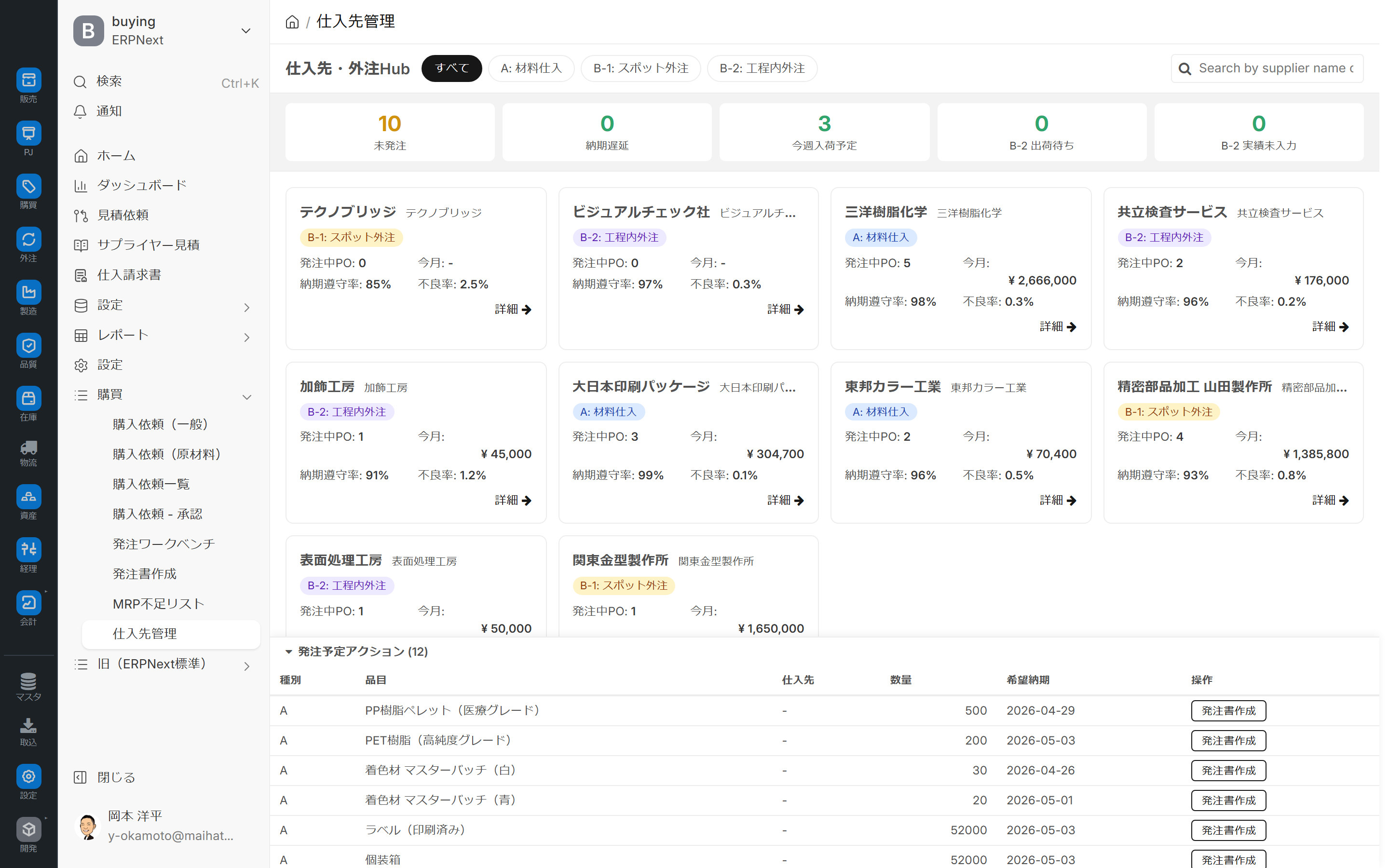
Related Articles Registration and editing of individual supplier master data is Supplier Master We will use this. This screen is a hub that allows you to overview, compare, and evaluate your registered suppliers, and then proceed directly to placing orders, updating prices, and entering outsourcing progress. The overall purchasing process is Purchasing workflow Please refer to the following.
What you can do on this screen
The supplier management system is a supplier dashboard that allows you to view all your current suppliers on a single screen and complete tasks such as placing orders, updating prices, checking outsourcing progress, and checking defect rates on the spot.
Screen URL:/app/supplier-hub
| To do | Overview |
|---|---|
| Understand the company-wide situation with 5 types of summary tiles | In-depth analysis of unordered requests / delayed delivery / received this week / unshipped outsourced items / unreceived outsourced items with one click |
| Compare suppliers side-by-side using supplier cards | On-time delivery rate, defect rate, this month's transaction amount, and suppliers requiring attention at a glance |
| One-click ordering from the order schedule | From the order schedule at the bottom of the screen Purchase Order Creation Editor Automatically transfer details to |
| Deep Dive into 1 Supplier in Detailed Mode | Up to 6 Tabs: Overview / Price / Order / History / Shipment / Quality |
| Update price list on the spot | Edit item unit prices on the spot in the Price tab |
| Outsourcing Progress Management (Ongoing Outsourcing) | From the Shipping tab Input of outsourcing performance Transition with pre-filled information |
| Defect Rate Trends and Defect Photos | Check the monthly defect rate trends and recent defects in the Quality tab |
| URL Bookmark | ?supplier=X&category=Y&tab=Z This will perfectly reproduce the state |
Overall view of the screen
Two modes: Dashboard mode and Detail mode
This screen consists of two modes: Dashboard Mode (an overview of all suppliers) which is available immediately after opening, and Detail Mode (a deeper look at a single supplier) which is accessed by clicking on a card. You can return to the dashboard from Details Mode using the Back button.
Category Filter (Top of Dashboard Mode Screen)
You can filter by supplier category.
| Tabs | Contents |
|---|---|
| All | All suppliers (default) |
| A: Raw Materials (MRP only) | Raw materials. Suppliers for which orders are automatically placed from the MRP. |
| B-1: Spot Outsourcing | Outsourcing partners for one-off orders |
| B-2: Ongoing Outsourcing (In-Process / 2 Outsourcing Companies) | Strategic outsourcing partners for continuous use during the process |
5 types of summary tiles (top of screen)
The five tiles at the top of the screen summarize the company's purchasing status using five metrics. All tiles are clickable and will redirect you to the corresponding filtered list screen.
| Tile | Meaning | Click to proceed to |
|---|---|---|
| Unordered Requests | Unordered purchase requests (not yet started or partially ordered) | List of purchase requests (only orders that can be ordered) |
| Overdue Delivery | Overdue Orders (Deadline < Today) | List of Purchase Orders (Overdue Orders Only) |
| Expected to arrive this week | Orders for items expected to arrive this week | Order list (delivery date this week) |
| Outsourced: Not Shipped | Outsourced but not yet shipped | List of Outsourced Orders |
| Outsourced: Not Received | Outsourced shipment completed but not yet received | List of outsourced requests |

Please use this screen not just to view the number of results, but as a starting point where you can deepen your research by clicking directly.
Supplier Card (Main)
Each supplier is displayed on a card side by side.
| Display items | Contents |
|---|---|
| Supplier Name | Displayed prominently at the top of the card (code also included) |
| Category Badge | A: Raw Materials / B-1: Spot Outsourcing / B-2: Ongoing Outsourcing |
| Number of orders in progress | Number of purchase orders currently in progress |
| This month's transaction amount | Total for this month (See the history tab for comparison with the previous month) |
| On-Time Delivery Rate | Calculated from purchase order history for the most recent 6 months |
| Defect Rate | Highlighted in red if over 5% |
| Caution | Warning message (multiple issues, over-ordering, quality defects, etc.) |
The card can also be accessed in detailed mode using the Enter / Space key (keyboard operation supported).
Search box (top right of the screen)
"Search by Supplier Name" allows you to perform a partial match search for supplier names and codes (search is executed 400 milliseconds after input, and a spinner is displayed during the search).
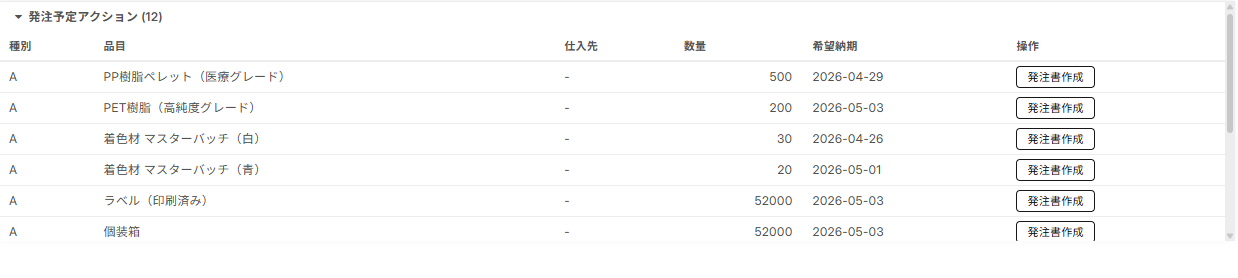
Planned Actions (bottom of screen)
This is a foldable bottom panel. The folded state is saved in your browser and will open in the same state the next time you view it.
| Column | Content |
|---|---|
| Type | A (MRP raw materials) / B (outsourced) |
| Item Name | Items to be ordered |
| Suppliers | Potential suppliers |
| Quantity | Planned Quantity |
| Desired Delivery Date | Delivery Date (Delays are indicated in red, same-day delivery in yellow) |
| Create Purchase Order | Click Purchase Order Creation Editor Automatically transfer details and transition |
What you can do in Dashboard Mode
1. Digging deeper from the summary tile
The five summary tiles, when clicked, will take you to a filtered list corresponding to them. For example, if you click Overdue first thing in the morning, you will be taken to a screen that shows only orders that are overdue.
2. Evaluate supplier cards side by side.
The card displays the following: Number of ongoing orders / Transaction amount this month / On-time delivery rate / Defect rate / Items requiring attention.
- Review suppliers with cautionary notices first (warnings about excessive orders or poor quality).
- Switch between A: Raw Materials and B-1 / B-2 in the Category tab to align the evaluation criteria.
- For suppliers with low quality ratings (star ratings), consider alternative options.
3. One-click ordering from the scheduled response.
In the Scheduled Actions section at the bottom of the screen, rows marked in red (delayed) and yellow (same day) will be processed first. Clicking the Create Purchase Order button will automatically transfer the details of the corresponding request. Purchase Order Creation Editor This eliminates the need for copy-pasting or searching, as it automatically redirects you to the relevant page.
4. Refine your search by category
The category tabs (All / A / B-1 / B-2) and the Supplier Name Search are filtered using AND conditions.
What you can do in the Advanced Mode tab
Clicking a card in Dashboard Mode will take you to Details Mode, where up to six tabs will be displayed depending on the category.
| Tab | A: Ingredients | B-1: Spot | B-2: Continuous | Contents |
|---|---|---|---|---|
| Overview | ✅ | ✅ | ✅ | Basic Information + Summary + Overdue Delivery Warning |
| Price | ✅ | ✅ | ✅ | Edit price on the spot |
| Order | ✅ | ✅ | ✅ | Order History + Status Filter |
| History | ✅ | ✅ | ✅ | Monthly Trends + Timeline |
| Shipping | - | - | ✅ | Outsourcing Progress Management + Actual Results Input Button |
| Quality | - | ✅ | ✅ | Defect Rate Trend + Defect Photos |
Overview tab: Basic information and quality assessment
- Supplier Code / Supplier Group / Category
- Average Lead Time (calculated from completed purchase orders over the past 6 months)
- Quality Rating (1-5 star rating, half-star option available)
- Main contact information (phone and email)
- Warning banner for overdue delivery (If there are overdue purchase orders, the number will be displayed on a red background)
Price tab: Update the price list on the fly
You can directly edit the unit price for each item within the table.
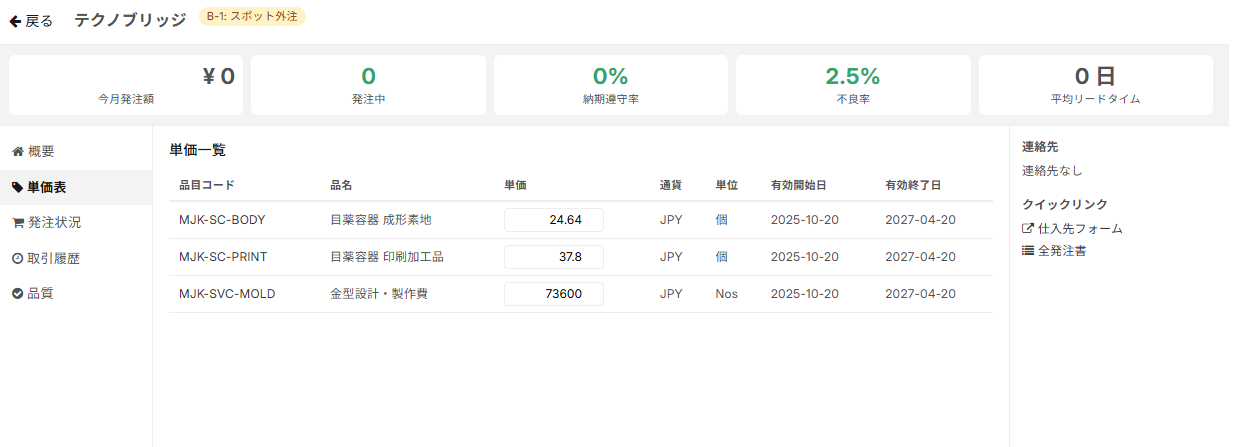
- Enter a new value into the cell → Highlighted in yellow while editing
- Save by pressing Enter or focusing away → Success is indicated by a green highlight (flashes after 1.5 seconds)
- In case of failure, it will automatically revert to its original value with a red highlight
- Negative values are rejected (Error: "Price must be greater than or equal to 0")
This eliminates the need to search for price lists on separate screens, allowing you to maintain them all together for each supplier.
Orders tab: List of purchase orders with status filters
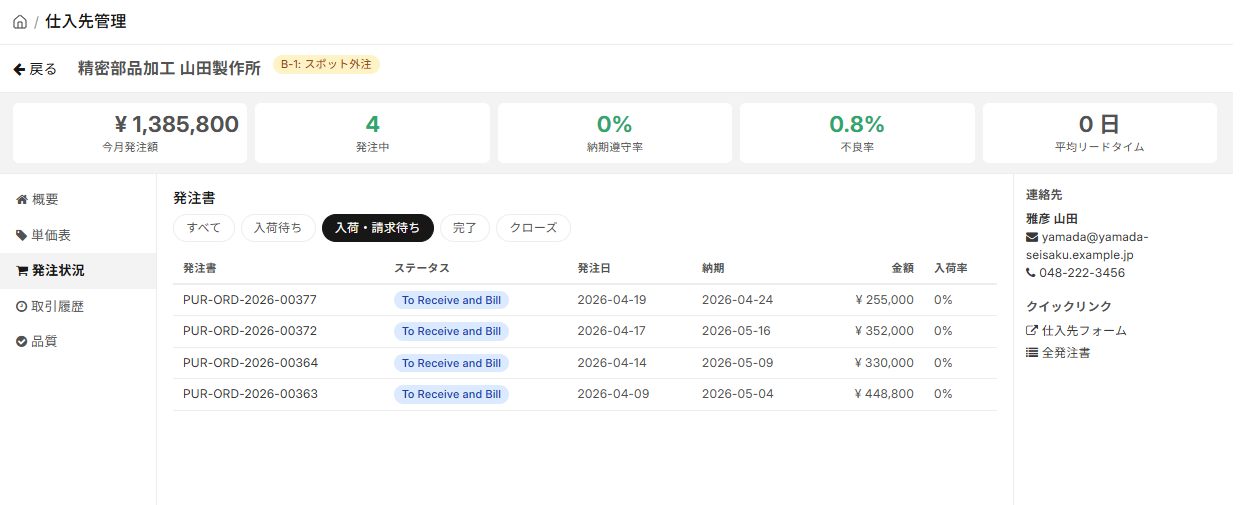
You can filter by purchase order status: All / Scheduled for Acceptance / Scheduled for Acceptance and Scheduled for Invoice / Completed / Closed. Your selections are saved in your browser and restored the next time you open the page. You can navigate directly to the form screen from each purchase order.
History tab: Transaction history over the past year
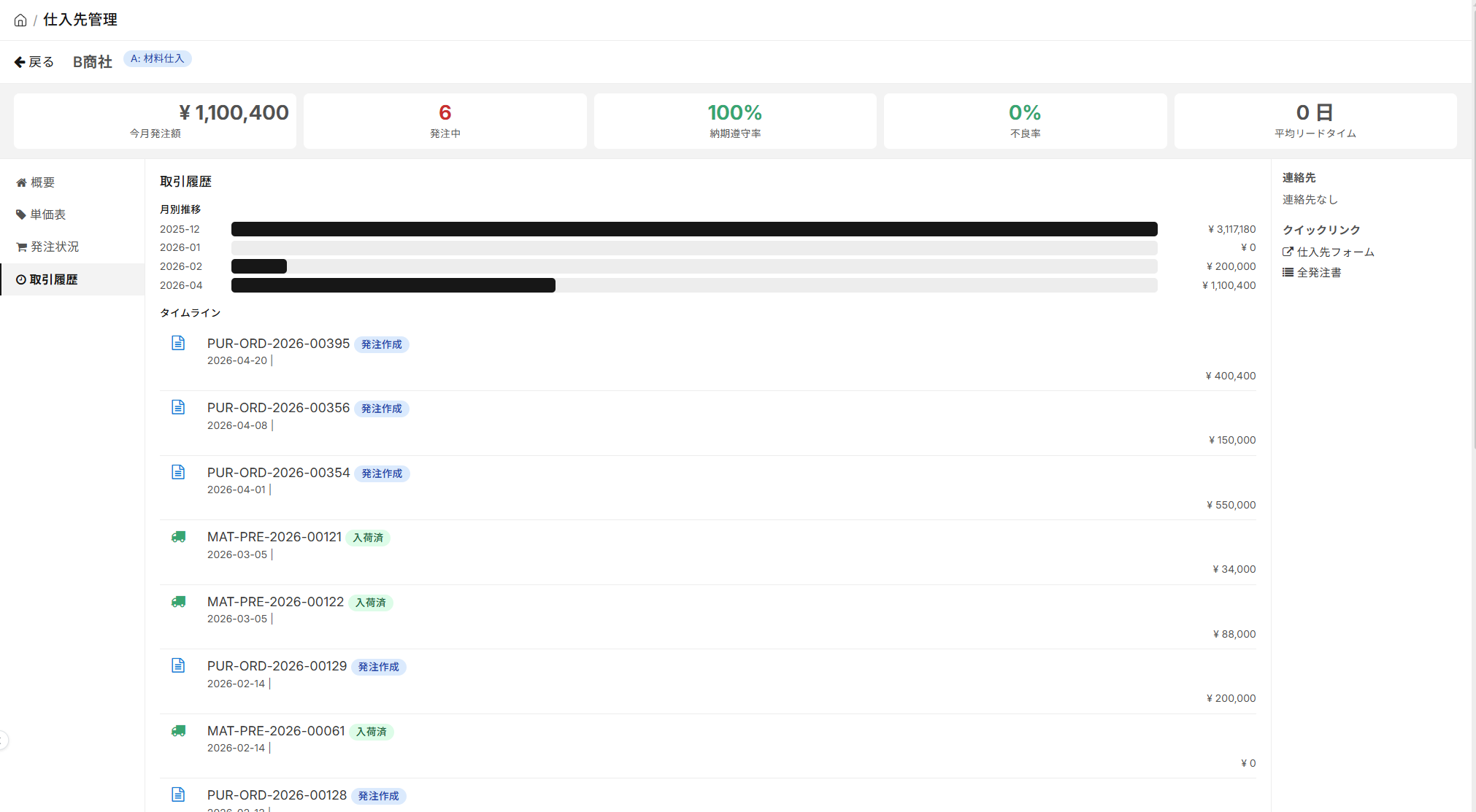
- Monthly Trend: Visualizes monthly transaction volume using a horizontal bar chart (with the maximum amount represented as 100%).
- Timeline: A chronological log of purchase order creation and arrival. Each event has a direct link to the corresponding purchase order or purchase request.
Shipping Tab (B-2 only): One-click management of outsourcing progress
This information is only displayed for suppliers in Category B-2 (Ongoing Outsourcing). It provides a progress report on outsourcing requests and a link to the performance entry screen.
| Column | Content |
|---|---|
| Outsourcing Number / Status | Outsourcing Invoice Number and Status (Ordered → Shipped → Received) |
| Items | Items to be received |
| Order Quantity / Shipment Quantity / Received Quantity | 3 levels of quantity |
| Delivery Date | Expected Arrival Date |
| Entering Performance Data | Input of outsourcing performance The screen will transition to a pre-filled outsourcing number. |
This is the core screen for continuous outsourcing operations. Every morning, you can view the "Number of Unshipped and Unreceived Items" and immediately jump to the performance input page for any outsourcing numbers that interest you.
Quality Tab (B-1 / B-2 only): Defect rate trends and individual defect records
- Trend in Defect Rate: Monthly defect rates are displayed in a horizontal bar chart (highlighted in red if over 5%).
- Recent Failure Table: Date / Result / Item / Number of Failures / Category / Photo
- The photo row contains direct links to photos of defective products (click the thumbnail to enlarge).
- Each row is linked to the outsourcing result record.
Contacts and Quick Links on the Right
It will be displayed on the right side of the detailed mode.
- Contact Information: Contact list (primary contacts are marked with a star), email and phone number.
- Quick Links:
- Go to the Supplier Form (standard editing screen)
- All Purchase Orders (List of all purchase orders from this supplier)
Bookmarkable via URL
You can completely recreate the state of having a specific tab open for an individual supplier using a URL.
/app/supplier-hub?supplier=SUP-00001&category=B-2&tab=quality
You can use the "Supplier X Quality Tab" as a Chrome bookmark, share it on Slack, or embed it in a Wiki. We recommend bookmarking your morning routine to open it with one click.
Meaning of Categories
Categories are based on supplier classification. Once you set categories in the supplier master, they will be automatically categorized in the hub.
| Label | Description |
|---|---|
| A: Raw Materials | Raw materials. Often ordered automatically due to MRP shortages. |
| B-1: Spot Outsourcing | Outsourcing partners for one-off orders |
| B-2: Ongoing Outsourcing (e.g., outsourcing to two companies) | Strategic outsourcing partners for continuous use during the process |
How to interpret quality metrics
On-time delivery rate
This represents the percentage of the entire quantity received by the requested delivery date specified in the purchase order (calculated from the order history for the most recent 6 months).
- 95% or higher: Excellent. A reliable core supplier (business recommended value).
- 85-95%: Average. Improvement is needed.
- Less than 85%: Alternatives need to be considered.
Defective rate
This is the percentage of incoming items that failed quality inspections.
- Threshold: Red highlight when above 5%
- For business recommendations, less than 0.5% is considered excellent / 1% or more is subject to improvement requests.
Average lead time
This is calculated from completed purchase orders over the past six months. It represents the average number of days from the order date to the delivery date.
Recovery in case of communication errors
If server communication fails, an error message and a Retry / Return to Dashboard button will be displayed on the screen.
- Retry: Re-execute the same process.
- Return to Dashboard: Return to dashboard mode
In most cases, temporary network outages can be resolved by retrying the connection.
Tips for Use
- Daily routine: Reviewing items in the order of "Overdue deadlines → Planned actions → Suppliers with caution → Outsourced items: Not yet received" ensures you don't miss any tasks that need to be addressed that day.
- Maintain prices on this screen: You can inventory price lists by supplier, which is convenient for reviewing unit prices quarterly (you don't need to open the price master screen).
- For ongoing outsourcing, the shipping tab is essential: For ongoing outsourcing, the fastest way to access the actuals entry screen is through the shipping tab.
- Prepare for quarterly review in the Quality tab: Before the quarterly review, review the trend in defect rates and recent defects, and identify specific examples.
- Add URL bookmarks to your personal routine: Bookmark frequently visited pages, such as "Supplier X's Quality" and "All Ongoing Outsourcing," by their URLs.
- Separate the evaluation criteria for B-1 and B-2: The metrics emphasized differ between one-time outsourcing and ongoing outsourcing. Evaluating them separately using category tabs ensures fairness.
Next Steps
- Detailed registration and editing of individual suppliers → Supplier Master
- Proceed directly to creating the purchase order → Purchase Order Creation Editor
- General raw material ordering operations → Ordering Workbench
- Input of outsourcing records → Material acceptance
- Overall workflow → Purchasing workflow