
Home screen and business hub
This guide explains how to use the home screen displayed after logging in, and how to access the business hub and workbench for each business module.
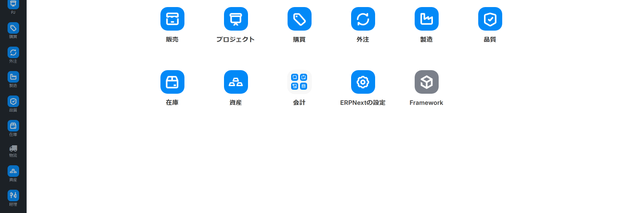
What you can do on this screen
The home screen that appears immediately after logging in./desk/desktop This is the common entrance screen for everyone.
- Icons for each task are displayed, and you can branch out to each task module from there.
- You can also access the business hubs and dedicated screens under each module from here.
- This will serve as a starting point to avoid getting lost in the "where to open" your daily tasks.
Home screen configuration
The home screen consists of two elements.
| Area | Role |
|---|---|
| Bar at the top of the screen | Logo/Search bar (Ctrl+K ) / Notification bell / User icon |
| Central Business Icons | 11 Large Icons for Business Modules |
The basic workflow involves opening a business module from this icon, and then proceeding to the business hub or dedicated screen.
Note: Business hubs/workbenches such as the purchasing hub, accounting workbench, and order progress board are located under each module, not directly under the home screen. From the home screen, first select a module, and then proceed to the hub within that module.
List of Business Icons
The following are the business icons displayed on the home screen in the current demo environment. Some icons may not be displayed depending on the assigned role.
| Module | Main Applications | Related Manuals |
|---|---|---|
| Sales | Order, Quotation, Invoice, Shipping | Sales Manual TOP |
| Project | Project Management & Tasks | (Under Preparation) |
| Purchasing | Purchase requests, order forms, and receipt records | Purchasing workflow |
| Outsourcing | Outsourced processing / Outsourced ordering | Purchasing Manual TOP |
| Manufacturing | Manufacturing Orders, Process Cards, Bill of Materials | Manufacturing Manuals TOP |
| Quality | Quality Inspection and Defect Records | (Under Preparation) |
| Inventory | Inventory Transfer/Stocktaking | Inventory-related manual |
| Assets | Fixed Asset Management | (Under Preparation) |
| Accounting | Journal entries, income/expenses, and monthly closing | Accounting Manual TOP |
| ERPNext Settings | Application-wide Settings | Administrator Manual TOP |
| Framework | System Infrastructure (Advanced Users) | Administrator Manual TOP |
Note: The displayed icons will vary depending on the administrator's settings and the roles assigned to the user. The above is the initial state of the demo environment.
How to open the Business Hub Workbench
The purchasing hub and various workbenches are business hubs/workbenches that consolidate related operations into a single screen. You can navigate through the hierarchy using the business icons or open them directly from the search bar.
| Screen | How to Open | Support Manual |
|---|---|---|
| Purchase Hub | Purchasing Module → Purchase Hub, or search for "Purchase Request Hub" in the search bar | Purchase Request Hub |
| Ordering Workbench | Purchasing Module → Ordering Workbench, or search for "Ordering Workbench" in the search bar | Ordering Workbench |
| Approval Hub | Purchasing Module → Approval Hub, or search for "Approval Hub" in the search bar | Approval Hub |
| Item Master List | Manufacturing/Inventory Module → Item, or "Item List" in the search bar | stamina |
| Work Order List (Extended) | Manufacturing Module → Manufacturing Order Workbench, or search for "Manufacturing Order Workbench" in the search bar | Work Instruction List (Extended) |
Tip: If you register the business hub you use every day in your browser bookmarks, you can open it in one go without having to navigate through the hierarchy.
How each task proceeds
Start with sales tasks
- Click the Sales icon on the Home page. 2. Sales Manual TOP Go to related articles on orders, quotations, and invoices.
Start with the purchasing process
- Click the Purchase icon on the Home page. 2. Purchasing workflow Then you can grasp the overall picture.
- Individual work ( Purchase Request Hub / Ordering Workbench (and so on)
Start with the manufacturing process
- Click the Manufacturing icon on the Home page. 2. Manufacturing Manuals TOP in Work Instruction List (Extended) Check the following:
- If necessary Bill of Materials (BOM) or stamina fart
Start with accounting tasks
- Click the Accounting icon on the Home page. 2. Accounting Manual TOP From journal entries, income/expenses, and monthly closing
Relationship between Home and other screens
flowchart LR
    H[ホーム画面<br/>業務アイコン<br/>/desk/desktop] --> SB[左側メニュー<br/>11 カテゴリ]
    H --> M[業務モジュール<br/>販売/購買/製造/会計 等]
    M --> HUB[業務ハブ・ワークベンチ<br/>購買ハブ/発注ワークベンチ 等]
    M --> LIST[伝票一覧<br/>発注書/品目 等]
    SB --> ALL[全画面]
    H --> AB[検索バー<br/>Ctrl+K]
    AB --> HUB
AB --> LIST- Remember this: Opening from the home screen = module entry point, Under the module = business hub or list, Opening from the left-hand menu = full screen. This will prevent confusion.
- When you know the business hub name, use the search bar (
Ctrl+KThe shortest way is to jump directly using ).
Home Customization
The home screen is configured by the administrator as a company-wide template. In the demo environment, business icons are used in a common configuration.
- For screens you frequently use personally, it's recommended to quickly open them using the search bar or bookmark them in your browser.
- If you wish to change the layout for the entire company, please contact your administrator (the change will affect all users).
FAQ
Q: Home page is not displayed even after logging in.
The initial screen displayed is determined by the assigned role and the administrator's initial settings. If a different screen opens immediately after logging in, please check your browser./desk/desktop Access [this link] or click the logo in the upper left corner to return to the home page.
Q: There is no shortcut to the business hub on the home screen.
The demo environment's home screen consists of business icons only, and business hubs (such as the purchasing hub) are not directly located there. To open a business hub, you must access it via a business icon or the search bar.Ctrl+K Please enter the screen name from the options provided.
Q: The contents of the business hub are not displayed (permission error)
The necessary roles (e.g., purchasing user, manufacturing user, etc.) are not assigned to that screen. Please ask your administrator to assign the roles. For details... Administrator Manual TOP Please refer to the permission management article.
Q: I can't find the "?" button on the screen.
The "?" button in the upper right corner of the screen is a feature that is being rolled out gradually. If it is not displayed in your environment, please use the search or search bar in the upper right corner of the manual site.Ctrl+K Please open the manual article from ).
Next Steps
Once you understand the role of home, How to view the screen and basic operations Next, let's proceed to the left-hand menu and the top bar's reading instructions. The entry points for each business are: Entrance Guide Please refer to the following.