
Item Master Management
This guide explains how to use the item master management screen and master settings dashboard. It covers everything from registering and editing items to checking prices, component configurations, inventory, and related documents, as well as getting an overview of the overall settings.
What you can do on this screen
This screen is for managing information on items (all "things" handled within the company, such as products, parts, and raw materials). There are two types of custom screens.
- Item Master Management — A screen for registering, editing, and confirming one item at a time.
- Master Settings Dashboard — A screen that provides an overview of the settings for items, bill of materials (BOM), pricing, etc., across the entire company.
Both are positioned to complement the standard ERPNext item forms, allowing quick access to information frequently used in daily operations.
BOM (Bill of Materials) is a document that defines the list and quantities of parts and raw materials needed to manufacture a particular product.
Item Master Management
Screen URL:/app/item-master-manager

Overall view of the screen
The screen is divided into two main sections.
| Area | Role |
|---|---|
| Left side: Item list | Displays a list of registered items. Select the desired items using search and filtering. |
| Right side: Item details | Displays basic information, related documents, price, and component composition of the selected item. |
At the top of the screen is a filter bar, and clicking "🔍 Filter ▼" allows you to specify your search criteria in detail.
Filtering conditions
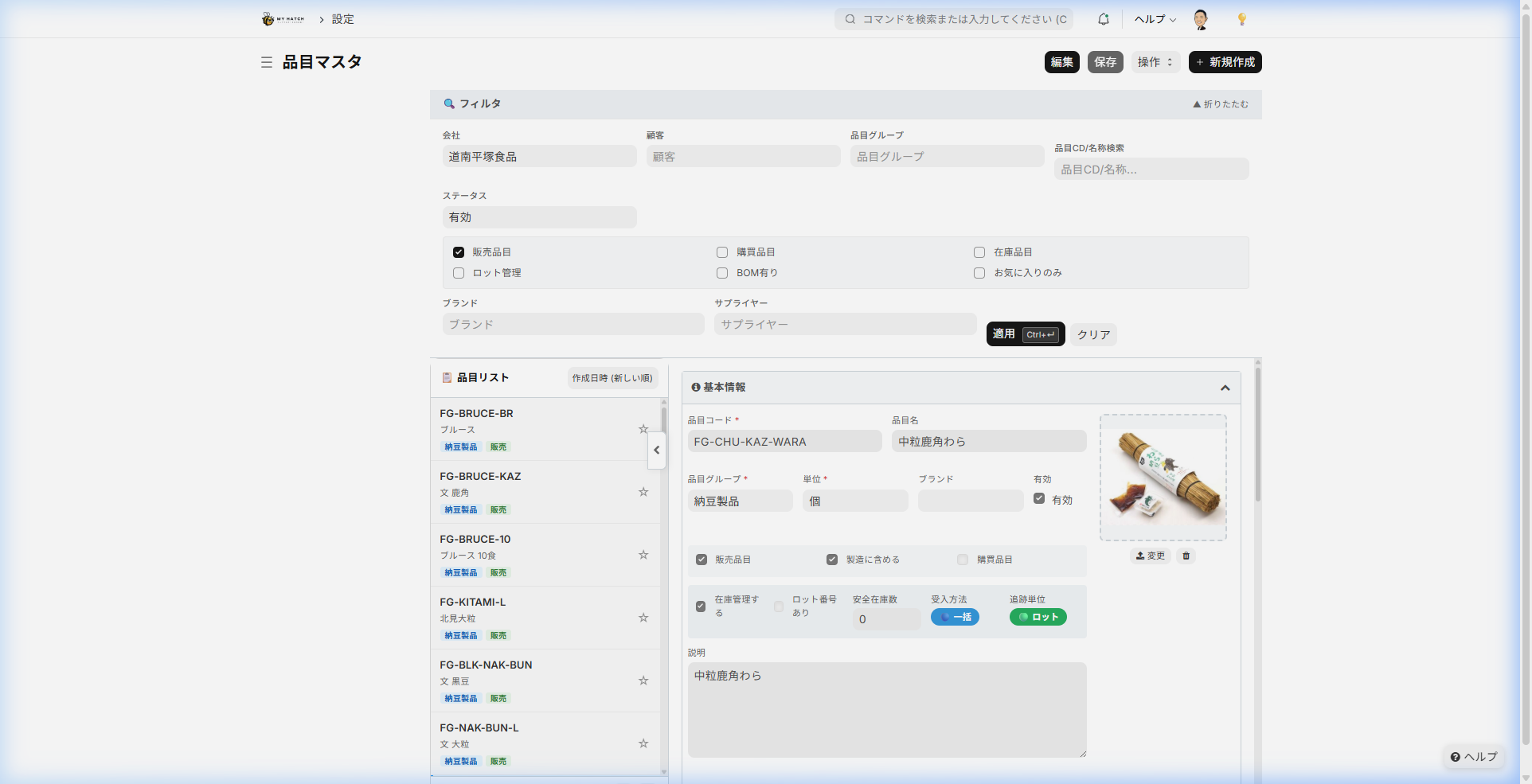
| Conditions | Content |
|---|---|
| Company | Select target company |
| Business Partners | Show only items associated with a specific business partner |
| Item Group | Filter by finished goods, raw materials, work in progress, packaging materials, etc. |
| Item Code/Name | Search by part of the item code or name |
| Enable/Disable | In Use/Stopped/All |
| Items for Sale / Items for Purchase / Items in Stock / Lot Management / BOM Available | Display only items that match the checked conditions |
| Favorites only | Show only frequently referenced items (see below) |
Favorites feature
Each item in the item list has a star mark (☆), which changes to ★ when clicked, adding it to your favorites. Favorite items are always displayed at the top of the list, allowing you to quickly access frequently used items.
Section structure of item details
When you select an item, the following sections will appear on the right in order.
basic information
In addition to item code, item name, item group, unit, brand, and enabled/disabled, the following settings are available:
| Item | Contents |
|---|---|
| Items for sale / Items to include in manufacturing / Items to purchase | Checklist for which business operations this item will be used in |
| Manage Inventory | When turned ON, it tracks the quantity of incoming and outgoing goods. |
| Lot number included | Lot number must be specified during receiving and shipping |
| Safety Stock Level | A guideline value indicating that caution is needed if the stock level falls below this level. |
| Receiving Method | Bulk (receiving all items in one go) / Partial (receiving items in multiple installments) |
| Tracking Unit | Lot (Tracked by lot number) / Container (Tracked by container ID) |
| Item Image | A photo of the item is displayed on the far right. You can register it by clicking or dragging and dropping. |
| Description | Enter supplementary information about the item in a free-form text field |
Dashboard (Related Documents/Inventory Status)
The number of documents associated with the selected item is displayed by group. Clicking the badge for the number will take you to the list screen for that document.

| Group | Documents to display |
|---|---|
| Configuration | Bill of Materials (BOM), Set Products, Substitute Items |
| Pricing | Item pricing, pricing rules |
| Sales | Quotations, orders, shipping slips, invoices |
| Purchasing | Purchase requisition, purchase order, receipt record, purchase accounting |
| Manufacturing | Production planning, production orders, item manufacturers |
| Tracking | Serial number, lot |
| Inventory transfer | Inventory journal entry, inventory count |
Below this section, you will see the inventory status for each warehouse.
| Item | Contents |
|---|---|
| Warehouse Name | Warehouse with Inventory |
| Actual Inventory | Current Stock Quantity |
| Forecast Quantity | Projected future numbers considering orders and purchases |
| Reserved | Number allocated through orders, etc. |
| Production reservation | Number of units secured by production order |
Customer Part Number Mapping
You can register the part numbers (customer item code and item name) used for each business partner. This is used to automatically identify your company's items from the customer's part numbers when receiving orders via EDI or fax.
Pricing Information

You can view item prices (unit prices per price list) and pricing rules (rules for discounts and special unit prices). Pricing rules are automatically applied through three channels: item code, item group, and brand.
Bill of Materials (BOM)
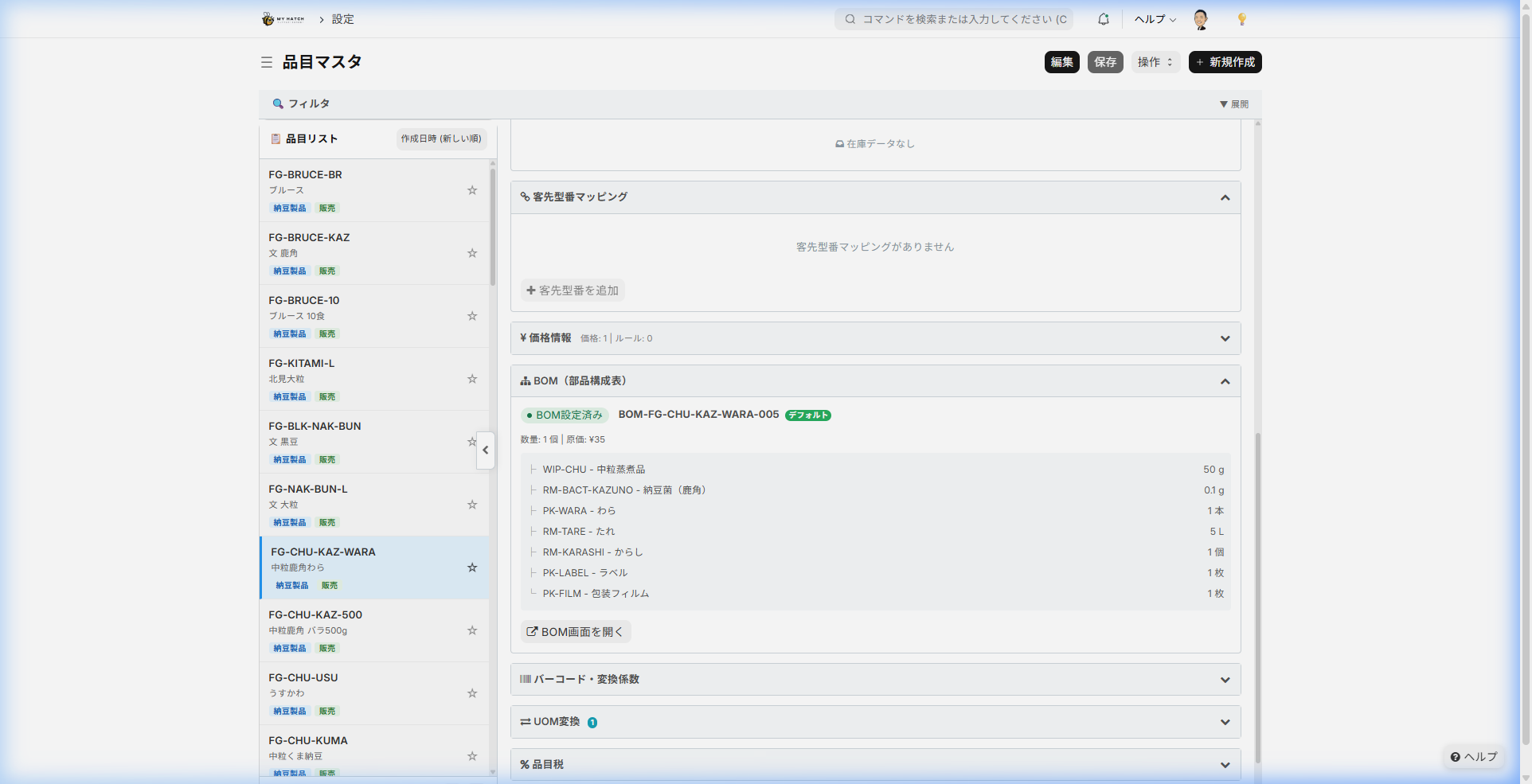
You can view the bill of materials information (components, quantities, and costs) set for this item. If it is not yet registered, you can go to the registration screen by clicking the "Create New BOM" button.
Other sections (collapsed)
This is a collapsible section that opens when clicked.
| Section | Content |
|---|---|
| Barcodes and conversion factors | Register multiple barcodes such as EAN, JAN, and GS1 |
| Unit Conversion | Set the conversion ratio for purchase/sale units that differ from inventory units (e.g., case = 10 units) |
| Item-specific tax | Tax settings for each item, including reduced tax rates |
| Reorder Level | Set reorder point and reorder quantity for each warehouse |
| Advanced Settings | Inventory valuation method, automatic lot numbering, expiration date, purchase unit, sales unit, quality inspection template, etc. |
Basic Operations
1. Register a new item
- Click the "+ New" button in the upper right corner of the screen.
- Enter the item code, item name, item group, and unit.
- Set checkboxes for items to be sold, items to be purchased, etc., as needed.
- Click the "Save" button (or
Ctrl+S)
2. Edit existing items
- Select the item you want to edit from the item list on the left.
- Click the "Edit" button in the upper right corner of the screen.
- Change the necessary items.
- Click the "Save" button (or
Ctrl+S)
3. Add to Favorites
- Clicking on the ☆ in the item list will change it to ★ and add it to your favorites.
- Click again to deactivate.
Master Settings Dashboard
Screen URL:/app/master-config-dashboard

This screen allows you to view a list of settings for items, bill of materials (BOM), pricing, and quality inspection simply by selecting a company. Use it to check if the settings are complete and if there are any omissions or errors.
Screen Configuration
The following areas are arranged vertically from the top of the screen:
- Section Navigation (Alerts/Summary/Flow/BOM/Sales/Purchasing/Quality) — Click to jump to each section
- Alert Panel — Automatically detects missing or inconsistent settings.
- Summary Card — A numerical list of registration status
- Overall Manufacturing Flow Diagram — A tree-like representation of the flow from raw materials to finished products.
- BOM Configuration Details — Check the breakdown of finished products and materials by product type.
- Sales Master/Purchase Master/Quality Inspection Template — Settings for each master
Alert Panel
The system automatically checks for any missing or inconsistent settings.
| Checklist | Importance |
|---|---|
| No valid bill of materials (BOM) is registered for finished goods or work-in-progress. | Error (red) |
| The default bill of materials (BOM) is pointing to a stopped BOM. | Error (red) |
| The BOM for the finished product is not linked to a subordinate BOM (BOM for work-in-progress) | Warning (Yellow) |
| No selling price has been set for the finished product | Warning (Yellow) |
If there are no problems, it will display "✅ No settings are missing or inconsistent."
Summary Card
You can check the registration status at a glance using numbers.
| Card | Display Content |
|---|---|
| Item Master | Total number of items and breakdown by type (raw materials, work-in-progress, finished goods, packaging materials) |
| BOM | Number of valid BOMs (breakdown of work-in-progress BOMs and finished goods BOMs) |
| Process | Number of manufacturing process types set in the BOM |
| Type of bacteria | Number of products by type of bacteria used |
| Selling Price | Percentage of finished products for which a selling price has been set |
| Quality Inspection | Percentage of companies with configured quality inspection templates |
Clicking on each card will take you to the corresponding master list screen.
Overall Manufacturing Flow Diagram
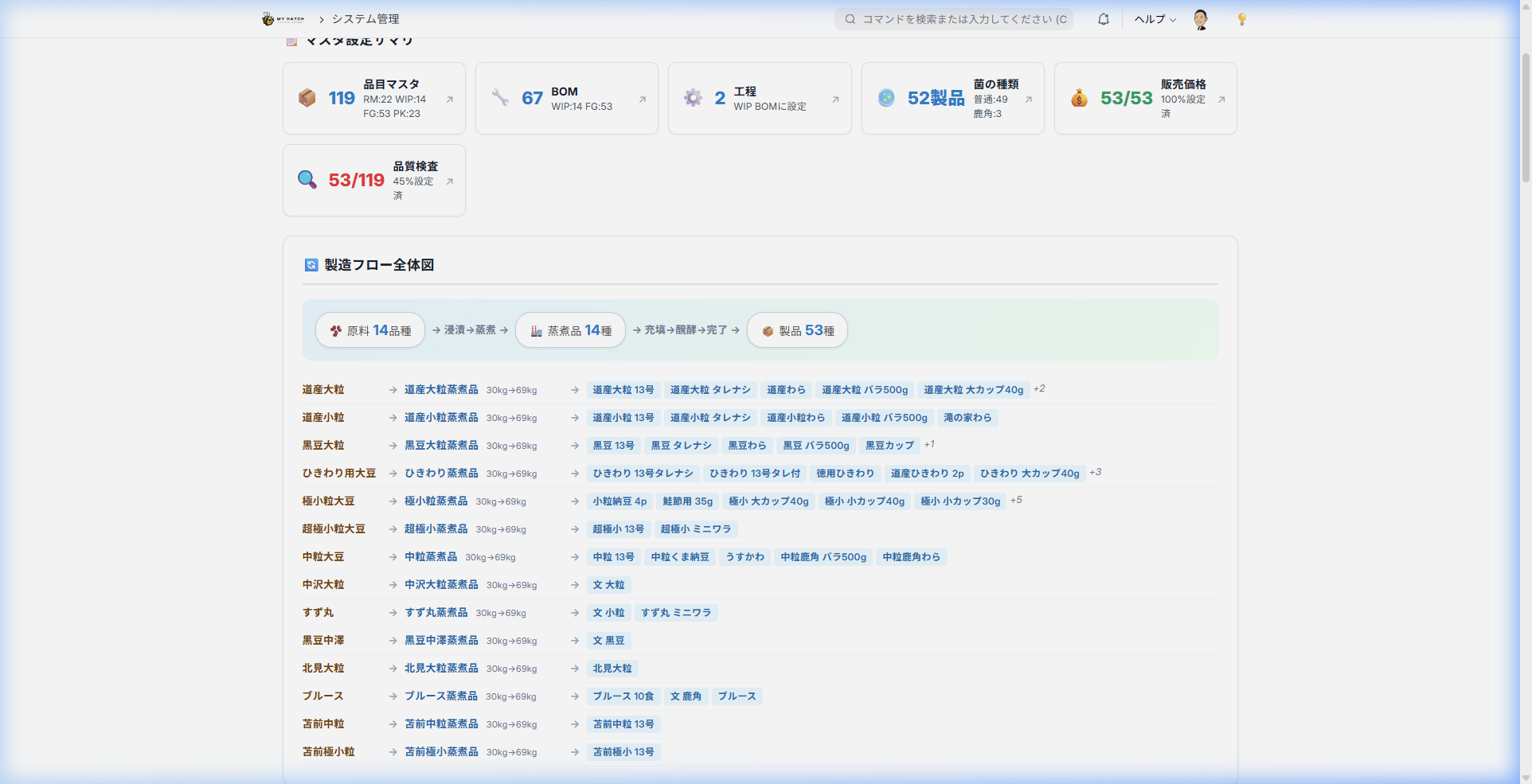
This displays the process from raw materials to steamed/cooked products (work-in-progress) to finished products in a tree format. You can see at a glance how many different types of products there are from raw materials to finished products, and which products can be made from which raw materials.
Each row contains the conversion ratio from raw materials to work-in-progress (example:5kg→4kg ) will also be displayed.
BOM composition details (by product type)
For each type of steamed food, a list of finished products is displayed in a collapsible format.
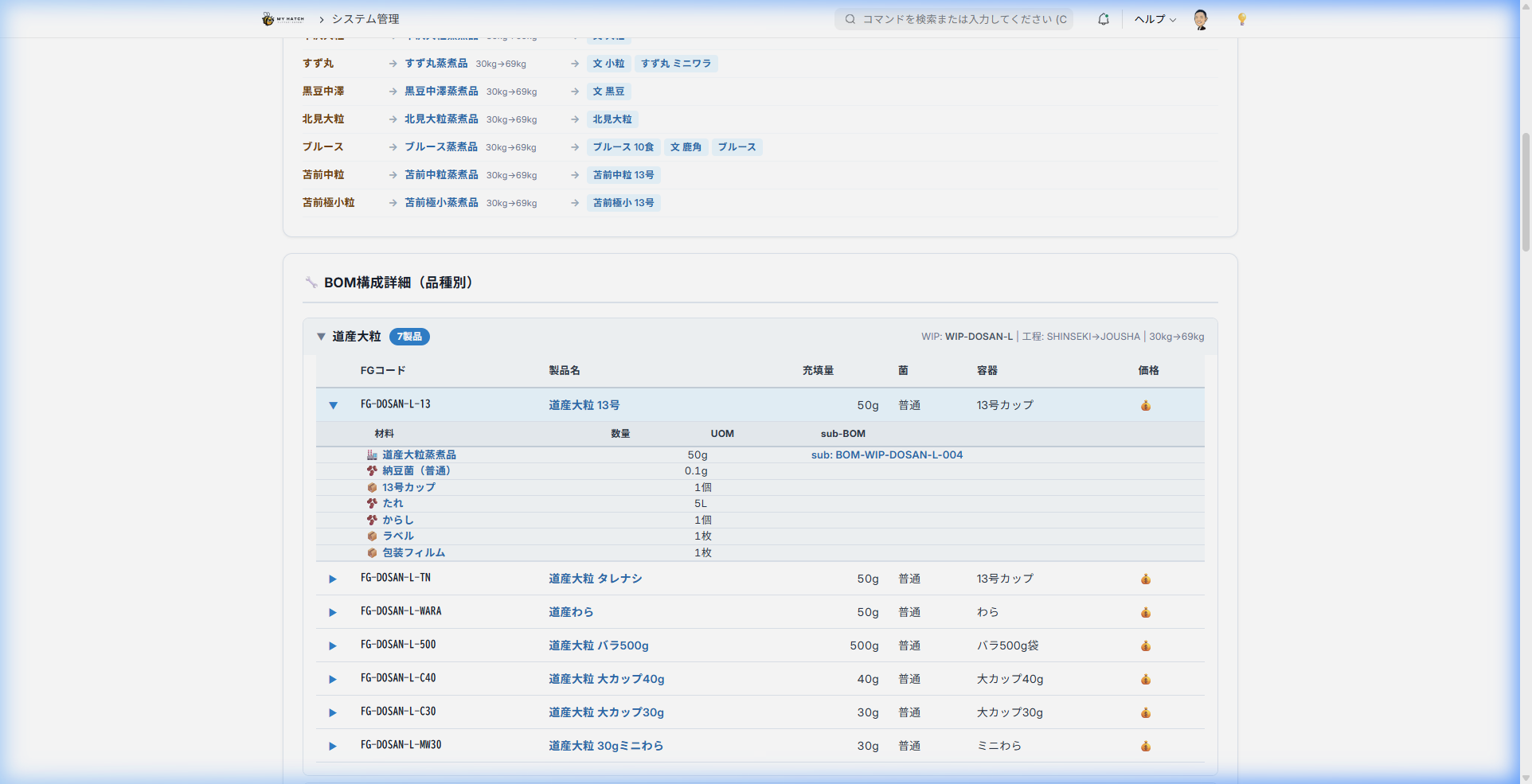
| Item | Contents |
|---|---|
| Finished product code | Finished product item code |
| Product Name | Name of Finished Product |
| Filling amount | Filling amount per piece (g) |
| Bacteria | Type of bacteria used |
| Container | Type of container |
| Price | Whether a selling price is set |
Clicking on each finished product's row will expand and display the BOM's material breakdown (work in process, raw materials, and packaging materials).
Sales Master
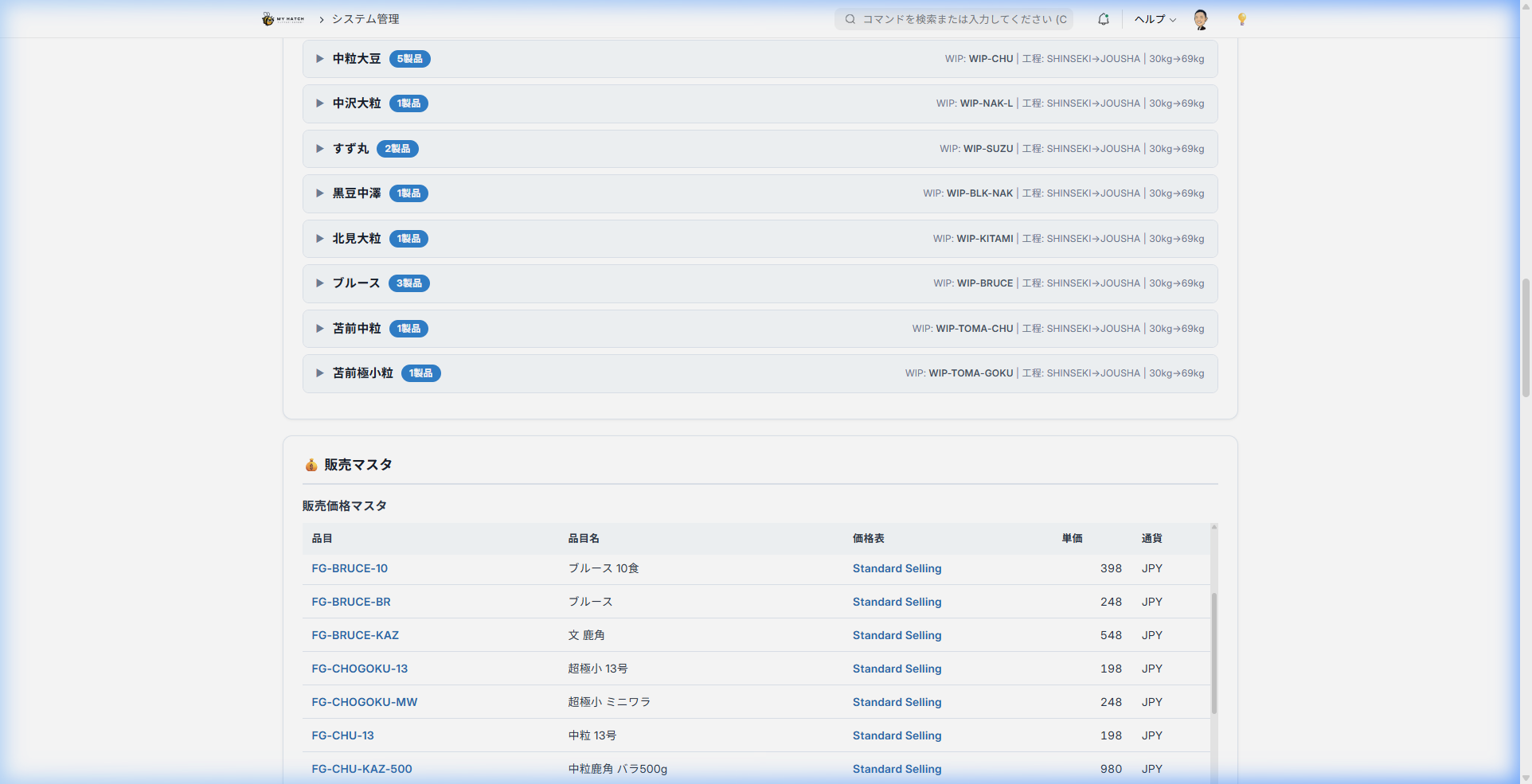
You can view a list of the company's entire sales price master and pricing rules.
Purchase Master

You can view a list of suppliers associated with your company and a master data sheet of purchase prices (supplier, unit price, and delivery time per item).
Quality Inspection Template
You can check the status of quality inspection templates for each item and the inspection type (pre-shipment/pre-received).
Relationship with standard item forms
The item master management and master settings dashboard use the standard ERPNext item form./app/item/品目コード This is a screen that assists on the following:
You can register and edit frequently used items on the custom screen, but if you want to view and edit all items, you can open the standard form by clicking the "Edit all settings on the standard Item screen" button at the bottom of the detailed settings section.
Tips for Use
- Use Favorites: By registering items you frequently check with a ★, you can save the trouble of searching for them every time.
- Distinguishing between item groups: Classifications such as "finished goods," "work in progress," "raw materials," and "packaging materials" are referenced in requirements calculations and inventory reports.
- Safety Stock Setting: If set, a warning will be displayed in the order management sheet and requirements calculation when the inventory falls below a certain level.
- Lot Management: When turned ON, specifying a lot number is mandatory when receiving or shipping goods. Please turn this ON for items that require tracking.
- Early detection of missing settings: Regularly checking the alert panel on the master settings dashboard will help you find missing settings in the bill of materials or pricing early on.
- Open items directly using URL:
/app/item-master-manager?item=品目コードSpecifying it in this format will open a specific item directly.