
List of manufacturing orders
This is an operation manual for material allocation, equipment allocation, and progress management, which transforms manufacturing orders created from production proposals into a state where the factory floor can immediately begin operations.
Do you have any of these problems?
- After issuing production orders, it was discovered that there wasn't enough materials when work actually began.
- Equipment allocation is dependent on individual staff members, and the procedures are unclear without the person in charge.
- We are unable to identify which orders are delayed, and high-priority, urgent cases are being overlooked.
- When a plan changes, the process of manually deleting each related document one by one is very time-consuming.
The list of manufacturing orders is: Production Proposal Dashboard This custom page receives instructions created by [the system], completes material allocation and equipment assignment with a single click, and transforms them into "instructions that allow the site to act immediately."
Screen URL:/app/work-order-list
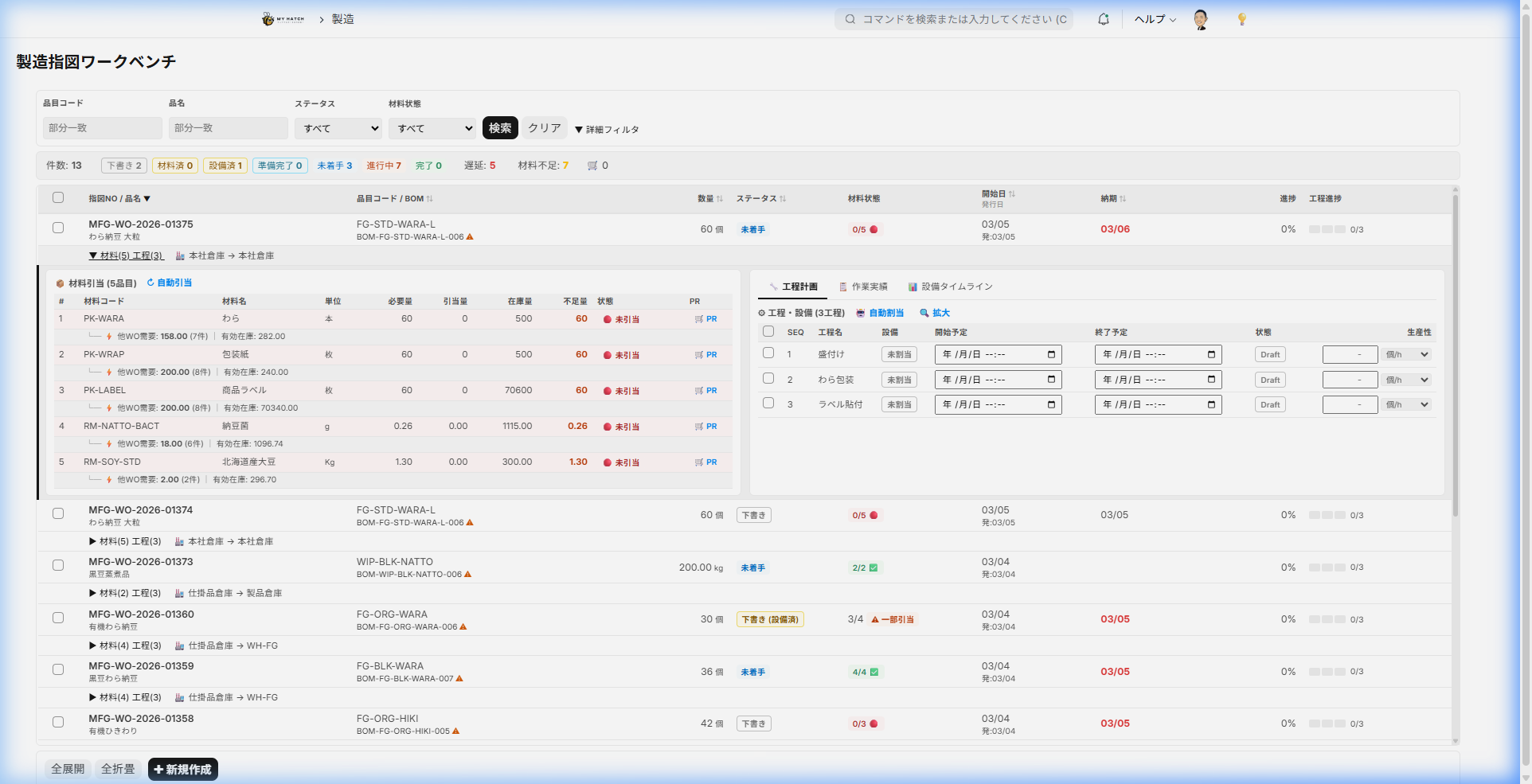
Overall view of the screen
The screen is divided into two areas, left and right.
| Area | Role |
|---|---|
| Left side: Order List | Displays a list of registered manufacturing orders. Filter, sort, and select orders as needed. |
| Right side: Order details | Displays basic information about the selected order, material availability, process progress, etc. |
At the top of the left-hand list is a summary bar where you can instantly see the number of orders by status, as well as the number of orders that are overdue or lacking materials.
Left side: Instruction list
Filtering conditions
| Conditions | Content |
|---|---|
| Item | Search by manufactured item code or item name |
| Plan start date | Specify the period (start date to end date) |
| Status | Draft / Not started / In progress / Completed |
| Material Status | Filter by whether all materials are available |
Summaryr
At the top of the order list, a summary of each status is displayed. Because you can instantly filter by clicking, administrators can quickly highlight only the "abnormal cases."

| Display | Contents |
|---|---|
| Draft | Number of unissued orders |
| Not Started | Number of issued but not yet commenced work orders |
| In Progress | Number of orders currently in progress |
| Completed | Number of orders for which all processes have been completed |
| Overdue | Number of incomplete orders that are past their due date (click to filter) |
| Material Shortage | Number of orders lacking necessary materials (click to filter) |
Right side: Instruction details
When you select an instruction, the following information will be displayed.
Header Information
- Item code / Item name
- Planned quantity
- Status badge (color-coded display)
- Recommended Actions (Guidance on what to do next)
Key indicators (KPI)
- Planned date/Deadline
- Progress rate
- Completed quantity / Planned quantity
Order Status (Lifecycle)
A manufacturing order follows the following four stages in order:
下書き → 未着手 → 作業中 → 完了
| Status | Content |
|---|---|
| Draft | Currently setting materials and processes (not yet published) |
| Not Started | Issued, but on-site work has not yet begun. |
| In Progress | At least some progress has been recorded using process cards or performance input. |
| Completed | All processes and quantities of work have been completed. |
Achieving Zero Rework with a 4-Stage Draft Evaluation Process
The system automatically determines whether instructions in a "draft" state should not be issued yet or can be issued now. This prevents critical setbacks caused by insufficient preparation when it's time to start.
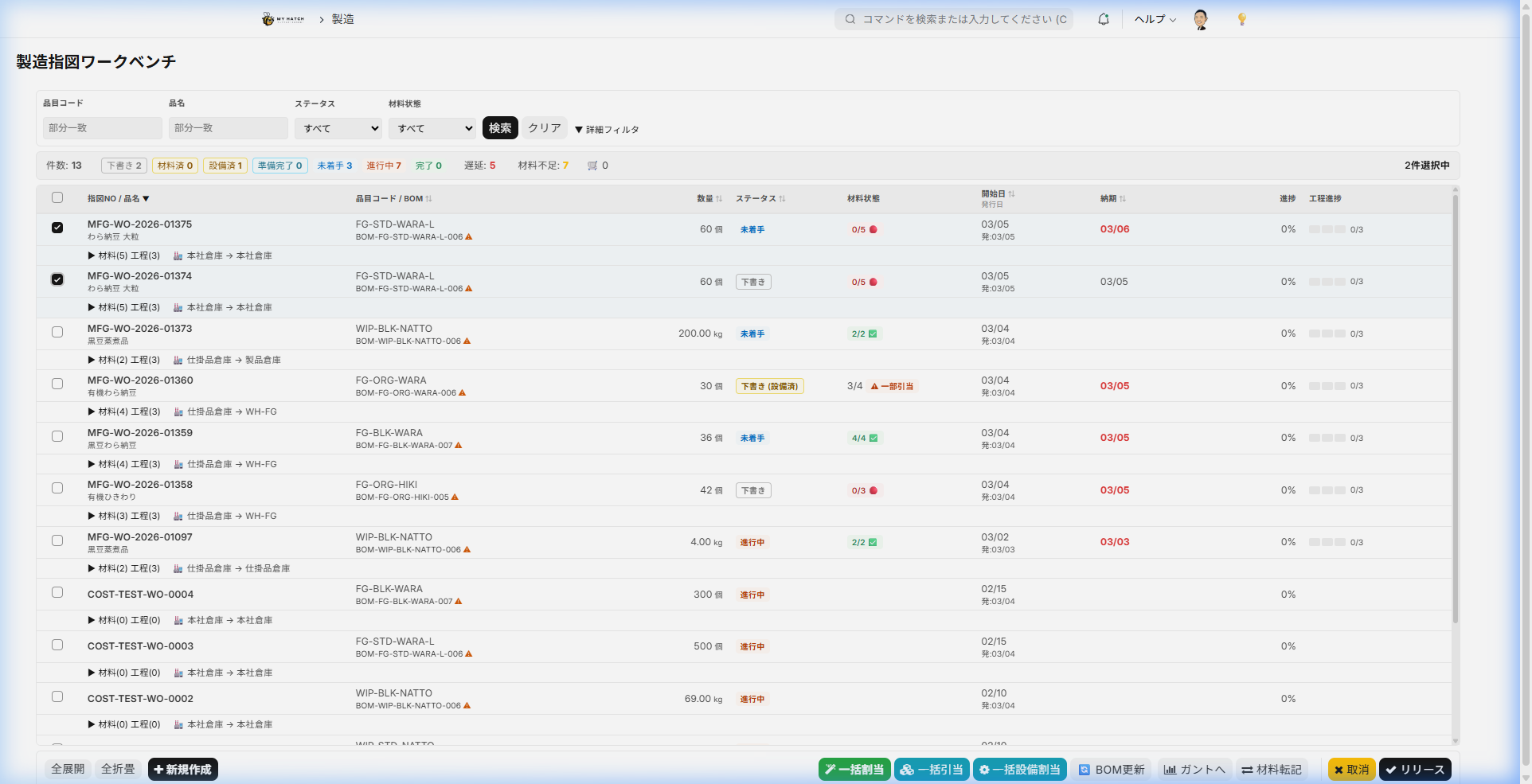
| Draft Type | Conditions | Meaning |
|---|---|---|
| Preparation Complete | Materials OK + Process OK | ✅ Ready to issue. Ready to distribute to the site. |
| Materials only prepared | Materials OK, process not set | Waiting for equipment allocation for the process |
| Process only prepared | Process OK, materials not yet allocated | Waiting for materials to be allocated |
| Not yet prepared | Both are incomplete | Material allocation and process assignment are yet to be done |
Main Operations
1. Material Panel (Automatic Inventory Sufficiency Check)
In the "Materials" section on the right, the system will automatically show you whether you have enough of each material.
| Item | Contents |
|---|---|
| Item Code | Item Codes for Required Materials |
| Required Quantity | Required quantity calculated from the Bill of Materials (BOM) |
| Reserved Quantity | Quantity set aside for planned use |
| Inventory Quantity | Current Warehouse Inventory |
| Status Icon | ✅ Sufficient / ⚠️ Partially insufficient / ❌ Insufficient |
If there is a shortage Purchasing Workbench It can be linked to the shopping cart and proceed to material procurement.
2. Process Panel (Real-time tracking of progress)
In the "Process" section, you can check the progress of each process in real time.
| Item | Contents |
|---|---|
| Process Name | Process registered in the Bill of Materials |
| Equipment | Allocated Equipment |
| Planned time | Standard work time (minutes) |
| Completed Quantity | Quantity Recorded as Actual Quantity |
| Timeline | Displays working hours in a Gantt chart-style mini view |
3. Bulk Material Allocation — Bill of Materials Expansion and Inventory Matching in Seconds
Materials for multiple orders can be automatically allocated at once. The process of developing a bill of materials and matching inventory, which traditionally took tens of minutes, can now be completed in one click.
Operating Instructions:
- Check the boxes for the relevant instructions (multiple selections are possible).
- Click the "Bulk Allocation" button.
- The result (success/partial allocation/error) will be displayed.
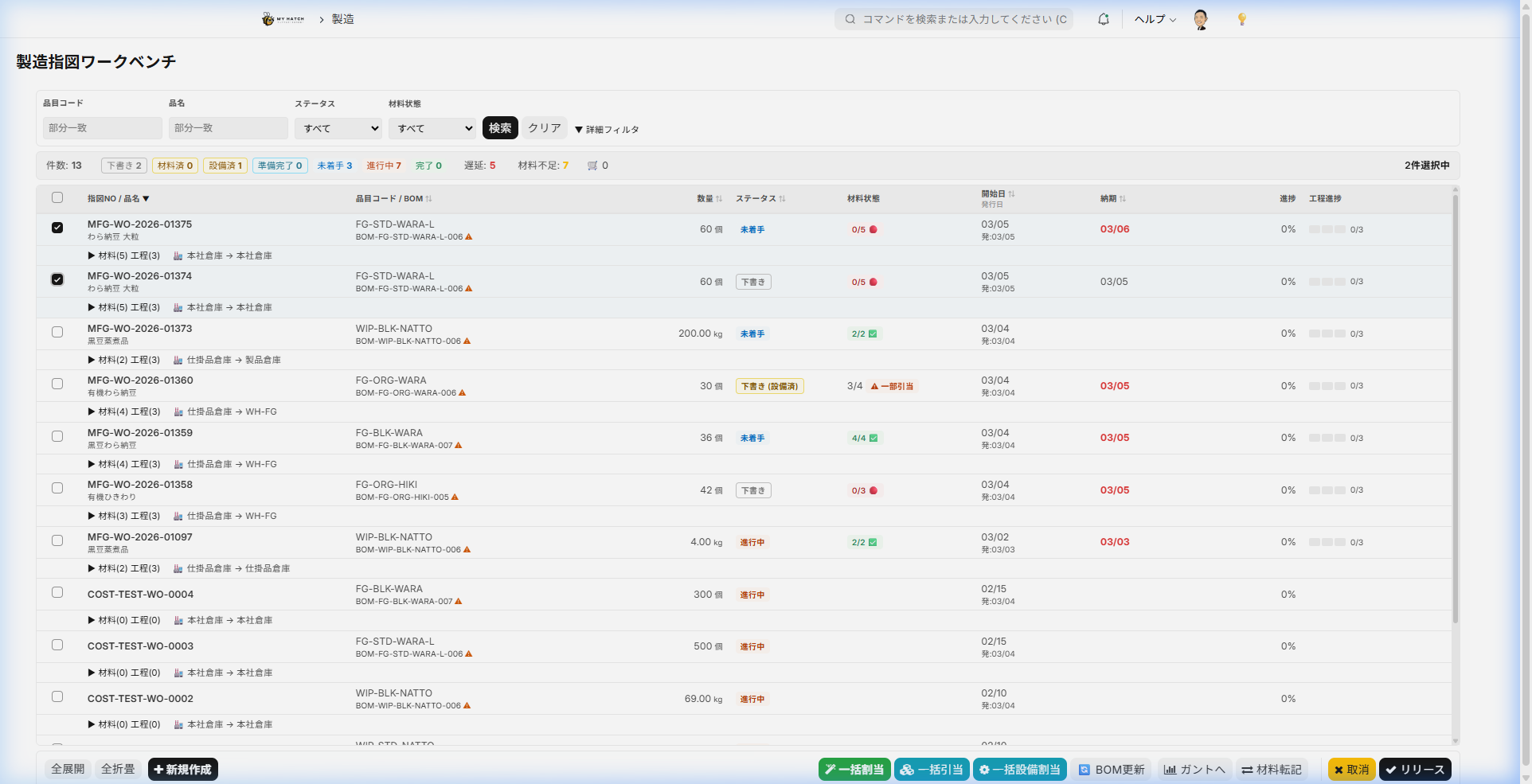
Processing details:
- For each order, the required materials will be automatically allocated from available inventory.
- If inventory is insufficient, we will allocate as much as we can (partial allocation).
4. Batch Equipment Allocation ── Place available equipment with one click
Standard equipment is assigned collectively to the processes of multiple instruction orders.
Operating Instructions:
- Check the box next to the instruction you want to use.
- Click the "Allocate Equipment in Bulk" button.
- The first operational equipment found is automatically assigned according to the type of equipment used in each process.
5. Issue instructions
This is the process of formally issuing a draft instruction to the site.
Operating Instructions:
- Select the draft instructions (make sure they are marked as "Ready").
- Click the "Publish" button.
- Select "Yes" in the confirmation dialog.
supplement:
- Only draft versions can be published.
- Once issued, the equipment allocation in the process plan will be reflected in the order, and a process card will be automatically created.
6. Secure Cancellation (Linked Deletion)
If a plan changes, related documents can be safely canceled or deleted in bulk. While it's common knowledge in ERP systems that "actual data cannot be erased," this system allows for safe linked processing within the limits of meeting certain conditions.
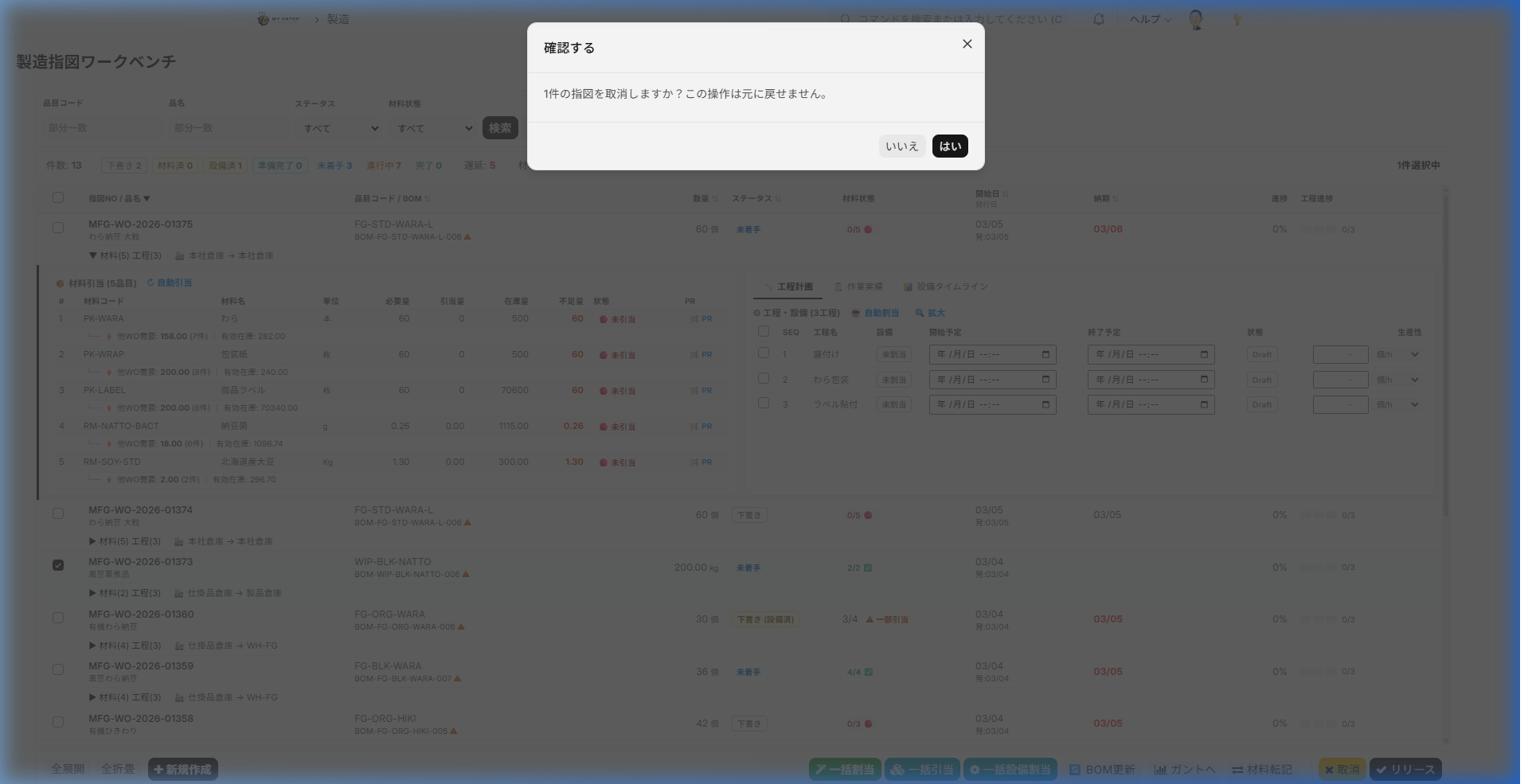
Cancellation Processing Order:
- If there are confirmed inventory entries, block (these entries must be processed first).
- Delete the time record from the process card.
- Cancel and delete process cards.
- Delete the process plan.
- Cancel and delete production orders.
Cancellation conditions:
- The relevant inventory journal entry is not yet finalized (not yet submitted).
- The documents in question must be identifiable.
7. Delete the instructions
- Select the draft or canceled order.
- Click the "Delete" button.
- Related process plans will also be deleted at the same time.
Note: Orders that already have inventory entries or process cards cannot be deleted.
8. Navigate to related screens
From the order details screen, you can navigate to the following screens.
| Destination | Contents |
|---|---|
| ** Performance entry screen ** | Enter on-site work performance data |
| Process Card List | A list of process cards associated with this instruction |
| Equipment Scheduler | Check equipment operating status with a Gantt chart |
End-to-end flow from production proposal
Production Proposal Dashboard The manufacturing order list is an integrated manufacturing management flow that covers planning to execution in two stages.
| Step | Screen | Person in Charge | Operation Details |
|---|---|---|---|
| 1. Decision-making | Production Proposal Dashboard | Management & Planning | Determine "what and how many to produce" based on demand x inventory x capacity → Issue in bulk |
| 2. Procurement | Manufacturing Order List | Factory Manager/Procurement | Material allocation + Equipment allocation to achieve "On-site Ready" |
| 3. Execute | Performance entry screen | On-site | Enter work performance data |
| 4. Monitoring | Production Order List | Administrator | Monitor progress with the Summaryr. Immediately identify overdue deadlines and material shortages. |
Tips for Use
- Filtering for Overdue Orders: Clicking "Overdue" in the summaryr will display only orders that have passed their due date.
- Filtering for Material Shortages: Clicking "Material Shortage" will display a list of orders that are missing materials.
- Color-coded for easy understanding: Badges are color-coded according to their status, so you can see the progress at a glance.
- Draft = Gray, Not Started = Blue, In Progress = Orange, Completed = Green
- Develop the habit of confirming "Ready": Developing the habit of confirming "Ready" before issuing instructions will eliminate rework on site.
- Combination of batch operations: By executing the three steps "Batch allocation → Batch equipment allocation → Issuance" in sequence, a large number of orders can be issued in just a few minutes.