
CRM (Customer Management) Control Tower
A sales command center screen that manages inquiries, quotations, clients, and projects all on one screen. It handles everything from daily KPIs and tasks to priority deals and batch processing of potential orders, all from a single screen.
Related Articles Formal registration and editing of business partners Customer Master See below. Editing the quotation is Estimate creation (structure table format) fart. Tracking the progress after receiving an order is Order progress board The overall picture of sales is Sales workflow Please refer to the following.
What you can do on this screen
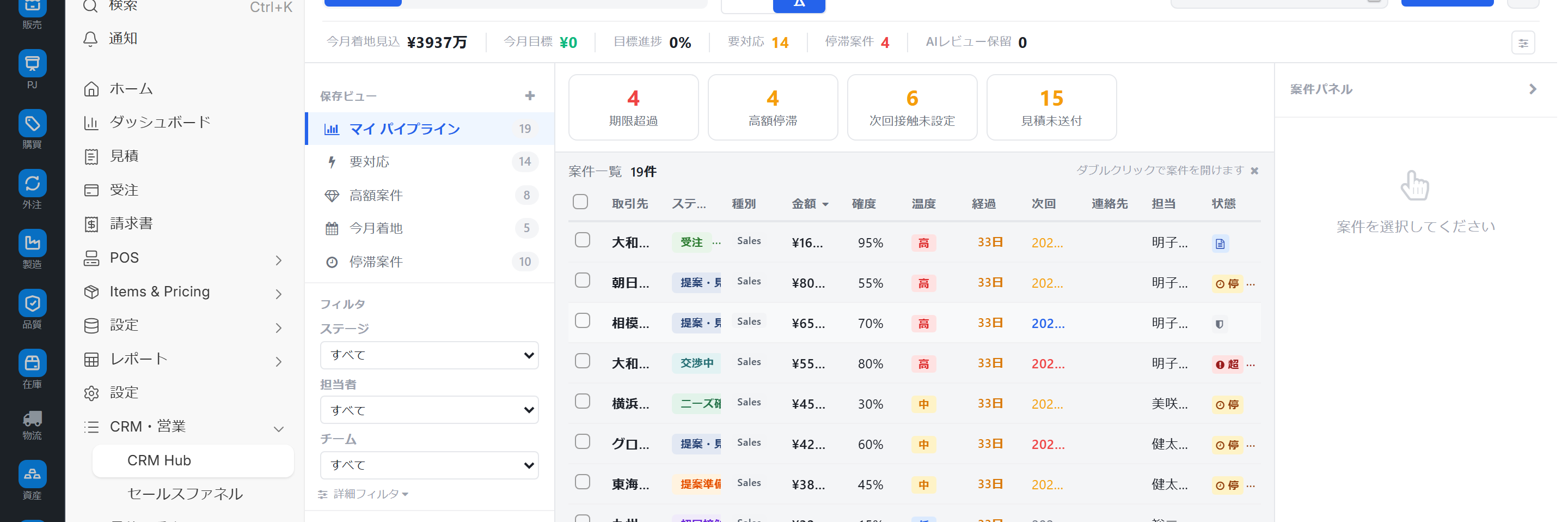
The CRM Command Center is a sales-oriented command center dashboard that consolidates inquiries (deals), quotations, customers, and projects into a single screen. It serves as both the entry point to 7 CRM-related screens and an integrated dashboard, and all of the KPI Center's functions can be managed together.
- First thing in the morning, check KPIs (sales value / sales pipeline / number of activities) and decide which deals to focus on today.
- See all your priority deals scheduled to close this week and your cautionary deals that are stalled, all on one screen.
- Combine multiple quotes and register them as 담당자 (person in charge), lost, or accepted.
- Evaluate inquiries based on their likelihood and value, and use this information to decide whether to turn them into a project.
- Register numerical items for any document type as monthly KPIs and track them against targets and actual results.
Screen URL:/app/crm-hub
Differentiation between pre-order and post-order
| Phase | Central Screen |
|---|---|
| Prospect to Deal (Pre-Order) | CRM Command Center (This Article) / Activity Board / Deal Pipeline |
| Quotation Proposal | Estimate creation (structure table format) |
| Order Entry | Individual Order Entry / Order Hub / EDI import / FAX Order |
| Progress after order placement | Order progress board / Shipping slip |
Remembering that the CRM command center is the screen that handles unconfirmed orders and quotations will make it clear how to differentiate its use from other screens.
Overall view of the screen
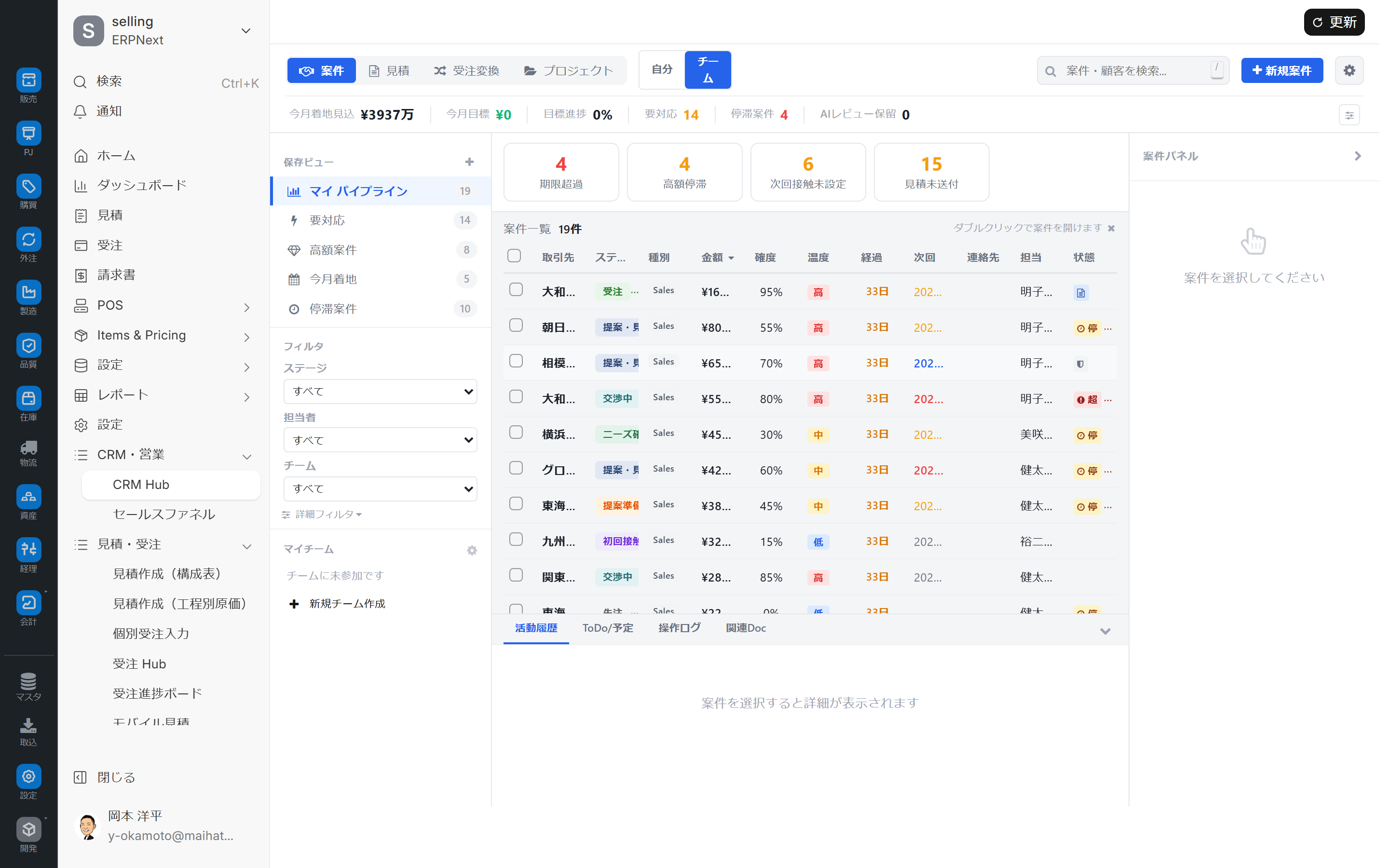
The screen is divided into three main areas, and you use the top section to switch between scopes and tabs.
Scope Switching (2 Modes)
At the top of the screen, you can switch between Sales Operations Mode and Project Management Mode.
| Scope | Default Tab | Purpose |
|---|---|---|
| Sales Operations | Projects | Daily sales activities (primarily inquiries) |
| Project Management | Project | Post-Order Project Management |
Add to the end of the URL?scope=crm&tab=sales By adding it like this, you can bookmark the combination of scope and tab.
Main Tabs (4 tabs)
| Tabs | Contents |
|---|---|
| Projects | List and details of inquiries (default in sales operation mode) |
| Quote | List of quotes and dashboard |
| Order Conversion | Inquiry/Quotation to Order Conversion Center |
| Project | Project Management (Default Project Mode) |
3 areas
| Area | Role |
|---|---|
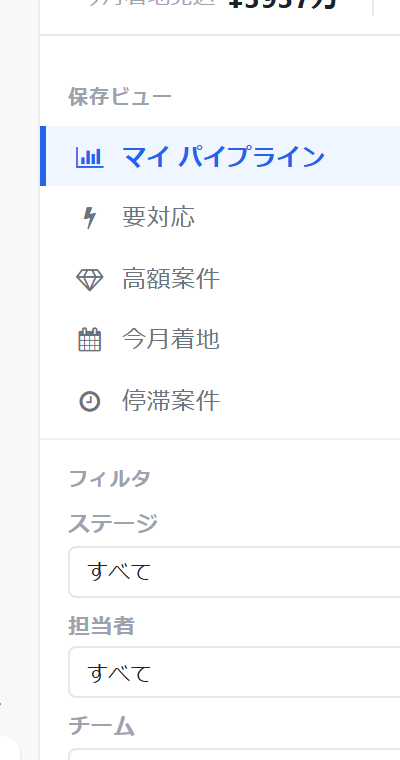
| Left Side | Display Switching (Pipeline/List/Kanban, etc.) and Saved Views |
| Central | Current tab list, Kanban board, pipeline |
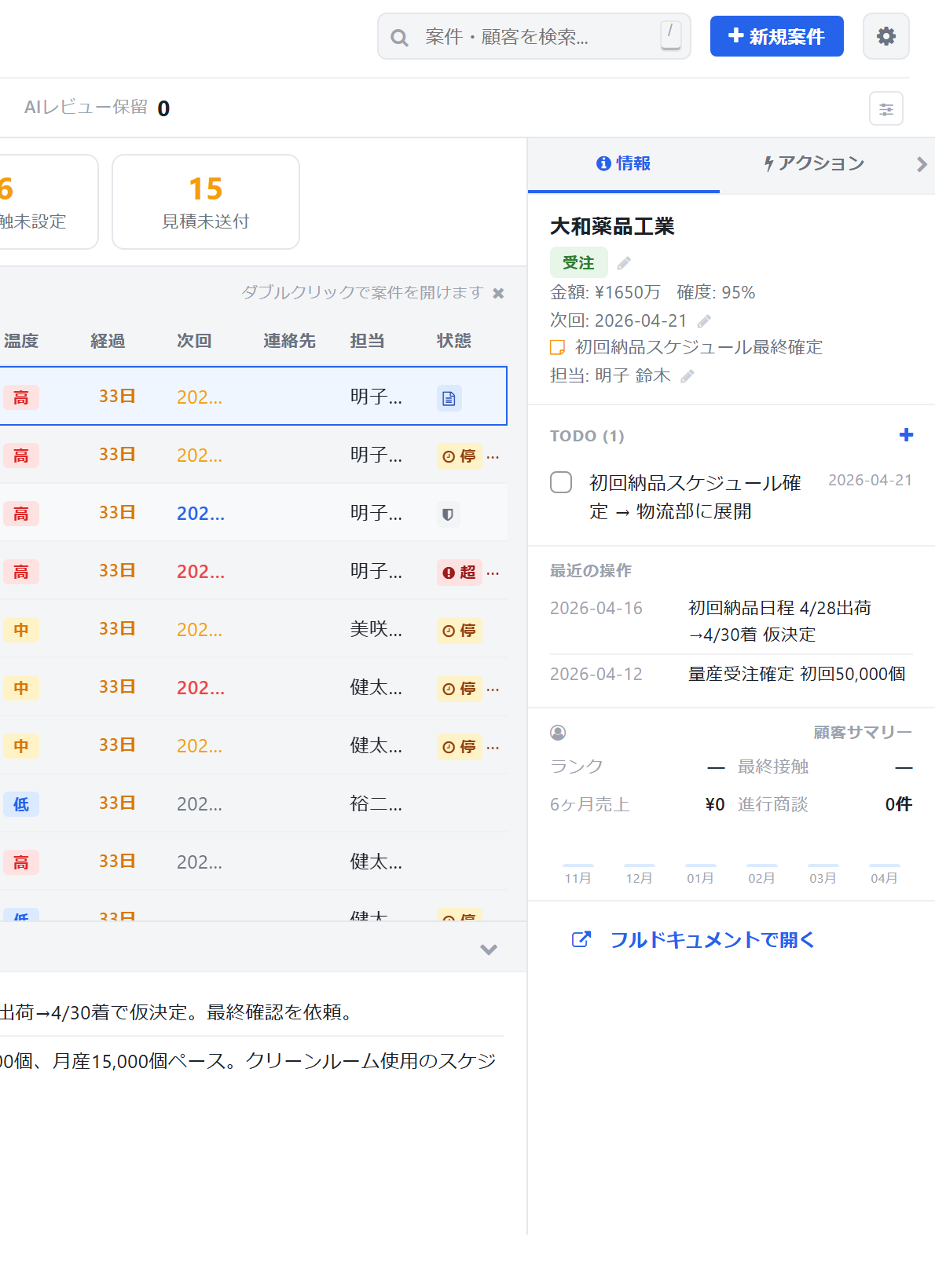
| Right side | Details of the selected case (activity history and related information) |
The right side is foldable; you can close it when you want to see a wider view of the list.
Header section
- Search, Filter, and Sort: Common operations usable across tabs
- Team filtering: Myself / Department / Company-wide
- The entire company assumes that employees have authority at the sales manager level or higher.
- Department head
- I am an individual (default)
Main functions of each tab
"Projects" tab (primarily inquiries)
| Features | Overview |
|---|---|
| KPI Dashboard | Displays 6-8 metrics such as order value, total pipeline, number of deals, and number of activities as cards |
| Today's Tasks | List of sales tasks due today |
| Priority Projects / Projects Requiring Attention | Automatically detects and displays priority watch items and projects that are delayed or inactive. |
| Recent Projects and Activities | Latest Inquiries and Activity Logs |
| Pipeline Overview | Number of Transactions and Value per Stage |
| Quick Case Registration | Quickly create inquiries using a small input window |
| Customer Mini Card | Hover your cursor over the customer name to display the most recent information |


Switching to the pipeline view will show a list of the number of transactions and amounts for each stage.
Opening the "Activities" tab on the right will display the activity timeline for the selected project.
"Quote" tab
| Features | Overview |
|---|---|
| Quote Dashboard | Visualize currently issued, nearing expiration, and likely lost deals |
| Quote Details | Summary of the selected quote and related project/customer information |
| Batch Operations | Change of Person in Charge / Registration of Lost Order / Batch Conversion to Order |
"Order Conversion" tab
| Features | Overview |
|---|---|
| Scoring of Conversion Candidates | Automatically calculates the likelihood of a successful order and displays the candidates accordingly. |
| Saved View | Save and share scoring criteria and time period |
| Batch Conversion | Convert multiple selected quotes into orders at once |
The "Order Conversion" tab loads its contents when opened, so the initial display may be slightly delayed.
"Project" tab
| Features | Overview |
|---|---|
| Inquiry → Project Conversion | Automatically creates projects based on the likelihood of securing the order and the scale of the project |
| Project List / Progress | List of ongoing projects |
KPI Center (Integrated Function)
The CRM command center integrates the functions of the old KPI center, allowing you to complete all KPI management within this single screen.
How KPIs work
- Numerical items from any document can be registered as KPIs.
- Manage target values and actual values on a monthly basis.
- Performance data is automatically compiled (extracted based on document type and filtering criteria).
- Goals are entered manually.
- You can preview the aggregated results before registering.
Typical KPI Setting Examples
| Indicators | Target Documents | Numerical Items | Filtering Examples |
|---|---|---|---|
| Monthly Order Amount | Orders Received | Total Amount | Status = Submitted |
| Number of New Projects | Inquiries | Number of Cases | Creation Date = This Month |
| Deal Conversion Rate | Calculated Value | — | Orders Received / (Orders Received + Lost Orders) |
| Monthly Sales | Sales Invoice | Total Amount | Status = Paid |
Operating Procedure
1. Morning 15-minute routine (individual sales representative)
- Open the CRM command center (
?scope=crm&tab=sales(Bookmark this for quicker access) - Check the current month's order value and pipeline on the KPI Dashboard.
- Check your schedule for today in Today's Tasks.
- Determine which projects to prioritize/high-priority.
- Add an activity from the right side as needed (phone call, email, visit).
2. Create a ticket using the case as a reference.
- Click the "+ Project" button in the upper right corner of the "Projects" tab.
- In the small window, enter at least the following: Client / Amount / Probability / Expected closing date
- Save → Immediately reflected in the list.
- Detailed editing can be done on the right side, or you can navigate to the standard form.
3. Register all quotations as lost orders.
- Open the "Quote" tab.
- Apply the Expired/Long-Stalled filter on the dashboard.
- Select multiple applicable quotations.
- Click "Bulk Lost Orders Registration" at the top.
- Enter all the reasons for the lost deal → Confirm
4. Use the Order Conversion Center
- Open the "Order Conversion" tab (wait a moment the first time).
- Based on the scoring results, review the candidates in order of likelihood of securing the order.
- Change the conditions (period, customer group, etc.) and register it as a saved view.
- Check multiple candidates → Create orders using Batch Conversion.
- The orders that have been created are Individual Order Entry From there to the next step
5. Turning inquiries into projects
- Select the relevant inquiry in the "Cases" tab.
- Click "Project" on the right side.
- Enter the Project Name / Start Date / Expected End Date in the dialog box.
- Once confirmed, the project will be created and managed in project mode thereafter.
6. Register KPIs and track them monthly
- Open the KPI Center area.
- Click "Add KPI"
- Set the Target Documents + Numerical Items + Aggregation Method (Sum/Count/Average) + Refinement Criteria.
- Check the aggregated results in "Preview"
- Register your monthly goals → Your monthly performance will be automatically tallied.
Permissions and Roles
| Roll | Main Uses |
|---|---|
| System Administrator | All Functions |
| Sales Representative | View/edit your own projects, quotes, and client information |
| Sales Manager | Department / Company-wide scope, KPI target setting, batch operations |
| Demo Viewer | Read-only (for demo introduction) |
| Demo Operator | Writable demo operation |
The team filtering options are: "Company-wide" for sales managers and above, "Department" for department heads, and "Myself" for individuals.
Required settings beforehand
Required
- CRM Settings (Opportunity Stage, Sales Source, etc.)
- User's default company
Recommended
- Sales Representative Master (If not set up, the team filtering will be empty)
- Territory (Region) Master
- Customer Group / Industry
- Deal Stage (The foundation of the pipeline view)
KPI Function
- KPI setting
- Target documents and numerical items for each KPI, and filtering conditions.
Points to note regarding operation
- Switching scopes will rewrite the URL — It will open in the same mode next time.
- Tab Switching Caching — Switching between tabs quickly will skip reloading.
- The "Order Conversion" tab is a little slow the first time you use it — because it loads only when needed.
- When multiple people edit the same project simultaneously: — The last saved content will overwrite the previous one.
Tips for Use
- Bookmark the launch URL:
?scope=crm&tab=salesor?scope=project&tab=projectBookmark the launch URL for each operation to save time. - Limit KPIs to 3: It's easier to stick with them if you don't register too many from the start and narrow it down to just 3 metrics that you really need to track.
- Priority deals are not sorted by amount: They are prioritized by probability x deadline. If your intuition is wrong, check the scoring criteria.
- Utilize saved view of order conversions: Saving conditions, such as quarterly conversion campaigns, into a saved view makes it easier to share with the team.
FAQ
Q: What is the difference between a CRM command center and an order hub?
- CRM Command Center: Managing pre-sale activities from lead generation to deal creation to quotation.
- Order Hub: Import and review of confirmed orders (EC / EDI / FAX)
We use different approaches depending on whether the order is received (sales activities) or after it has been received (processing).
Q: Where was the previous KPI center located?
Previous/app/crm-kpi-center This has been integrated into this screen. The old screen is still accessible, but its functionality is now entirely contained within the CRM command center.
Q: If we turn an inquiry into a project, will that also generate an order?
No, project-based work and contract-based work are different. The choice depends on the nature of the project (long-term projects vs. one-off contracts).
Q: The pipeline view is blank.
The opportunity stage master may not be properly configured, or the inquiry may not have a stage assigned. Please ask your administrator to update the opportunity stage master.
Q: The "Company-wide" option is not displayed in the team filtering.
You need the roles of Sales Manager or System Administrator. Permission management is Administrator's Manual Please refer to the following.
Q: How do I check which rows failed during a batch operation?
The number of items will be displayed after processing, but you will need to examine the logs for details of the failed rows. You can reduce the risk by performing multiple selections in batches of 10-20 items.
Next Steps
- Formal registration of business partners → Customer Master
- Create a cost estimate in bill of contents format → Estimate creation (structure table format)
- Tracking order progress → Order progress board
- Overall picture of sales operations → Sales workflow