
Mobile Estimate
This is a smartphone-only screen for creating and editing quotes. You can create and send quotes while on the go, and you can also check reminder notifications before deadlines and your monthly performance on the spot.
Related Articles If you want to edit it in detail on your PC Quotation (Standard) / Estimate creation (component list) / Estimate creation (cost breakdown by process) Please refer to the following. Regardless of which screen you create it on, the save location for the estimate data is the same. The overall picture of sales operations is Sales workflow Please refer to the following.
What you can do on this screen
Mobile quotes are a quote creation screen optimized for smartphones. You can create and send quotes on the spot while you're out or visiting clients.
- You can create and send quotations on the spot while visiting customers or at trade shows.
- It will notify you of quotations with approaching deadlines via reminder notifications.
- You can check your monthly performance (order amount, number of orders, etc.) on the spot.
- You can continue editing on the PC's details screen after returning to the office.
Screen URL:
-/app/mobile-quotation — List of Quotations
-/app/mobile-quotation/<見積番号> — Individual editing screen
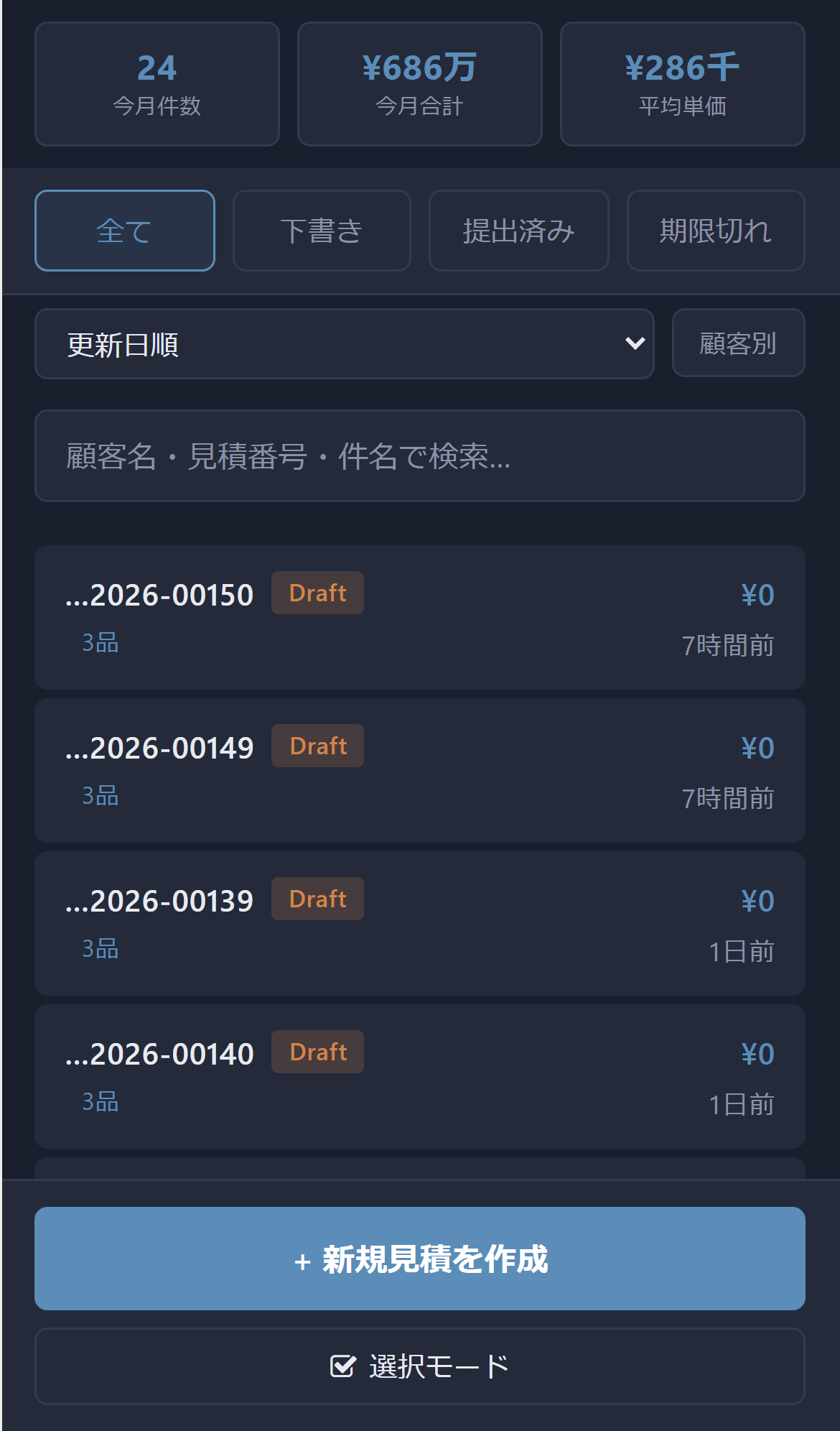
Overall view of the screen
The screen can be used by switching between four modes depending on your purpose.
| Mode | Application |
|---|---|
| List | View your quotes in card format |
| Edit | Edit individual quotes |
| Reminder | Notification of upcoming quotation deadlines |
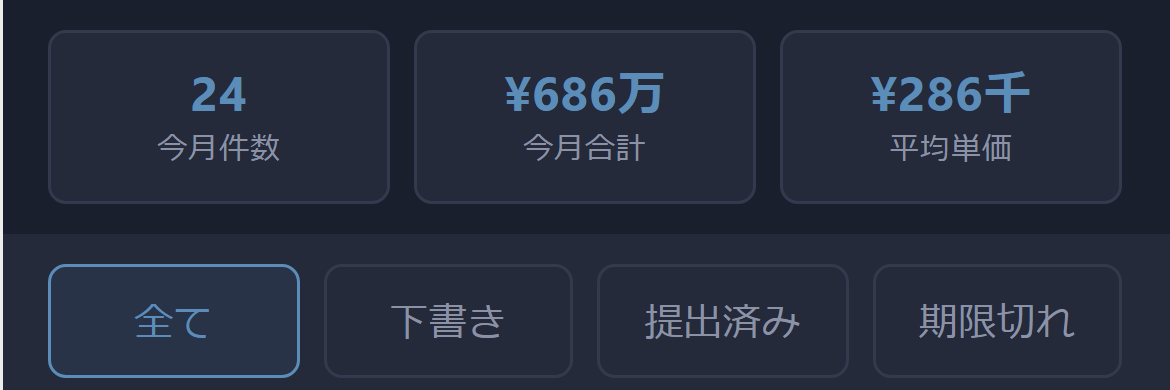
| Monthly Performance | Check this month's number of transactions, total amount, and average unit price |
Designed with smartphone usability in mind, the app features a black background and large, easy-to-tap buttons and cards.
How to use it with the PC version
| Screen | Device | Ideal Use |
|---|---|---|
| Mobile Estimate (This Article) | Smartphone | Instant Estimate & Notification Check While On the Go |
| Quotation (Standard) | PC | Basic Standard Form |
| Estimate creation (component list) | PC | Creating estimates with a hierarchical structure |
| Estimate creation (cost breakdown by process) | PC | Estimation by accumulating costs by process |
Regardless of which screen you create it on, the saved data will be the same.
Main Features
| Features | Overview |
|---|---|
| List of Quotations | Displayed with a large tap area for smartphones |
| Individual Editing | Edit Customer, Item, Quantity, and Unit Price |
| Reminder | Banner notification for quotes due soon |
| Monthly Performance | Check this month's number of transactions, total amount, and average unit price |
| Conversion to Order | Orders can be converted from mobile devices |
| Customer Sent | Complete the entire process, including sending emails, on your smartphone |
Main Operations
1. Viewing quotes while away from the office
- Using your smartphone
/app/mobile-quotationAccess - Your quotes will be displayed in card format in the list.
- Tap the quote you want to view → Go to the editing screen
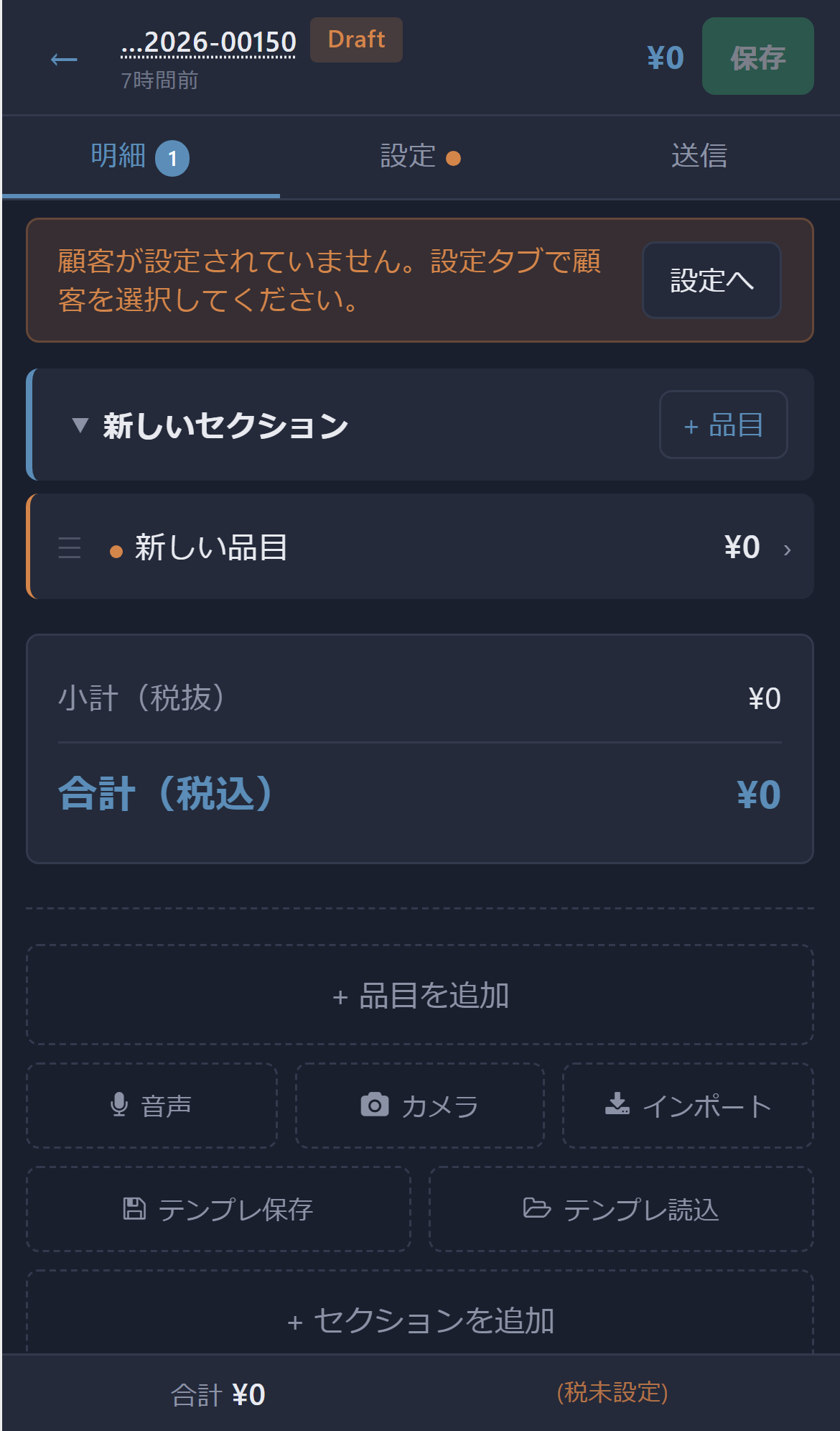
2. Review and edit individual quotations
- Check the customer, item, expiration date, etc. on the editing screen.
- Modify the quantity, unit price, and notes as needed.
- Once saved, the changes will also be reflected in the estimate data on your PC.
3. Check reminder notifications
- When you open the screen, any quotations that are due soon will be automatically detected.
- You will be notified via banner if there is a matching quote.
- Tapping will take you directly to the editing screen for that quote.
4. Check monthly performance
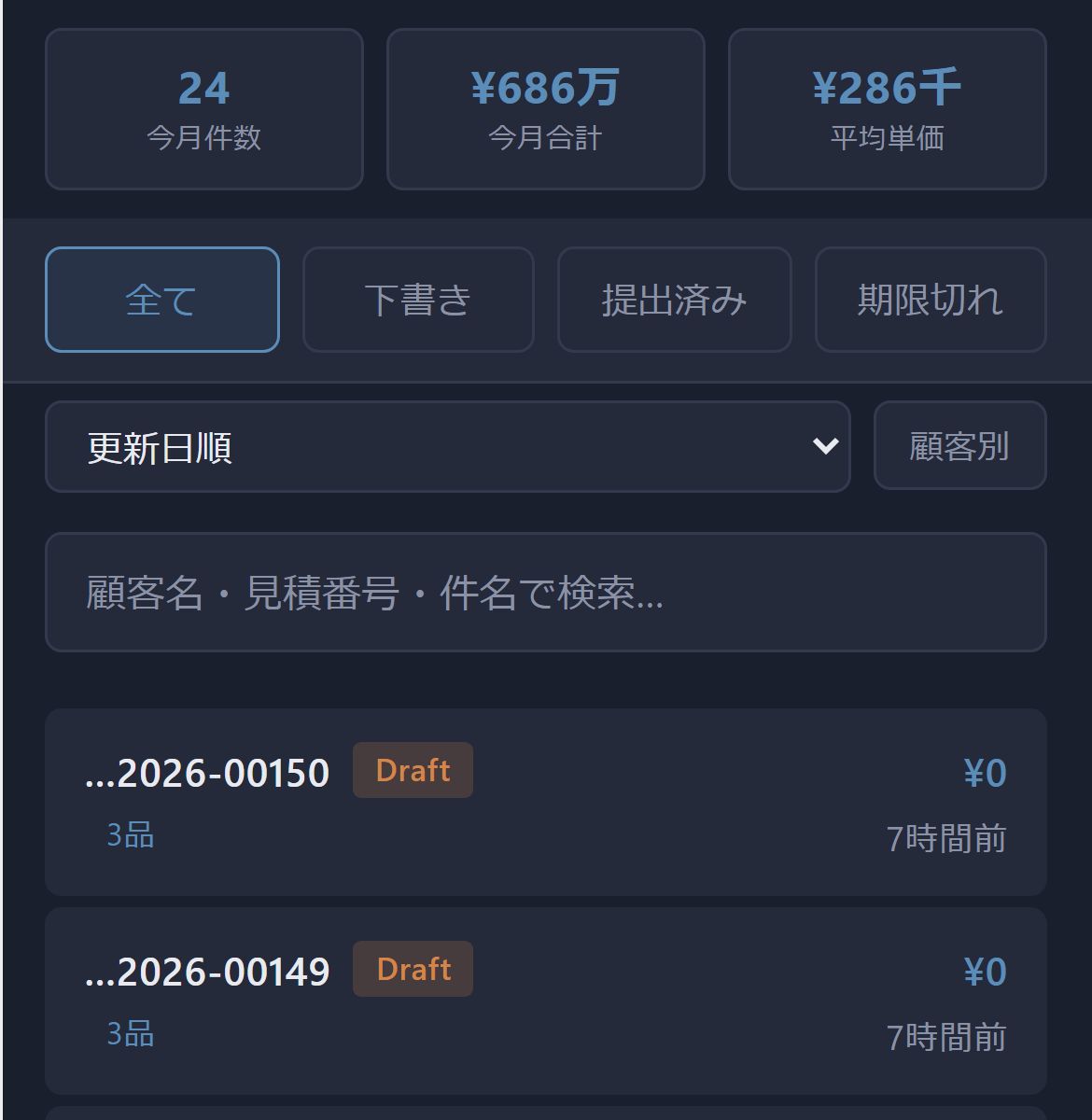
- Three cards will always be displayed at the top of the list: Number of items this month / Total for this month / Average price
- You can check your progress and goal achievement status for this month on the spot.
5. Send an email to the customer.
- Confirm the estimate on the editing screen.
- Click the send button to send an email to the customer (a pre-configured email template for quotes will be used).
- After sending, you will return to the list screen.
Tips for Use
- Add to Home Screen: If you add it to your home screen on iOS/Android, you can launch it like an app.
- Create a draft before visiting the client: It's efficient to create a draft on your PC beforehand and then edit and finalize it on your mobile device at the site.
- Make reminders a habit: Setting reminders to notify you 3-7 days before the deadline can help prevent lost deals.
- Check your performance in just 1 minute first thing in the morning: Simply checking your progress for the month as soon as you wake up will change your sales motivation.
- Keep attached images to a minimum: Considering the transmission capacity and PDF size, we recommend limiting it to 3-5 images per project.
FAQ
Q: Can I edit a quotation created on a PC on my mobile device?
The data stored in the same location is editable. However, for advanced editing of hierarchical structures (structure tables) and process-specific cost data, we recommend using a PC. On mobile devices, it's more practical to limit adjustments to basic information, quantities, and unit prices.
Q: Can I create a quote offline?
This device is primarily intended for online use. Operation is not guaranteed when the internet connection is lost, so please ensure you maintain a connection using tethering or another method.
Q: Are there any differences in functionality compared to the PC version?
The mobile version features a simple screen focused on basic input. Advanced features such as section hierarchy, process-specific costs, and comparison panels are only available in the PC version. We recommend drafting while on the go and then doing full editing on your PC when you return to the office.
Q: Where do I set the body text for outgoing emails?
The email template for quotes, pre-configured by the administrator, will be used as is. If you wish to change the body of the email, please request the administrator to modify the template.
Q: I keep getting redirected to a different screen on my smartphone.
There is a system in place that automatically redirects you to the mobile home screen when you access it from a smartphone. If you want to open a mobile quote, please do so directly/app/mobile-quotation Please specify the URL.
Q: The browser's back button is behaving strangely.
Because mobile quotes use a unique screen switching method, using your browser's back button may return you to an unintended screen. Please use the "back" button within the screen.
Next Steps
- Full editing after returning to the office → Estimate creation (component list) / Estimate creation (cost breakdown by process)
- Standard form → Quotation (Standard)
- Customer master management → Customer Master
- Overview of sales operations → Sales workflow