
Estimate creation (structure table format)
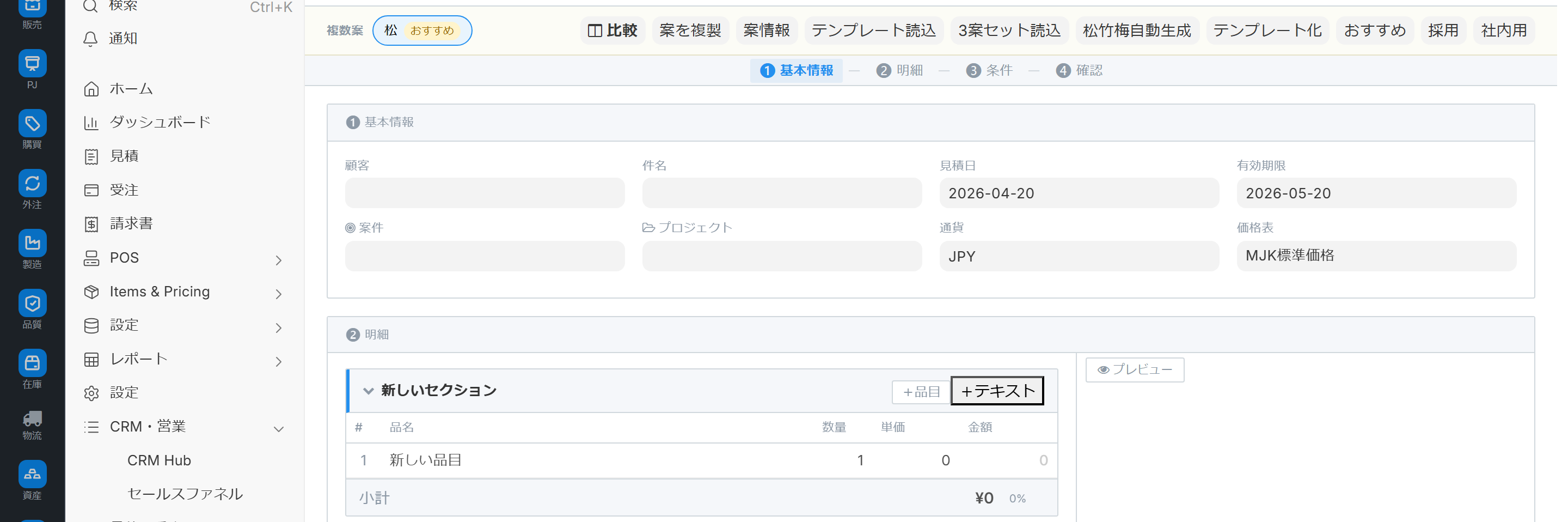
This guide explains how to use the table-style estimate creation screen, which displays basic information, details, conditions, and confirmations on a single page. It covers everything from structuring the section hierarchy to real-time PDF preview, real-time display of gross profit margin, proposal comparison, and frequently listed item suggestions.
Related Articles The process-based costing model, which calculates costs for each process, is Estimation Matrix For smartphones, please refer to the mobile quote. What is the progress after order conversion? Order progress board The overall quotation process for sales is Sales workflow Please refer to the following.
What you can do on this screen
The Estimate Creation (Schedule Type) screen is a quotation creation screen where basic information, details, conditions, and confirmations are arranged vertically on one page. It is suitable for quotations for assembled products and equipment systems, where a breakdown is presented with subtotals for each section.
- Create a breakdown-type estimate that includes subtotals for each section.
- Compare multiple options (Option A / Option B) for the same client side-by-side.
- Edit unit prices while checking gross profit margins in real time and immediately detecting any deviations from the standard.
- Assemble the document while checking the PDF's appearance during editing (eliminating the need to switch between print previews).
- Use frequently used items from the past as candidates to speed up input.
Screen URL:/app/quotation-composer/<見積書 ID>
How to use it with other quotation screens
| Screen | Structure | Typical usage |
|---|---|---|
| Standard Quote | Flat Item | Service/Simple Sales |
| Configuration Table Format (This Article) | Section Hierarchy | Assembly/Equipment/Breakdown Presentation |
| Estimation Matrix | Process x Item Matrix | Projects involving accumulating costs by process |
| Mobile Quote | Smartphone Screen | Instant Quote on the Go |
Important: The save location is the same quotation. Simply edit from the user-friendly screen; order conversion, printing, and PDF output are all the same.
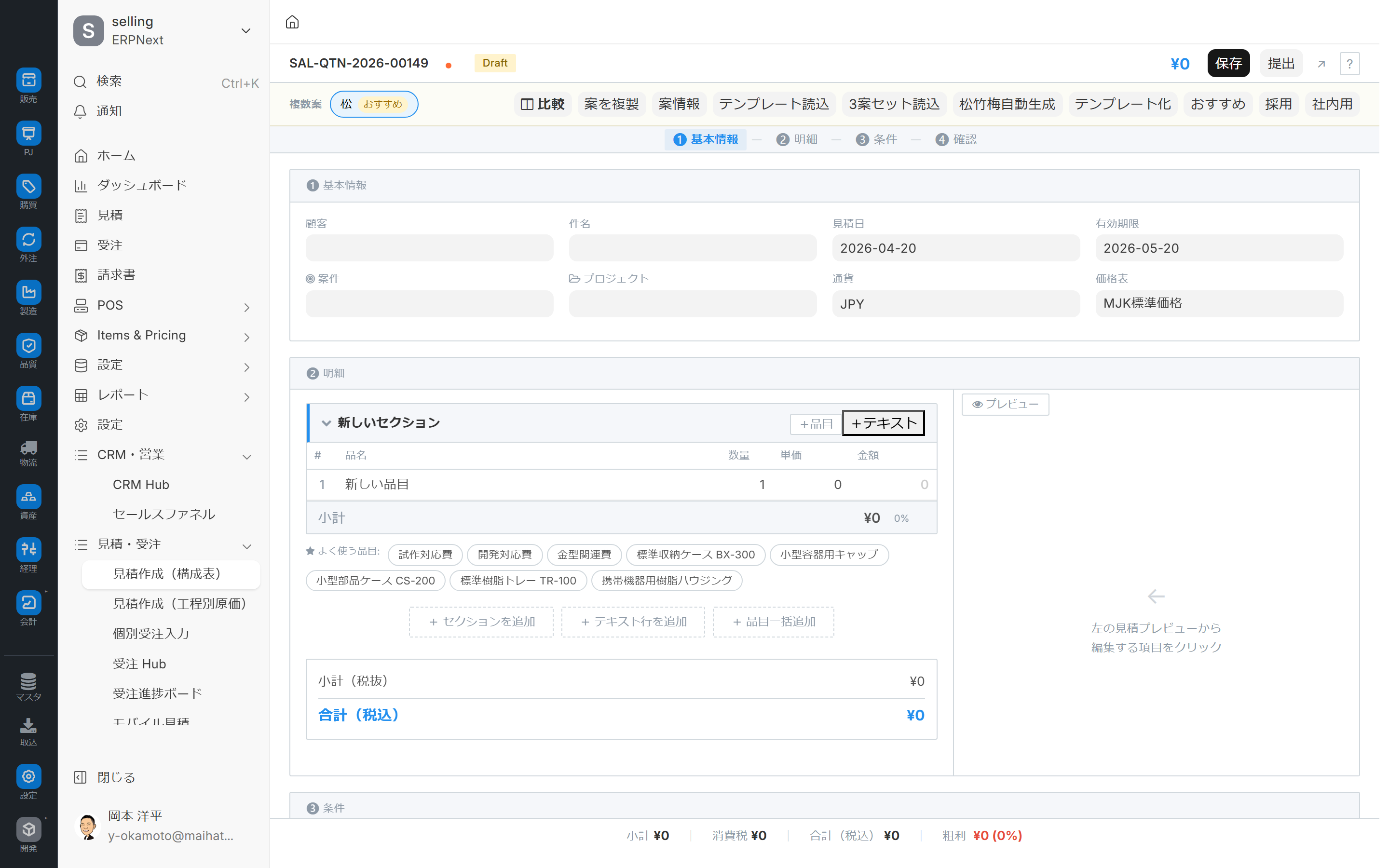
Overall view of the screen
Arrange the following 4 areas vertically on one page and edit them while scrolling.
| Area | Content |
|---|---|
| ❶ Basic Information | Enter headers such as customer, subject, expiration date, and conditions |
| ❷ Details | Left: PDF Preview / Right: Two-column editing area |
| ❸ Conditions | Payment terms / Delivery date / Warranty, etc. |
| ❹ Confirmation | Pre-send checklist + history + sharing link |
Fixed header at the top of the screen
It's always displayed at the top of the screen, allowing you to stay informed of the status even while editing.
- Customer name
- Estimated amount
- Status badge (draft/submitted/lost)
- Unsaved mark — A red dot appears when changes are made; it disappears when saved.
- Link to standard form
- Help button
Inter-area jump
Clicking the links below the header—❶ Basic Information → ❷ Details → ❸ Conditions → ❹ Confirmation—will jump you to the corresponding area. The current area will be automatically highlighted depending on your scroll position.
Fixed bar at the bottom of the screen
- Gross Profit Margin Bar — Displays the current gross profit margin in real time. A warning color appears when it falls below the threshold.
- Unsaved indicators
- Main action buttons (Confirm, Save, Submit)
Comparison Panel
A feature that allows you to compare different quotes side-by-side. This is used when presenting both Option A and Option B to the same client simultaneously.
Mechanism of the Configuration Table (Hierarchical Structure)
Row Type
There are two types of detail lines.
| Row Type | Display | Action |
|---|---|---|
| Section | "Section" label + subtotal only | Collapsible section header |
| Item Line | Regular Item Line | Enter Quantity, Unit Price, Amount, and Discount |
This enables tree-like hierarchical presentation.
Section Collapse
Clicking the marker on a section row will collapse the detail lines within it.
Note: The collapsed state is for display purposes only and is not saved to the data. Reloading the screen will return all sections to their expanded state.
Discount Display
- Discounts are available on a section-by-section or item-by-item basis.
- When a discount is applied, the original price is crossed out and the discounted price is displayed alongside it.
- Immediately reflected in the gross profit margin bar.
Operating Procedure
1. Create a new quote and open it on this screen.
This screen uses a URL structure that assumes you are opening an existing quotation. To create a new one, follow these steps:
- Create a new quote using the standard quote form.
- Save as draft (ID will be confirmed)
- The link at the top of the screen or
Ctrl+KSwitch to "Create Estimate (Configuration Table Type)" - Edit on this screen from here on.
Individual quotes can also be opened on this screen from the "Quotes" tab in the CRM command center.
2. Assembling the Section Hierarchy
On the left is the configuration tree, and in the central detail area you edit the hierarchy.

- In the details area editor, click "+ Add Section"
- Enter the section name (e.g., "Main Unit", "Options", "Services")
- Add items within the section using "+ Add Row".
- Enter the item code (frequently listed items will be displayed as suggestions).
- Enter the quantity and unit price.
- Sectional subtotals are calculated automatically.
Details of the selected row (product name, quantity, unit price, discount, etc.) can be edited in the detail area from the center to the right.

3. Utilize frequently listed items
Items that have been frequently used by the same company in the past will be automatically displayed as suggestions.
- Scope: User's default company
- When you enter a keyword in the input field, suggestions will be displayed.
4. Check the appearance of the email in the preview.
The actual PDF output image is displayed in real time in the left column.
- Edit cell → Remove focus or save to apply changes.
- You can switch to compact view using the preview toggle button.
5. Utilizing Gross Profit Margin Bars
The gross profit margin is displayed in real time on the bar at the bottom of the screen.
- The color changes to red when it falls below the baseline value (the lower limit of the gross profit margin set in advance).
- Each discount is reflected immediately.
- Submitting with red warnings makes it more likely to be rejected during review, so make adjustments beforehand.
6. Pre-Send Checklist (❹ Confirmation Area)
In the confirmation area, review the pre-send checklist. Typical check items are as follows:
- Do you have a contact email address?
- Is the expiration date reasonable?
- Required fields have been filled in.
- Custom questions defined in the template
- Saved?
It is recommended to submit the form only after all items have turned green.
7. Import the configuration from the Bill of Materials (BOM)
You can import bills of materials (BOMs) from existing ones. By using the BOM managed by the manufacturing department as the framework for estimates, you can prevent discrepancies between technical specifications and sales estimates.

8. List alternatives (candidates)
You can register multiple candidate items in the same location and create A/B type comparative quotes.

9. Display multiple options side by side in a comparison panel
- Select another quote you would like to compare (another quote from the same supplier).
- Open the Comparison Panel.
- Check the difference in price and composition when they are placed side by side.
- Evaluate the merits and definitively decide which proposal to adopt.
10. Generating a Shared Link
The Shared Link feature in the confirmation area generates a web viewing link for customers. This is a URL that allows customers to view the quote in their browser without logging into ERPNext.
11. Save/Submit
- keep:
Ctrl+SAlternatively, click "Save" at the bottom → Leave as draft. - Submission: Submit button → Transition to "Submitted"
- After submission, you can print, convert to PDF, or convert to order.
Permissions and Roles
| Role | Permissions |
|---|---|
| System Administrator | All Functions |
| Demo Viewer | Read |
| Demo Operator | Write (for demo) |
Note: Sales representatives and sales managers are not assigned.
In the current implementation, Sales Representative/Sales Manager is not assigned as a role on this screen. For business operations, one of the following actions is required:
- Administrator adds Sales Representative/Sales Manager to the roles on this screen.
- During filming and verification, the system will be temporarily operated under the system administrator role.
Required settings beforehand
Required
- Estimate settings (standard)
- Item Master (Item Code, Unit, Tax Rate)
- Customer Master
- Price list — Automatic allocation of unit price
Recommended
- Territory/Currency/Tax Template — Supports foreign currency transactions and multiple tax rates
- Print format — Used for preview
Points to note regarding operation
- Unsaved Mark: A red dot will appear at the top of the screen if changes have been made, and it will disappear once you save.
- Automatic saving is unconfirmed: Explicit saving is required. Be sure to save before closing the screen
Ctrl+S** Recommended - The comparison panel displays different quotes side-by-side: It does not compare revisions of the same quote.
- Section collapse is not saved to the data: Reloading will return it to the fully expanded state.
- Preview update timing: Cell editing → Updates will be reflected when you remove focus or save.
- Simultaneous Editing: When multiple users edit the same quote simultaneously, the last saved change takes precedence.
Tips for Use
- Make explicit saving a habit: Auto-save is unconfirmed, so save every few minutes.
Ctrl+SThe habit of pressing - Maintain a "customer-centric" perspective in the preview: By viewing the PDF preview while editing, you can prevent typos, blank lines, and layout issues.
- Do not leave the gross profit margin bar red: Submitting with the bar below the standard is likely to result in rejection during the approval process. When it's red, either revert the discount or revise the unit price.
- Utilize frequently listed items: Items with a high past sales record will appear as suggestions, reducing input time by 30-50%.
- Increase your win rate with comparison panels: In the machinery and industrial equipment sector, presenting A/B options increases the chances of securing orders.
- Operate sections in a single hierarchical structure: Avoiding nesting and displaying subtotals at the section level makes the data easier to read and is recommended.
FAQ
Q: How do I create a new quote?
This screen uses a URL structure to open an existing quote, so please create a draft using the standard quote form first. Once the ID is confirmed, you can switch to this screen from the link at the top of the screen or from the "Quote" tab in the CRM command center.
Q: When is the right time to switch to a process-based cost model?
- Primarily section hierarchy (component structure) → Configuration table type (this screen)
- The main method is to accumulate costs based on process and work time. → Estimation Matrix
Since both are saved as the same quotation, you can switch between them and use them together.
Q: What happens if I edit a saved quote using the standard form?
While the data will be the same whether you edit from the standard form or not, editing while being mindful of the section hierarchy is easier on this screen. If you want to maintain the intent of the section structure, we recommend editing on this screen.
Q: I want to customize the hierarchical representation when outputting to PDF.
This is controlled by the print format of the estimate. Whether to display the hierarchy or just the total amount is determined by the print format. Print format It depends on the settings.
Q: I'm a sales representative, but I can't access the screen.
The Sales Representative role is not currently assigned to this screen. Please request that the administrator add it.
Q: Is there an autosave function?
At this time, we have not been able to confirm the implementation of autosave. ExplicitlyCtrl+S Please save** before closing the screen.
Q: I want to compare revisions using a comparison panel.
The current comparison panel displays different quotes side-by-side and does not support comparing revisions of the same quote. To view revision differences, please refer to the version history in the upper right corner of the form.
Next Steps
- Progress after order conversion → Order progress board
- The basis for the parts list of an assembled product → Bill of Materials (BOM)
- Overall picture of sales operations → Sales workflow