
Sales invoice
This explains the procedure for creating sales invoices and linking them to payment management and accounting. These invoices can be automatically generated from shipping slips and orders, and serve as the starting point for accounts receivable management.
Related Articles For an overview of payment management, reconciliation, and accounts receivable balances, please refer to the accounting manual (scheduled for development in Phase 2). The overall sales process is Sales workflow Please refer to the billing line.
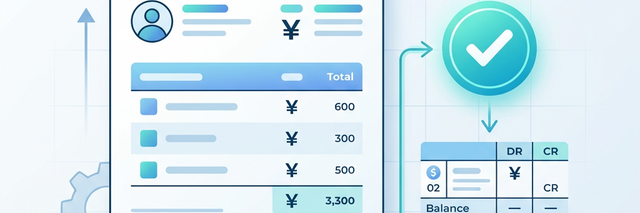
What you can do on this screen
A sales invoice is a document used to bill a customer for payment. It can be automatically generated from order and shipping slips, and submitting it automatically records the sales transaction.
- Can be created with one click from order and shipping slips.
- When you submit the document, the sales journal entry (accounts receivable/sales) will be automatically created.
- Once you record the payment, the invoice will automatically change to "Paid".
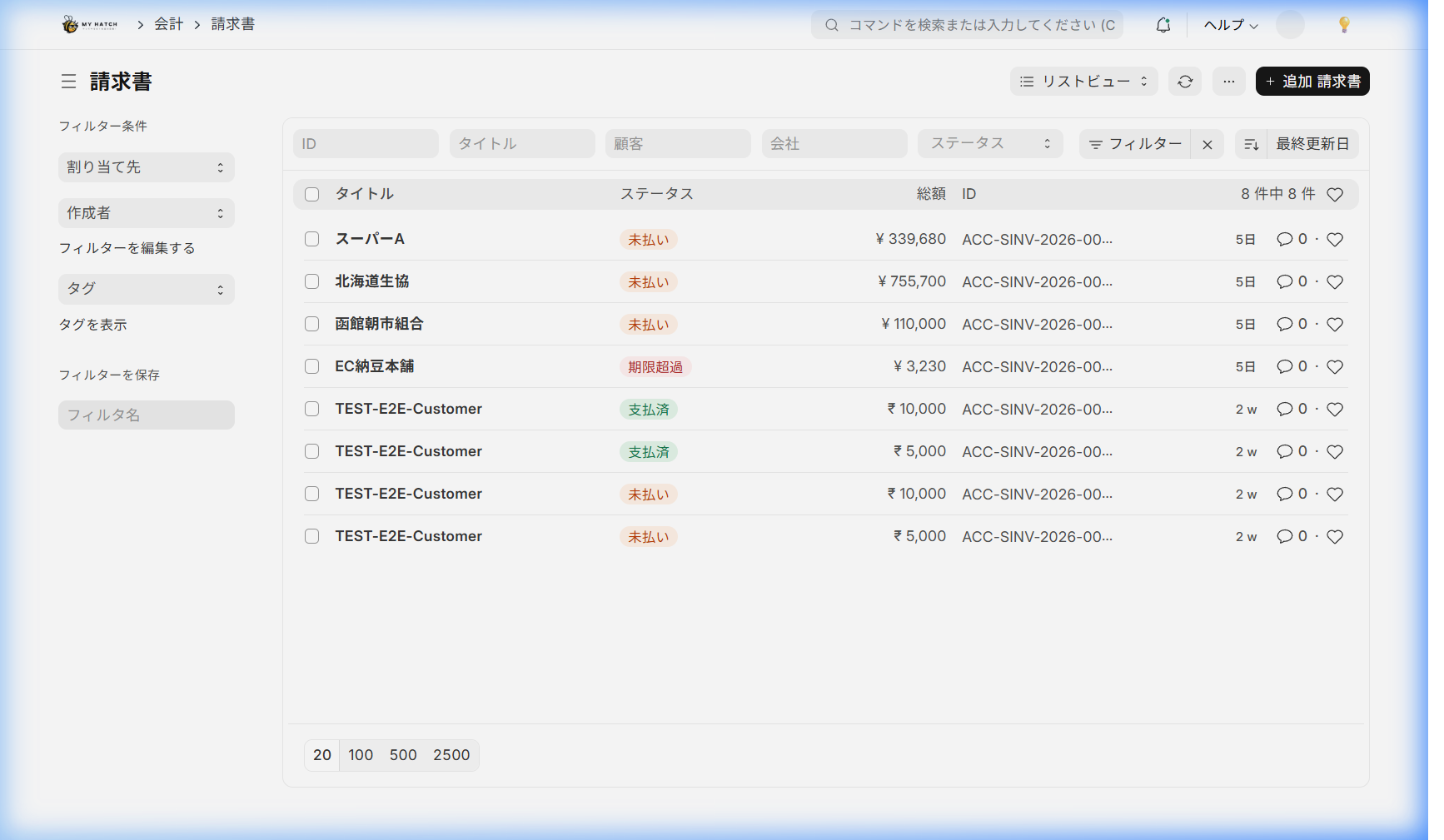
Overall view of the screen
An invoice is broadly divided into header information (who, when, and how much to invoice) and item table (what to invoice). By submitting it, accounts receivable and sales entries will be automatically recorded.

Header Information
| Item | Description | Required |
|---|---|---|
| Customer (Business Partner) | Billing Business Partner | Required |
| Invoice Date | Invoice Issue Date | Required |
| Payment Due Date | Payment due date | — |
| Payment Terms | Payment Terms Template (Example: End of Month Closing, Payment Due End of Next Month) | — |
Item Table
If you create the item from an order or shipping slip, the item will be entered automatically. If you create it manually, enter the following items.
| Item | Description |
|---|---|
| Item Code | Select from Item Master |
| Quantity | Invoiced Quantity |
| Unit Price | Selling Price |
| Warehouse | Warehouse for reducing inventory (when billing directly without shipping slips) |
tax
Apply the sales tax template in the "Taxes and Fees" section.
How to Create an Invoice
Method A: Created from order (recommended)
- Confirmed Order received Open
- Click "Create ▾" → "Invoice"
- Order details will be automatically transferred.
Method B: Created from shipping slip
- Confirmed Shipping slip Open
- Click "Create ▾" → "Invoice"
Method C: Create a new
- In the search bar
請求書type - Click "+ Add" and enter directly.
Operating Procedure (From Saving to Accounting Update)
Step 1: Save
Click "Save" to review the content. At this point, it's still a draft.
Step 2: Submission (Confirmation)
Clicking "Submit" will automatically trigger the following process.
- Recording Sales Journal Entries: A journal entry for "Accounts Receivable / Sales" will be automatically created.
- Recorded as accounts receivable: This will be reflected in the payment management system.
- Invoice number assignment: A confirmed number will be assigned.
Outputting and sending PDF via email
- Open the submitted invoice.
- Select Menu (⋮) → "Print" to view the PDF.
- Send an email to the customer via Menu (⋮) → "Email".
Record the deposit
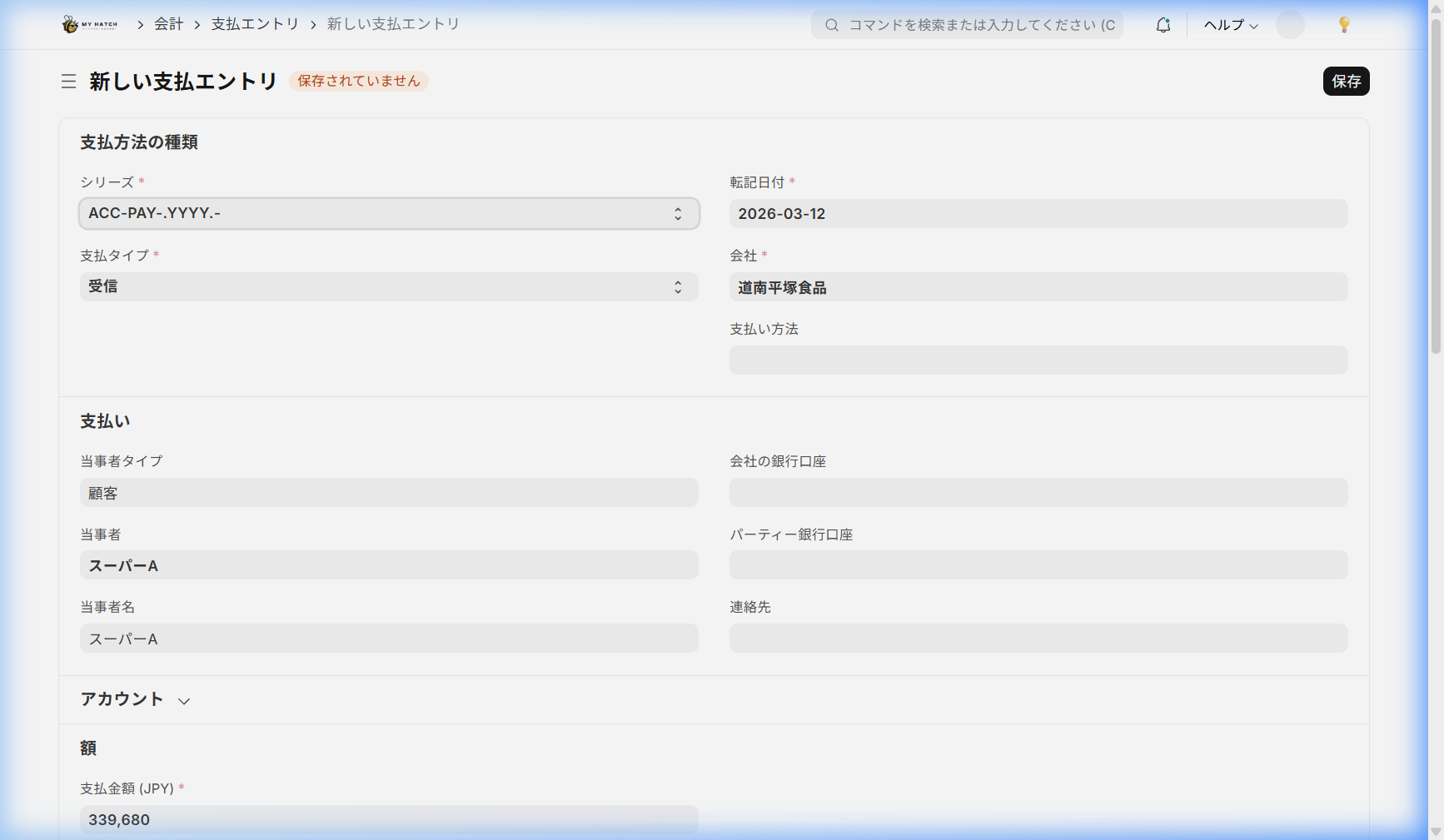
To record payment for an invoice, follow these steps:
- Open the submitted invoice.
- Click "Create ▾" → "Deposit"
- Enter the deposit amount, deposit date, and deposit method.
- "Save" → "Submit"
Once the full payment is recorded, the invoice status will automatically change to "Paid".
Invoice Status
| Status | Meaning |
|---|---|
| Draft | In progress |
| Submitted (Unpaid) | Invoice confirmed, awaiting payment |
| Partial Payment | Partial payment received |
| Paid | Full payment received |
| Overdue | Payment due date has passed and is unpaid |
| Cancellation | Canceled invoice |
Tips for Use
- It is standard practice to create these from order or shipping slips: This prevents transcription errors and makes it easier to maintain consistency with accounting.
- Always set a payment due date: The system automatically detects when a payment has been overdue, so you won't miss the opportunity to send a payment reminder.
- Record every payment: Even partial payments should be recorded promptly to accurately track accounts receivable balances.
Next Steps
Once you issue the invoice, Shipping slip Please also check the creation process.