
FAX Order Processing (FAX-OCR Workbench)
This document explains how to automatically read orders received via fax using OCR, verify and correct them according to their reliability, and then convert them into orders. Cross-review after import is performed in the Order Hub.
Related Articles To conduct a cross-review of orders after they have been imported: Order Hub FAX mode (
?mode=faxUse ). Manual data entry via face-to-face or telephone is Individual Order Entry EDI is EDI import See below. The overall sales process is Sales workflow Please refer to the following.
What you can do on this screen
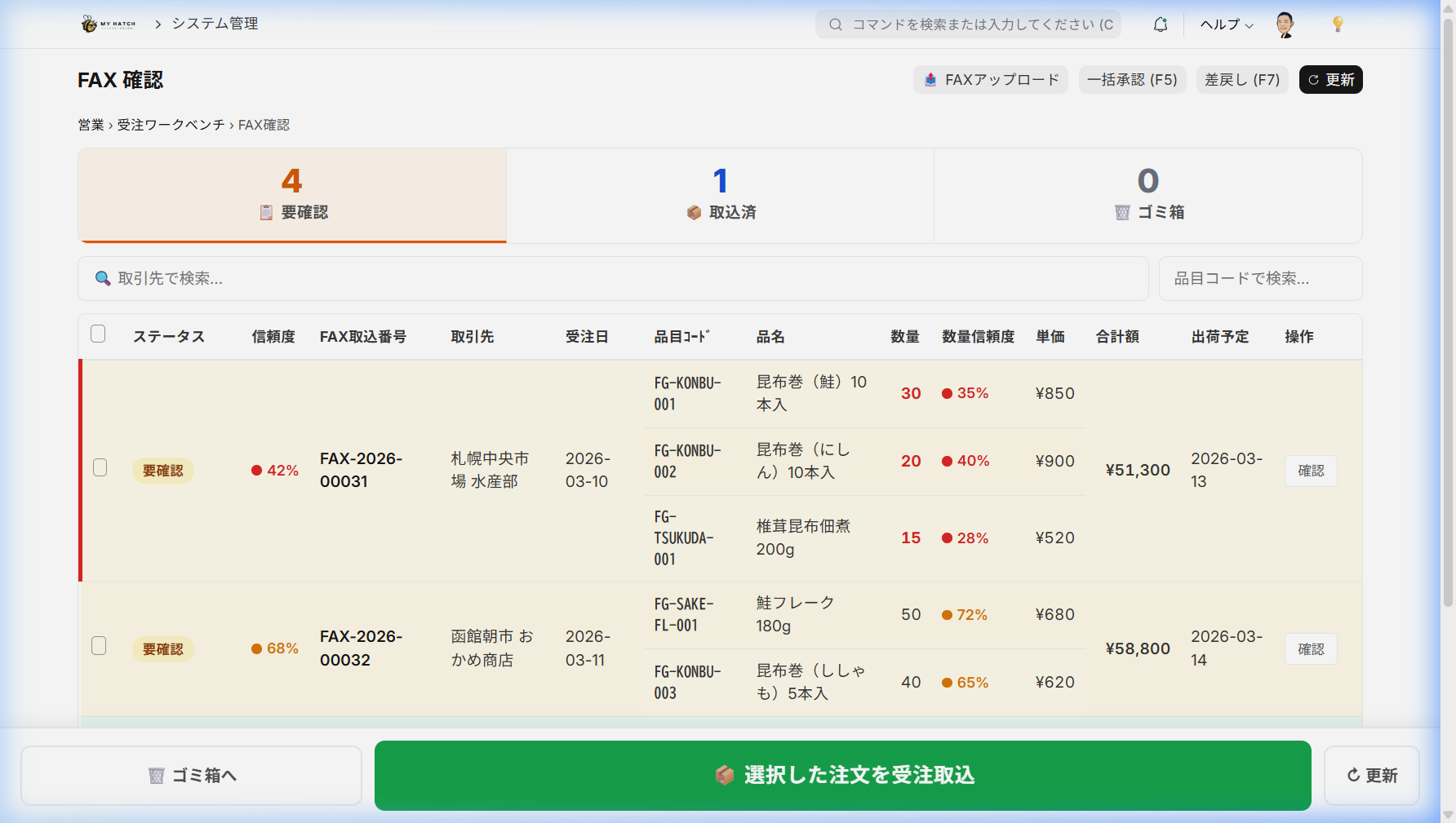
The FAX Order Workbench is a screen that automatically reads FAX orders automatically imported from eFAX or FTP folders using OCR, visually verifies them, and then converts them into orders.
- The system automatically reads and displays the text from the fax.
- The reading results will have a confidence rating, so you only need to check the suspicious parts.
- Once you register the format for each business partner, it will be automatically read with high accuracy from the next time onwards.
High-reliability orders are automatically approved, so the person in charge only needs to focus on reviewing low-reliability orders.
Screen URL:/app/fax-ocr-quarantine
Overall Flow
This is the process from receiving a fax to receiving an order.
FAX 受信 → 自動読取(OCR)→ 目視確認(赤だけ)→ 承認 → 受注取込
| Steps | What to do | Time required |
|---|---|---|
| Automatic FAX Import | FAXes are automatically imported from eFAX or FTP folders, and OCR reading is performed. | Automatic (approximately 30 seconds) |
| View in List | The scanned orders will be displayed in a list. Only the rows marked Requires Visual Verification need to be viewed. | 1-2 minutes |
| Compare with the original | Click on the row with the lowest confidence level and view and correct the original fax and the scanned result side by side | If necessary |
| Approval/Import | After "Approval → Confirmation," convert to an order using the "Import Order" button | 10 seconds |
Scene 1: Fax from a regular client (automatic approval pattern)
Faxes from regular clients with registered templates are automatically approved with a trust level of 85% or higher. The person in charge only needs to quickly glance at the list.
Operating Procedure
- Open the FAX Order Workbench.
- Confirm that the number of items marked "Requires Checking" at the top of the screen is 0.
- Select multiple "approved" orders using the checkboxes.
- Convert in bulk using F5 (Order Import) or "Batch Approval".
Scene 2: Low-reliability fax (matching pattern)
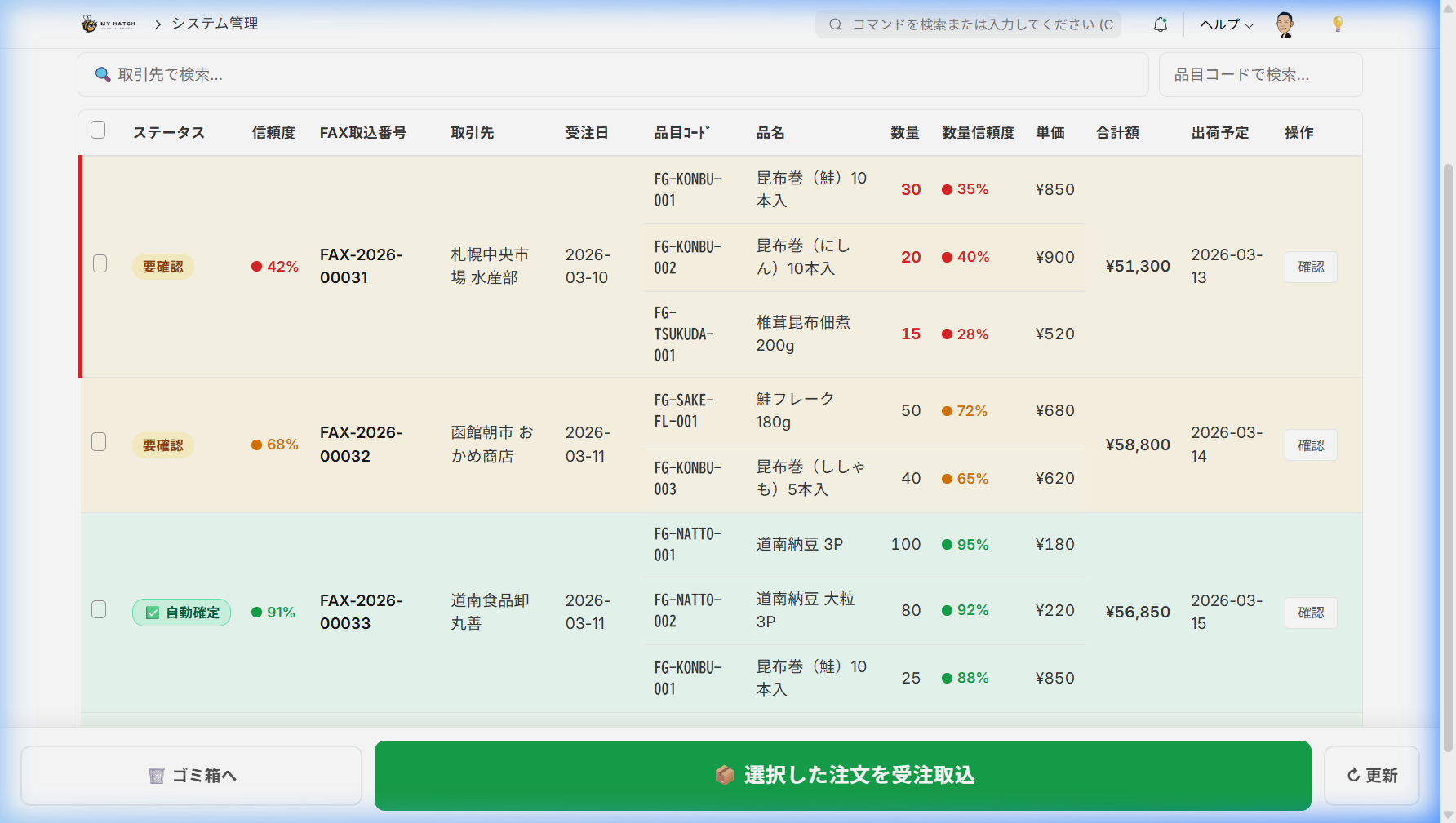
Items that the OCR may not be able to read are color-coded by their confidence level. Only the red rows need to be compared with the original fax document.
Three levels of confidence
| Reliability | Color | Meaning | What to do |
|---|---|---|---|
| 80% or higher | Green | High reading accuracy | Approve as is (automatic approval for 85% or higher) |
| 60-79% | Yellow | Slightly unsure | Check against original fax just in case |
| Less than 60% | Red | Potentially inaccurate | Must verify and correct using the original fax |
Operating Procedure
- Click the row in the list whose status is Requires Visual Inspection.
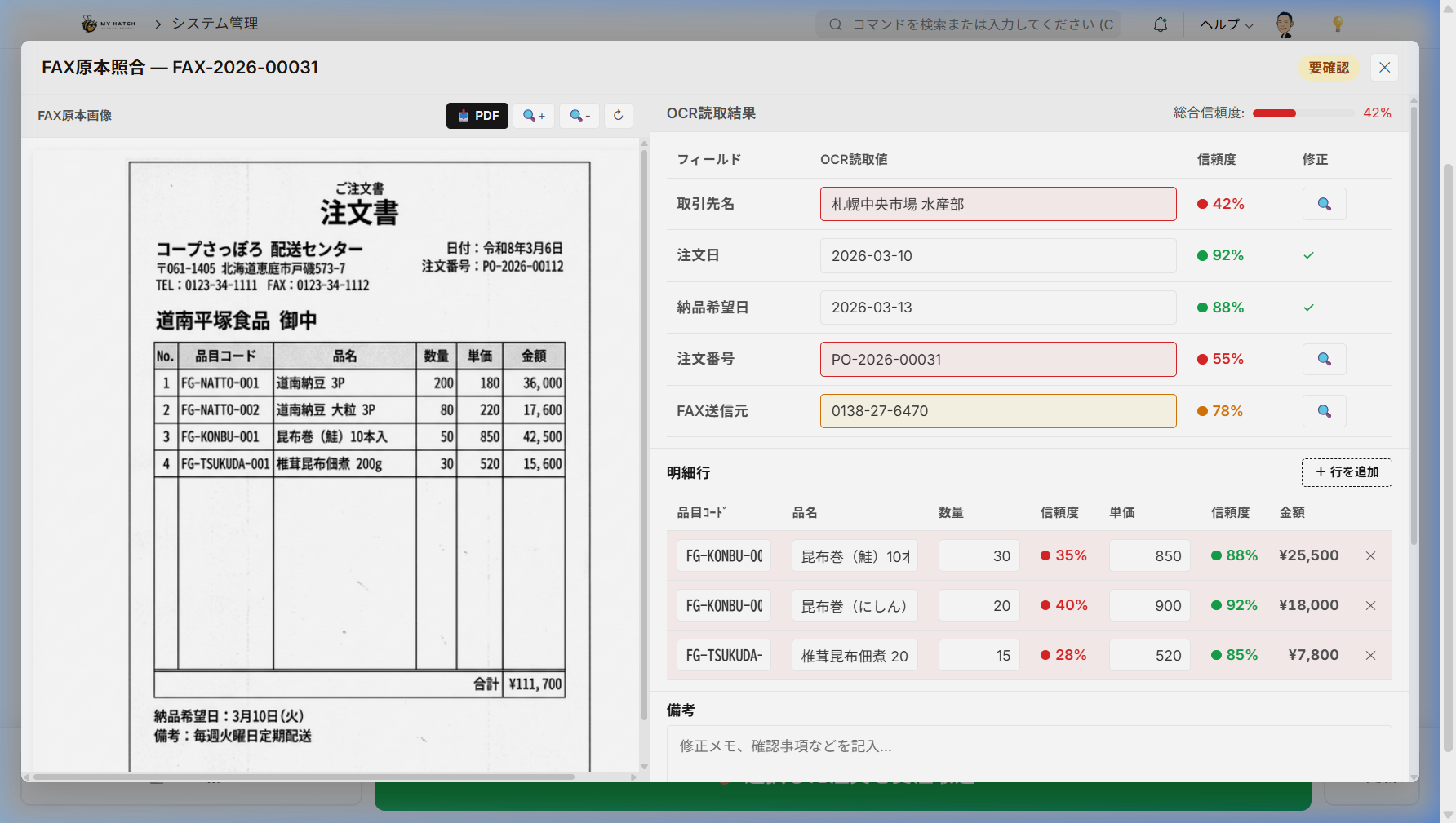
- The details screen opens (Left: Original fax image, Right: OCR reading result)
- While looking at the original fax on the left, check the items marked in red on the right.
- If there are any errors, click on the input field to correct them directly (an edit mark will appear where corrections have been made).
- You can also add or delete detail lines (using the "+ Add Line" button).
- After completing the revisions, save by clicking "Save Revised".
- If the information is correct, press "Approve → Confirm".
Layout of the details screen
| Area | Content |
|---|---|
| Left side (original fax image) | Displays the fax image. Zoom in/out, drag to move, and download as a PDF. |
| Right side (Header information) | Customer name, order date, desired delivery date, fax sender. Each item has a reliability mark. |
| Right side (details) | Item code, item name, quantity, unit price, amount. All can be edited, added, or deleted. |
| Right side (Notes) | Free-form input for correction notes or confirmations |
| Right side (Warning) | Automatic warning for low confidence levels, etc. |
| Flowchart | Step-by-step display of FAX reception → OCR reading → Confirmation (currently here) → Order conversion |
Scene 3: Fax from a first-time client (template setting)
First-time clients often have lower reliability because their forms (templates) haven't been registered. Registering a template just for the first time will allow for highly accurate automatic reading from then on.
Operating Procedure
- Open the details screen for orders without a registered template (low reliability).
- Click the "Template Settings" button on the details screen.
- The Template Builder screen will open in a new tab (the FAX image URL will be automatically provided).
- Specify the fax format (position of item name and quantity) in the template builder and register it.
- After registration is complete, subsequent faxes from the same business partner will be automatically read with high accuracy.
Screen URL (Template Builder):/app/fax-template-builder
Differences depending on whether a template is used or not
| Situation | Reliability Indicator | Response |
|---|---|---|
| Template available (Regular clients) | Over 80% approval rate | Automatic approval. Just a quick check. |
| No template available (New client) | Likely to be less than 60% | Register a template only the first time (approx. 5 minutes) |
Screen Configuration
Summary bar (top)
This is a summary bar that allows you to see the overall status of fax orders at a glance.
| Item | Meaning |
|---|---|
| To be confirmed | The number of orders that have not yet been visually checked. Processing is complete when the number reaches 0. |
| Line Item | Total of line items for all orders |
| Approved | Number of approved orders awaiting import |
| Return | Number of returned orders |
| Order Converted | Number of items converted to orders |
Filter bar
| Item | Description |
|---|---|
| Status | Filter by: Requires visual inspection / Approved / Returned / Order converted |
| Business Partners | Search by business partner name (real-time filtering as you type) |
| Confidence Level | Low confidence level only / Filter by medium or lower |
| Item | Search by Item Code |
Data Table (Center)
| Column name | How to read |
|---|---|
| Status | Requires visual inspection / Approved / Returned / Order converted |
| Confidence Level | Percentage display + Color coding (Green/Yellow/Red) |
| FAX Intake Number | FAX-XXXX-XXXXX Format management number |
| Client | Order source read from fax |
| Order Date | Order date as written on the fax |
| Item Code/Item Name | Ordered Items (Multiple items are displayed together) |
| Quantity | Order quantity. Low confidence levels are highlighted in yellow. |
| Quantitative Confidence | Quantitative reading confidence (per item) |
| Unit Price / Total Amount | Unit price of each item and total amount of the entire order |
| Scheduled Shipment | Desired delivery date as indicated on the fax |
Function keys (bottom)
| Keys | Functions |
|---|---|
| F3 | Verify original document (open details screen) |
| F5 | Import Orders (Convert selected orders into orders) |
| F7 | Delete (Delete selected order) |
| F8 | Reset filter |
| F11 | Refresh list to the latest version |
Operating Procedure
1. Upload fax (manual import)
In addition to automatic eFAX/FTP import, you can also manually upload fax images.
- Click the "FAX Upload" button at the top of the screen.
- Select a fax image file (PNG, JPEG, TIFF, PDF).
- Click "Execute OCR processing"
- The OCR process will be executed, and the details screen will open automatically upon completion.
2. Batch Order Import
- Check the boxes next to the desired orders in the list (you can also select all by checking the boxes in the header).
- Press the F5 key or click "Bulk Approval".
- Select "Yes" in the confirmation dialog.
- The selected orders will be converted into orders in bulk.
3. Bulk Delete
- Check any unnecessary orders (e.g., misdirected faxes).
- Click the F7 key or the "Delete" button on the details screen.
- Select "Yes" in the confirmation dialog.
Integration with Order Hub
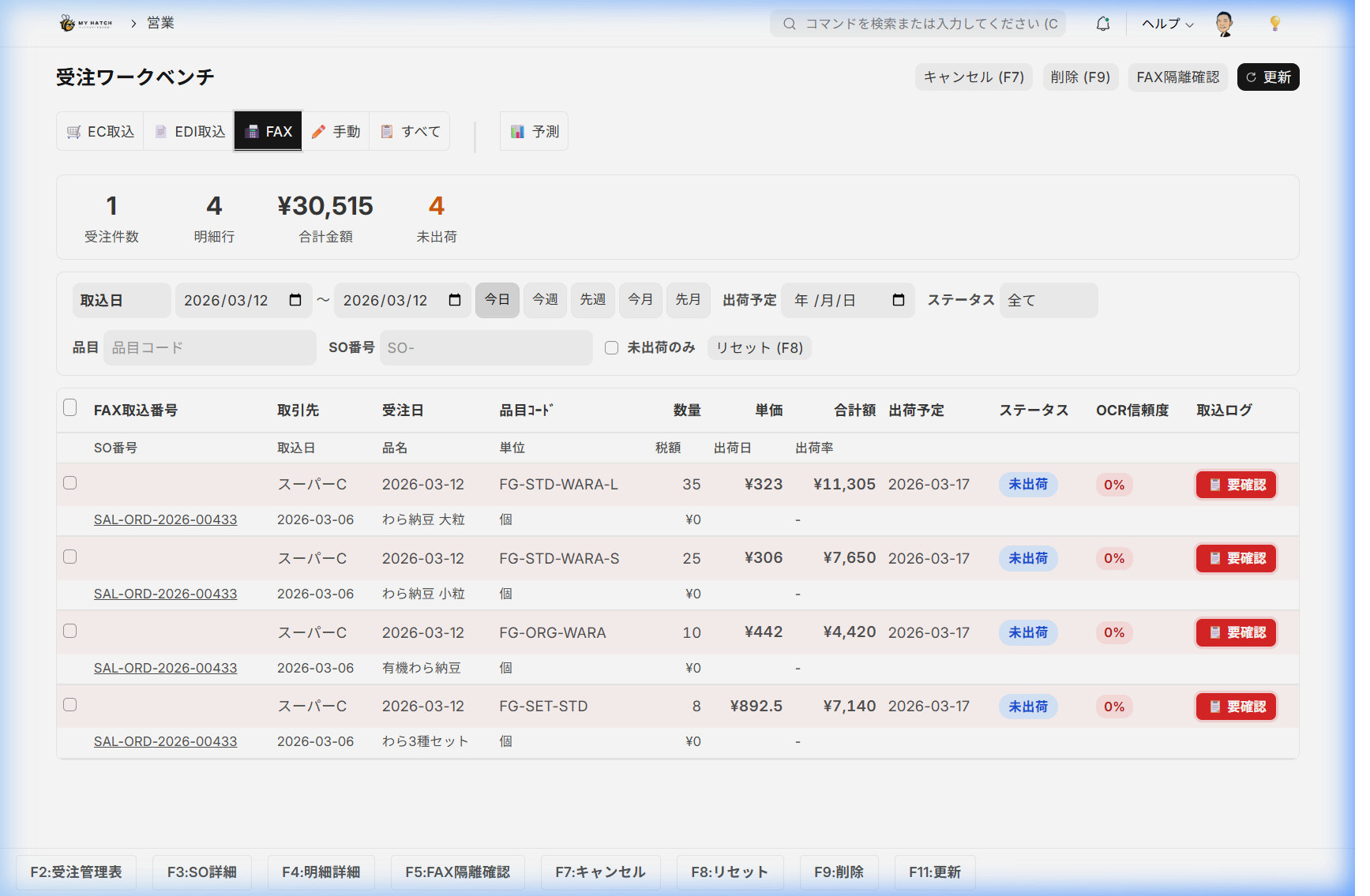
Orders converted using the FAX Order Workbench are also integrated into the Order Hub. You can view all your orders—EC (Rakuten, Amazon, Yahoo!), EDI, and FAX—on a single screen.
- Selecting the "FAX Import" tab in the Order Hub will filter and display only orders received via fax.
- The "All" tab allows you to view orders across all routes.
Tips for Use
- Only look at the red rows: Rows with a confidence level of less than 60% are highlighted in the list. You only need to compare these rows with the original fax.
- Fast operation with function keys: F3 for original document verification, F5 for order import, F7 for deletion. Major operations can be completed using only the keyboard.
- Revision History: The revised content will be reflected directly in the order. The original readings will also be recorded.
- Templates are for one time only: You only need to register the form for each client the first time. From the second time onwards, it will be automatically read with high accuracy.
- Esc key: The details screen can be closed by pressing the Esc key or clicking outside the screen.
- Demo Mode: URL
?demo=1By adding this option, you can check the screen's behavior with sample data.