
Sales funnel
This explains how to use the standard screen that visualizes the number and value of inquiries (sales negotiations) by stage using an inverted triangle. For detailed analysis, we will explain how to use it in conjunction with the CRM hub.
Related Articles In-depth analysis, batch operations, and saved views for individual business deals are available. CRM Hub Please use this. This screen is for simple company-wide overview purposes. The overall sales process is Sales workflow See below.
What you can do on this screen
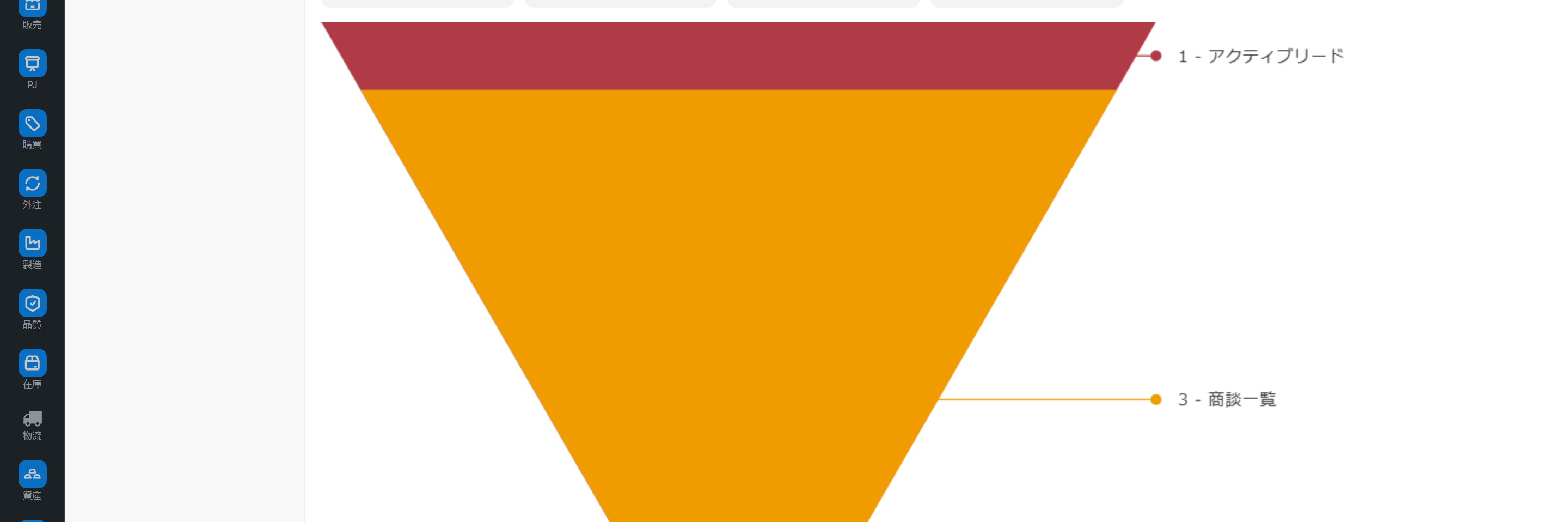
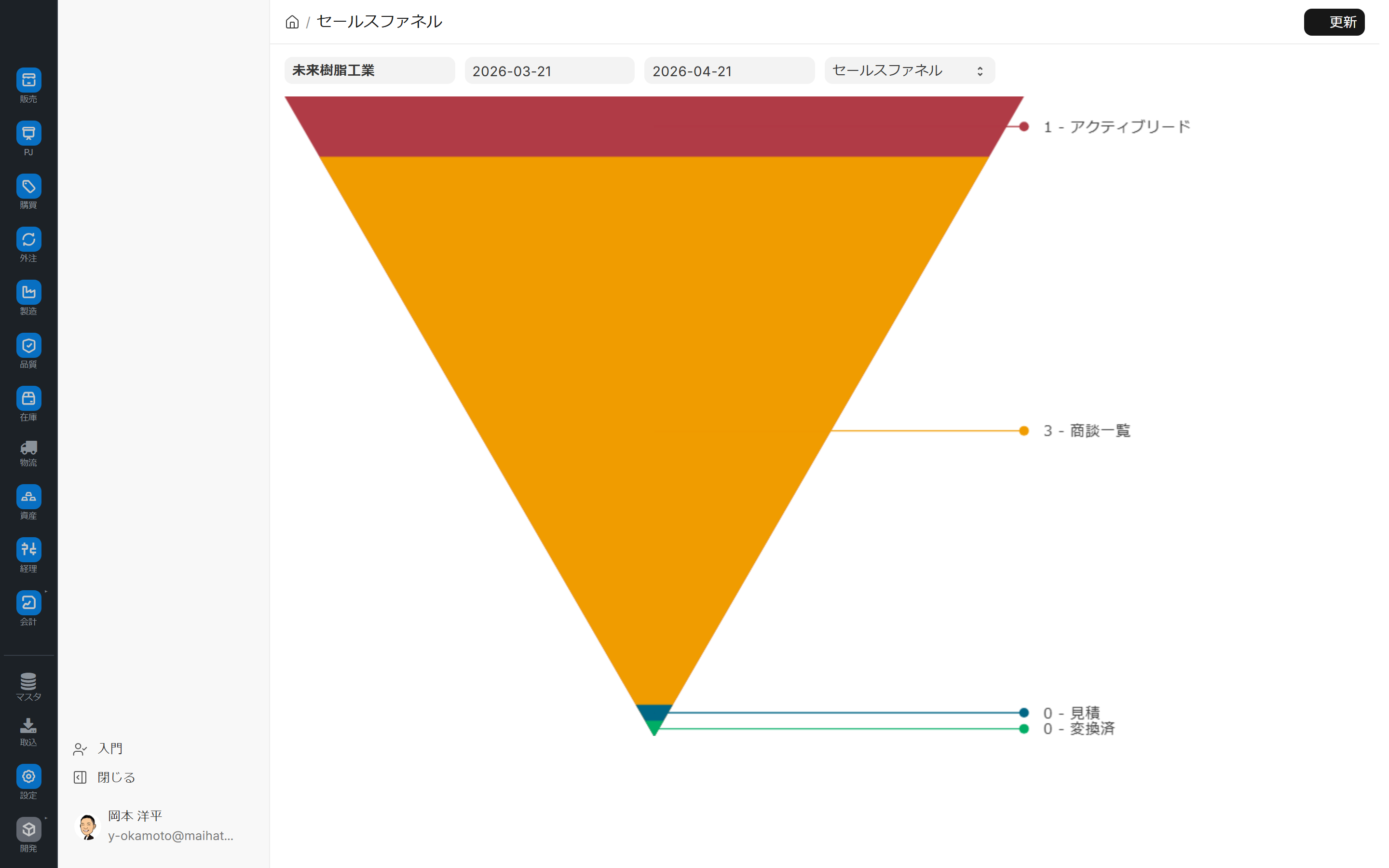
The sales funnel is a screen that visualizes the number and value of inquiries (sales negotiations) at each stage using an inverted triangle funnel diagram. You can see at a glance which stage of the sales negotiation is losing momentum, along with the conversion rate.
- Sales managers conduct weekly pipeline reviews.
- Identify the stage at which a business negotiation is stalling by using the conversion rate.
- Early forecast of quarterly order volume
- Share a common funnel diagram on your screen during team meetings.
Screen URL:/app/sales-funnel
How to use it with CRM Hubs
| Screen | Application |
|---|---|
| CRM Hub Pipeline View | Detailed Analysis/Bulk Operations/Saved View (Backward Compatible) |
| Sales Funnel (This Article) | Simple Company-Wide Overview (Complete using only standard features) |
The two screens have overlapping functions. Here's a guide to deciding which to use:
- Individual Sales Representative / Requires detailed filtering + in-depth analysis → CRM Hub
- Sales Manager / I only want a company-wide overview of the sales funnel shape → Sales Funnel
Overall view of the screen
The screen is composed of the following three elements from top to bottom:
| # | Area | Role |
|---|---|---|
| 1 | Period Filter | Specify a period (From / To) to narrow down the target opportunities |
| 2 | Funnel Diagram | The number of items at each stage is displayed as an inverted triangle |
| 3 | Stage-specific labels | Labels with counts on the right side of the funnel diagram |
Period Filter
- Specify the date range for From / To
- Filter by the date of the business negotiation.
Funnel Diagram
- Visualize the number of items in order of stage using an inverted triangle.
- The width narrows as the stage progresses (visualization of conversion rate)
Labels by Stage
On the right side of the funnel diagram, there are labels with the number of items for each stage (e.g.,1 - アクティブリード /3 - 商談一覧 /0 - 見積 /0 - 変換済 The following will be displayed. Since there is no separate amount table in the standard functionality, the number of items is checked using this label.
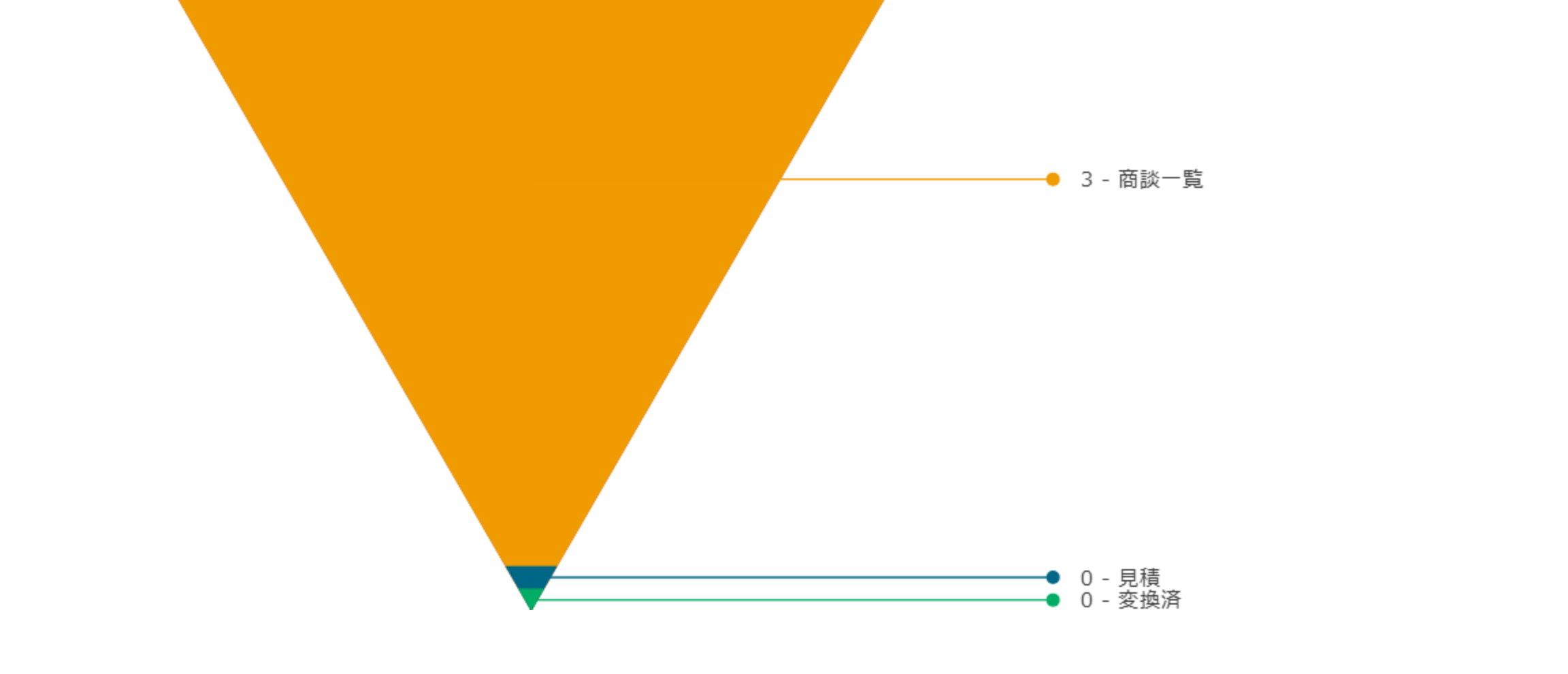
If you need to aggregate the amounts, you can aggregate the "Opportunity Stage" and "Opportunity Amount" on the Opportunity List screen or Report Builder, or CRM Hub Please use the pipeline view.
Main Operations
1. Weekly Review
- Open the sales funnel.
- Specify this week or this quarter in From / To.
- Confirm the shape using a funnel diagram.
- Identify stages with poor conversion rates.
- Details CRM Hub Switch to drill down
2. Comparison of Trends by Period
The standard features do not include a trend comparison screen. Comparisons with the previous month, etc., require switching time periods and viewing in separate tabs. Advanced comparisons are available. CRM Hub Or use a report builder.
3. Clicking on the number of items per stage
Clicking on the number will take you to a list of relevant business opportunities (standard drill-down).
Linked screens
| Linked to | Role |
|---|---|
| CRM Hub | In-depth analysis and batch operations |
| Quotation (Standard) / Estimate creation (component list) | From negotiation to quotation |
| Individual Order Entry | Creating a ticket after the order has been placed |
authority
Viewable with standard Sales Manager/Sales User equivalent permissions. Read access to sales opportunities is required.
Dependent Prerequisites
Required
- Deal Stage Master: If not configured, the funnel will be empty.
- The "stage" field of the business negotiation is filled.
Recommended
- There should be 2 to 5 or more deals distributed across each stage (the funnel shape is significant).
Points to note in the demo environment
- Check the status of the sales opportunity stage master.
- If the sales negotiations are not distributed across each stage, a funnel shape cannot be obtained.
Tips for Use
- Screen sharing during weekly meetings: Simple funnels are easy for everyone to understand.
- For more details, visit the CRM Hub: Analyze the causes of declining conversion rates using the pipeline view in the CRM Hub.
- Review the sales stage at the beginning of the month: If the stage definition does not match reality, the sales funnel will become distorted.
- Time-series comparison in Report Builder: Since there is no time-series comparison function in the standard features, create your own report using Report Builder.
FAQ
Q: What are some other display formats besides funnel diagrams?
The standard sales funnel is only a funnel diagram. If you want to change the graph format, CRM Hub Please use a report builder.
Q: How is the conversion rate calculated?
The standard funnel is count-based (number of opportunities in the next stage ÷ number of opportunities in the current stage). The conversion rate based on value is calculated manually by aggregating the values on the opportunity list screen or in the report builder.
Q: The funnel is blank.
The sales opportunity stage master is not yet set up, or the sales opportunity stage has not been configured. Please ask your administrator to update the master data.
Q: How is this different from the pipeline view in CRM Hub?
They deal with almost the same information,
- Sales Funnel: Standard features, simple display only
- CRM Hub: Unique features, advanced functions such as filtering, searching, bulk operations, and saved views.
For business use, CRM Hub is recommended. This screen remains as a "minimum configuration that can be completed using only standard functions."
Q: Can it be customized?
This is the standard screen, so no customization has been done. If you require significant customization, CRM Hub You can either integrate it into the existing screen or create a separate screen.
Next Steps
- Detailed management of individual business negotiations → CRM Hub
- Create a quote → Quotation (Standard) / Estimate creation (component list)
- Progress after order confirmation → Order progress board
- Overview of sales operations → Sales workflow