
Quotation (Standard)
This guide explains the steps involved in creating and submitting a quotation to a customer using a standard form. It uses a basic input screen that utilizes the same save location as the bill of materials, process-based costing, and mobile versions.
Related Articles When you want to structure it in a section hierarchy Estimate creation (component list) When you want to add up costs by process Estimate creation (cost breakdown by process) For smartphones Mobile Estimate Please refer to the following. In all cases, the data is saved in the same location (quote data), and you simply use the appropriate input screen depending on your purpose. The overall quotation process for sales is Sales workflow Please refer to the following.

What you can do on this screen
A quotation is a document used to present the price and terms of a product or service to a customer. This screen is for creating a quotation using the most basic, standard form.
- You can create a quotation by entering the customer, item, quantity, and unit price.
- Confirmed quotes can be converted into orders with a single click.
- PDF output and email sending are also possible.
Overall view of the screen
The screens are arranged from top to bottom in the following order:
- Header Information: To whom, when, and until when is the quotation valid?
- Item Table: What to offer, how many, and at what price.
- Taxes and Discounts: Setting of sales tax and discounts
- Notes and Conditions: Supplementary information such as payment terms.
Steps to create a quotation
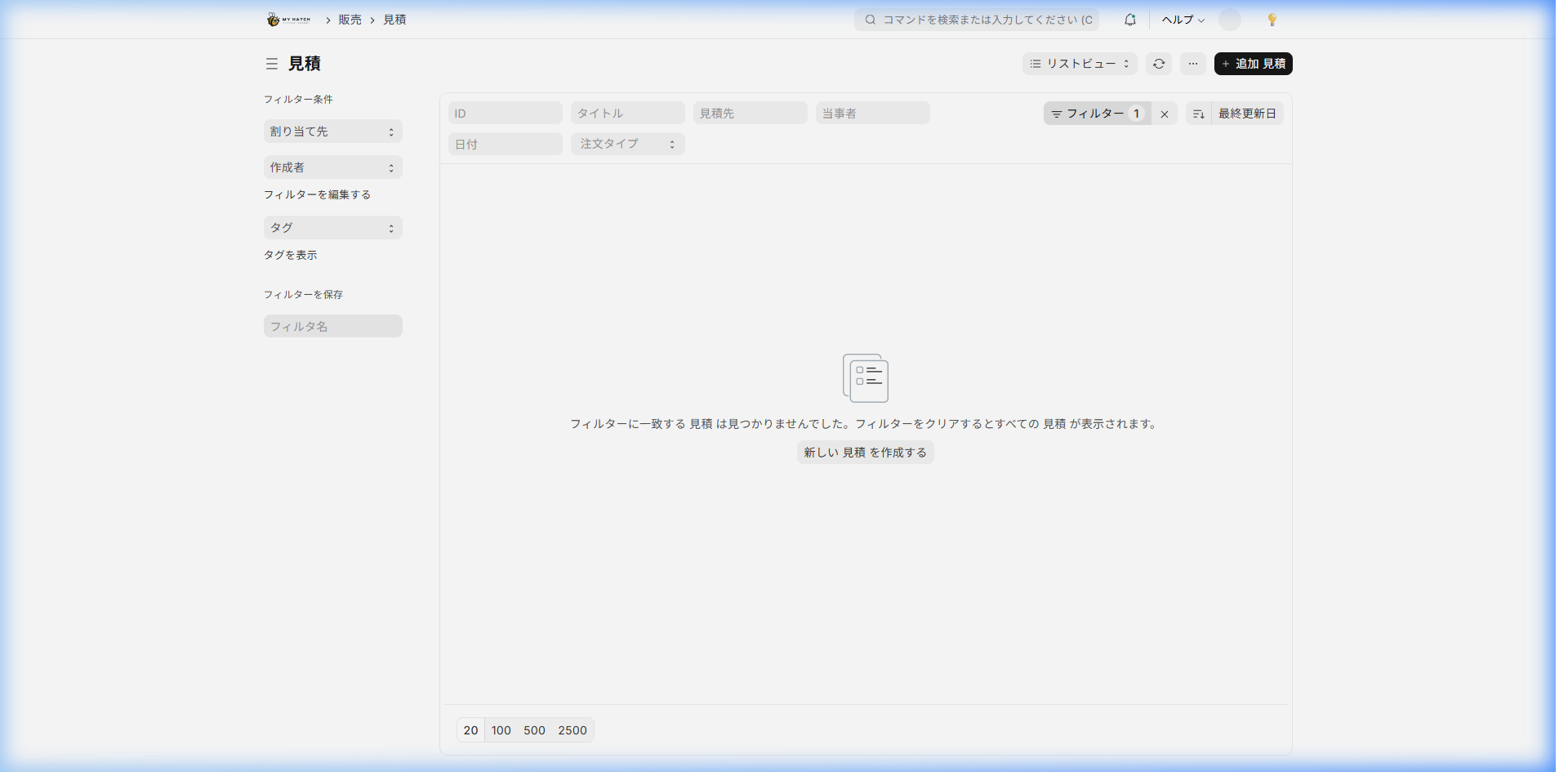
Step 1: Open the list of quotations
Click on "Sales" in the sidebar, then click on "Quotation", or enter in the search bar.見積書 Enter the following:
Step 2: Create New
Click the "+ Add" button in the upper right corner.
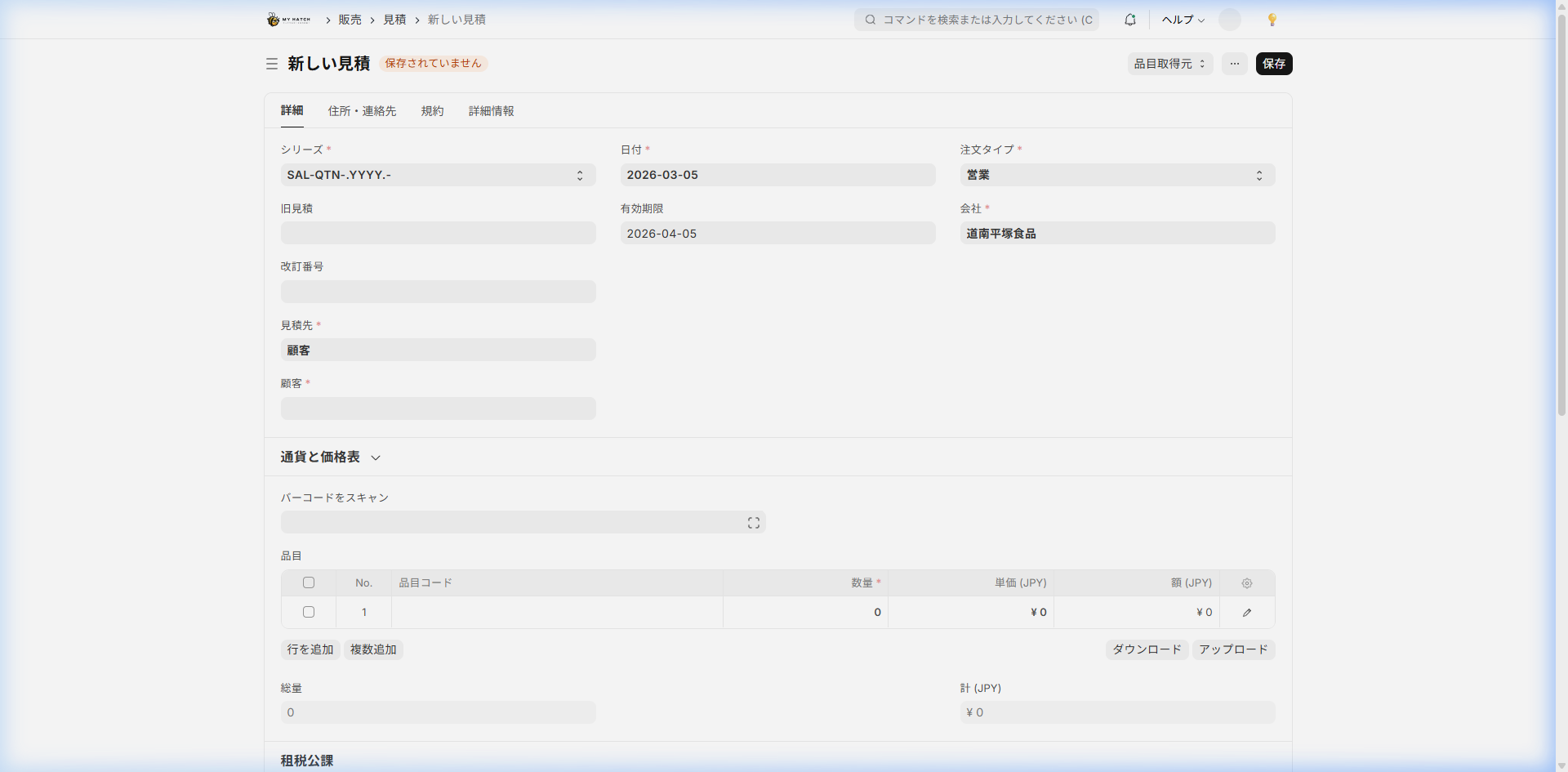
Step 3: Enter header information
| Item | Description | Required |
|---|---|---|
| Quote Destination Category | Select "Customer" or "Prospect" | Required |
| Customer (Business Partner) | Select the name of the target business partner | Required |
| Date | Estimate Date (Default is today) | Required |
| Expiration Date | Validity Period of Quotation | — |
| Order Category | Categories such as "Sales" and "Maintenance" | — |
Step 4: Add items (details)
Enter the products and services into the item table.
- Click "Add Row"
- Enter the following information: | Item | Description | |---|---| | Item Code | Select from Item Master (Suggestions will appear as you type) | | Quantity | Estimated Quantity | | Unit Price | Selling Unit Price (The standard unit price from the item master is displayed initially) | | Amount | Quantity × Unit Price (Automatically calculated) |
- If there are multiple items, repeat the "Add Row" process.
Step 5: Set up taxes and discounts
- Sales Tax Template: Select the tax template to apply in the "Taxes and Fees" section.
- Additional Discount: Enter the discount rate or discount amount in the "Additional Discount" section.
Step 6: Save
Click "Save" (Ctrl + S ). This is still a draft at this point.
Step 7: Submission (Confirmation)
Please review the content and click the "Submit" button if everything is correct. Once submitted, the quotation will be finalized and you will be able to print it as a PDF or email it to your customer.
Output the quotation as a PDF
- Open the submitted quotation.
- Select "Print" from the menu (⋮).
- Select a print format and click "PDF".
Converting Quotations into Orders
Finalized quotes can be converted into orders with a single click.
- Open the submitted quotation.
- Click the "Create ▾" button in the upper right corner.
- Select "Order Received"
- An order form with automatically filled-in information will open.
- Review the content and click "Save" → "Submit"
Status of the Quotation
| Status | Meaning |
|---|---|
| Draft | In progress (editable) |
| Submitted | Confirmed (Ready to submit to client) |
| Order Received | An order was created from this quote. |
| Unsuccessful | Lost the deal (recorded as unsuccessful) |
Tips for Use
- Always include the expiration date: Including expired quotes will complicate sales management.
- Organize the item master: Registering standard unit prices in the master eliminates the need to enter unit prices every time.
- Use different screens depending on the purpose: Use the structure table type for hierarchical structures, the process cost type for calculating process costs, and the mobile estimation feature is convenient when you're on the go.
FAQ
Q: Can I revise the quotation after submitting it?
Submitted quotations cannot be edited directly. Please cancel the previous one using the "Edit" button and then create a new quotation.
Q: I would like to change the numbering system for the quotation.
In the search bar命名規則 Entering this will allow you to set the numbering rules for each form.
Next Steps
- I want to build it in a hierarchical structure → Estimate creation (component list)
- We want to accumulate costs by process → Estimate creation (cost breakdown by process)
- Get an instant quote while you're out → Mobile Estimate
- Convert to order → Individual Order Entry
- Overview of sales operations → Sales workflow