
Customer Master
This document explains the procedures for registering new business partners (customers) and managing their basic information. It covers how to handle business partner information, which forms the foundation of daily sales activities and is linked to the CRM command center.
Related Articles This article deals with formal registration and editing. Activity management from the prospect to deal stage is handled separately. CRM Control Tower The overall sales flow is Sales workflow Please refer to the following.
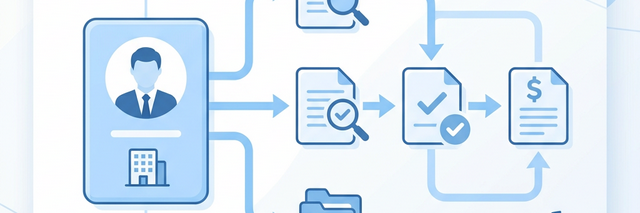
What you can do on this screen
The Customer Master screen is where you register and manage customer information, which forms the basis of all sales documents, including quotations, orders, and invoices.
- Registering a new business partner (company name, address, contact person)
- Updating information on existing business partners
- Classify business partners to make aggregation easier (customer groups)
All sales documents are linked to this customer master.
Register a new business partner
Step 1: Open the list of clients
Click on "Sales" in the sidebar, then click on "Clients (Customers)", or enter in the search bar.取引先 or顧客 Enter the following:
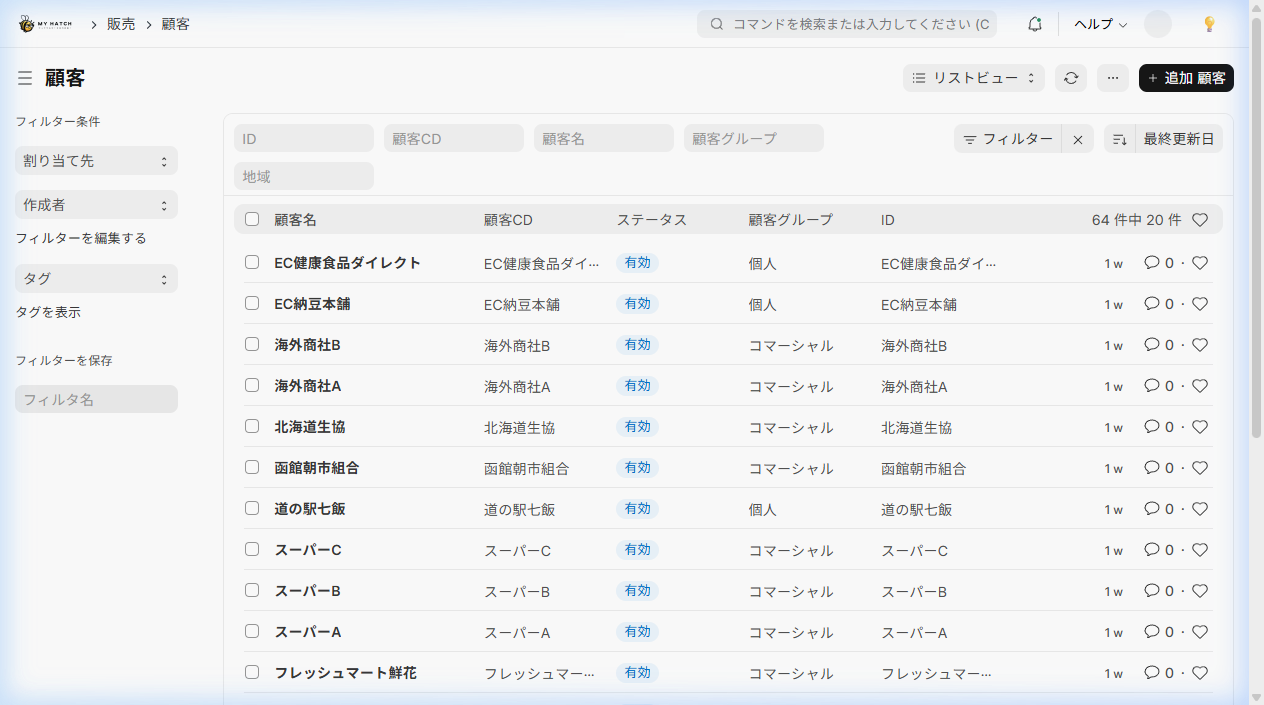
Step 2: Create New
Click the "+ Add" button in the upper right corner.
Step 3: Enter basic information
Please enter the following information.

| Item name | Contents | Required |
|---|---|---|
| Client Name | Official Name (e.g., XX Trading Co., Ltd.) | ✅ |
| Customer Type | Select "Company" or "Individual" | ✅ |
| Customer Groups | Classification Groups (e.g., Wholesale, Retail, Direct Sales) | ✅ |
| Region | Location (e.g., Kanto, Hokkaido) | ✅ |
Step 4: Add Address and Contact Information
At the bottom of the input screen, under "Address and Contact Information", register using the following steps.
- Click "+ Add Address"
- Enter your postal code and address.
- Click "+ Add Contact"
- Enter the contact person's name, phone number, and email address.
Step 5: Save
Save button (orCtrl + S Click ) to complete registration.
Edit customer information
The procedure for editing a registered business partner is as follows:
- Click on the name of the target customer from the customer list.
- Change the item you want to modify.
- Click "Save"
Utilizing Customer Groups
By setting up customer groups, you can aggregate accounts by group in reports.
How to set it up:
- In the search bar
顧客グループtype - Check existing groups from the list, or create a new one using "+ Add".
- Enter the group name and save.
Examples of commonly used groups:
- Wholesale — For wholesalers and trading companies
- Retail — For stores and e-commerce
- Direct Sales — Direct transactions with end users
FAQ
Q: Can I delete a business partner?
You cannot delete business partners to whom transaction data (quotes, orders, etc.) is linked. If you wish to stop the transaction, please check "Invalid" on the input screen.
Q: What if there are multiple billing addresses for the same company?
You can register multiple addresses for a single business partner. Please use the appropriate address type (billing address, shipping address, head office) for each.
Next Steps
- Integrated management of sales activities → CRM Control Tower
- Creating a quotation → Estimate creation (structure table format)
- Order entry → Individual Order Entry
- Overall picture of sales operations → Sales workflow